102
Input Setup
Video Default settings are underlined.
Set the source video.
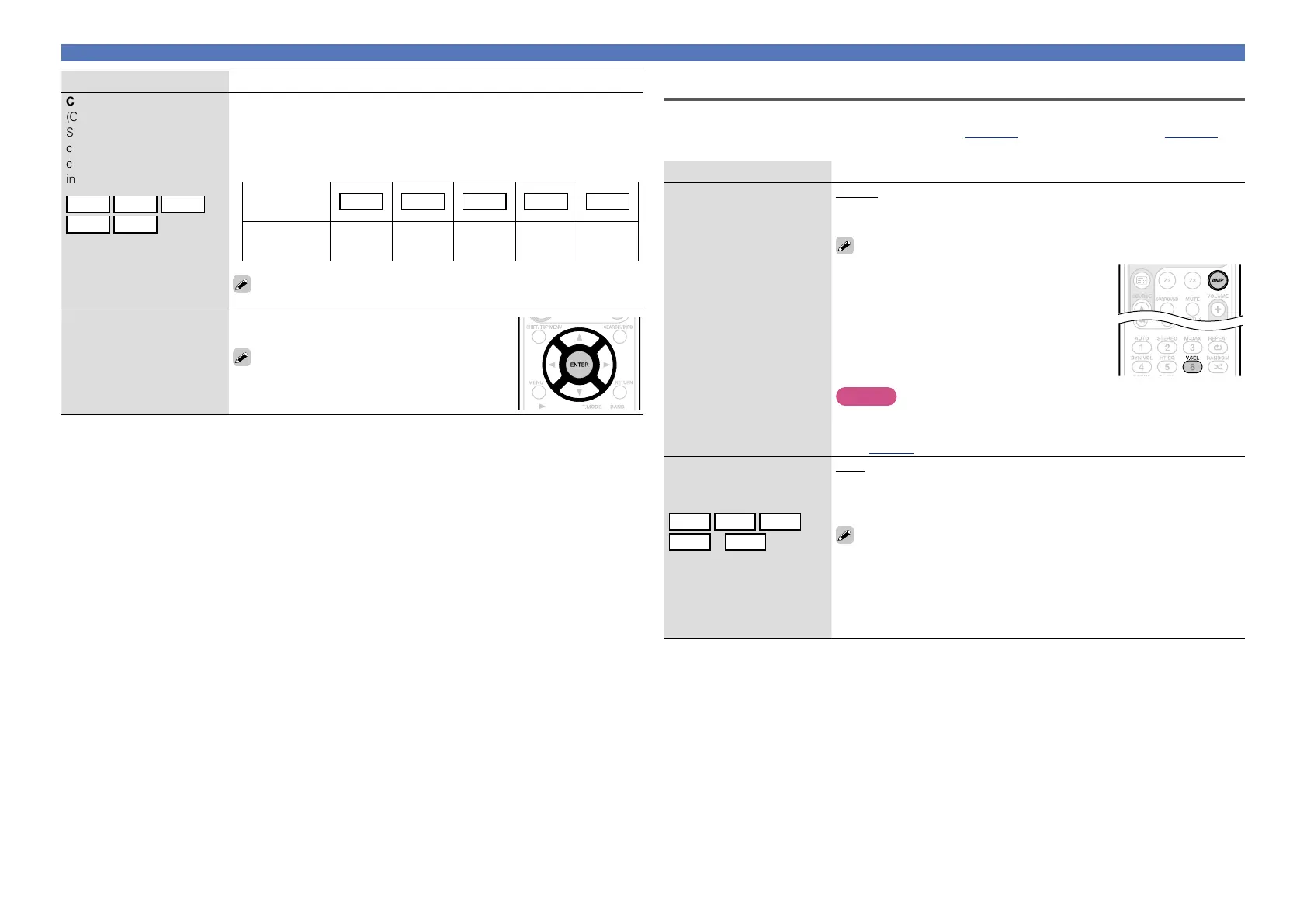
z “GAME” or “TV” can be set when “HDMI” (vpage101) or “COMPONENT” (vpage 102) has
been assigned.
Setting items Setting details
Video Select
Video of another input
source is played back
combined with the playing
audio.
Source : Play the picture and sound of the input source.
BD / DVD / SAT / GAME / TV : Select video input source to view. This can
be set for individual input sources.
•“GAME” and “TV” can be selected only when a
component video is assigned as an input source.
•Buttons on the remote control unit can be used
for operations.
q Press AMP to set the remote control unit to
AMP-operation mode.
w Press V.SEL until the desired picture appears.
•To cancel, press V.SEL to select “Source”.
NOTE
•It is not possible to select HDMI input signals.
•Input sources for which “Delete” is selected at “Source Delete”
(vpage96) cannot be selected.
Video Mode
Make settings for video
processing.
BD
DVD
SAT
GAME
z
TV
z
Auto : Process video automatically based on the HDMI content
information.
Game : Always process video appropriate for game content.
Movie : Process video normally.
•If “Video Mode” is set to “Auto”, the mode is switched according to the
input contents.
•If a source is played in both MAIN ZONE (audio and video) and ZONE2
(audio only) modes in the same room, audio in MAIN ZONE and ZONE2
modes may sound out of synchronization, but this is not malfunction. In
this case, setting to “Game” mode may improve audio synchronization.
Setting items Setting details
COMPONENT
(Component video)
Set this to change the
component video input
connectors assigned to the
input sources.
BD
DVD
SAT
GAME
TV
1-RCA / 2-RCA
None : Do not assign a component video input connector to the selected
input source.
•At time of purchase, the settings of the different input sources are as
shown below.
Input source BD DVD SAT GAME TV
Default
setting
1-RCA 2-RCA None None None
An input source to which an component video input connector cannot
be assigned is displayed as “– – –”.
Default
The “Input Assign” settings
are returned to the default
settings.
Yes : Reset to the defaults.
No : Do not reset to the defaults.
If you select “Default” and press ENTER, the
message “Return settings to the default?”
is displayed. Select “Yes” or “No”, and then
press ENTER.




 To Next Page