11
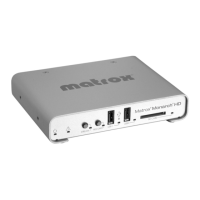
Matrox Monarch HD hardware
Remarks
• A power cycle of the Monarch HD performs a simple reboot, not a reset to
factory defaults.
• When using the Reset button, any saved profiles for streaming and recording
are maintained, and all logged errors are cleared (see “Monarch HD errors”
on page 24).
• The Reset button is recessed in order to prevent unintended activation. Use a
straightened paper clip, or similar device, to press the Reset button.
• Holding the Reset button pressed for more than five seconds will reset the
device to factory defaults.
Device reboot
When performing a device reboot, all current settings are maintained, including
the IP mode (DHCP or Static) that was set prior to the reboot.
¦NoteTo reboot the device and switch to Static IP mode, see “Switch to Static
IP mode” on page 11.”
If you have a USB device connected to USB port 2 on the Monarch device, the
Monarch’s current IP address and status is saved to the USB device as a text file.
This is a convenient way to find the Monarch’s IP address.
To reboot Monarch HD, do one of the following:
• Using a paper clip, press the recessed pinhole Reset button on the device.
The device begins a power-up sequence during which all LEDs illuminate.
The device is ready when two or more of the recording destination LEDs
(USB port 1, USB port 2, SD Card) turn off, depending on your settings.
• Open the Matrox Monarch HD Utils application, select the Monarch HD
device you wish to reboot, and then click
Reboot Selected.
Switch to Static IP mode
You can switch your Monarch HD device to Static IP mode by pressing the
Record button while the Record LED flashes during the power-up sequence.
1 Press the Reset button on the device to initiate a device reboot. During the
power-up sequence (all LEDs illuminate), the Record LED flashes for three
seconds.
2 Press the Record button on the device while the Record LED is flashing.
This sets the device to Static IP mode and the Static IP address to its default
address (169.254.1.11).
The device is ready when two or more of the recording destination LEDs (USB
port 1, USB port 2, SD Card) turn off, depending on your settings.


 To Next Page