10
Chapter 2, Matrox Monarch HD Hardware and Connections
power-up sequence during which all LEDs illuminate. The device is ready when
two or more of the recording destination LEDs (USB port 1, USB port 2, SD
Card) turn off, depending on your settings. To power off Monarch HD,
disconnect Monarch HD from the power source. For power specifications, see
Appendix C, “Matrox Monarch HD Specifications.”
¦NoteWhen the device is powered off, all current settings are maintained and
any logged errors are cleared (see “Monarch HD errors” on page 24).
Using the Reset button
You can use the Monarch HD Reset button to reboot the device (quick button
press), or reset the device to factory defaults (long press of at least five seconds).
In addition to the typical reasons for rebooting the Monarch (fixing errors or
other issues), a reboot (see “Device reboot” on page 11) also saves the Monarch’s
IP address and status to a connected USB device (USB port 2) as a text file. This
is a convenient way to find the Monarch’s IP address.
A factory reset allows you to switch to a Static IP (see“Switch to Static IP mode”
on page 11), or load pre-configured Monarch settings from a configuration file on
a USB device connected to USB port 2 (see “Automatic configuration page” on
page 43).
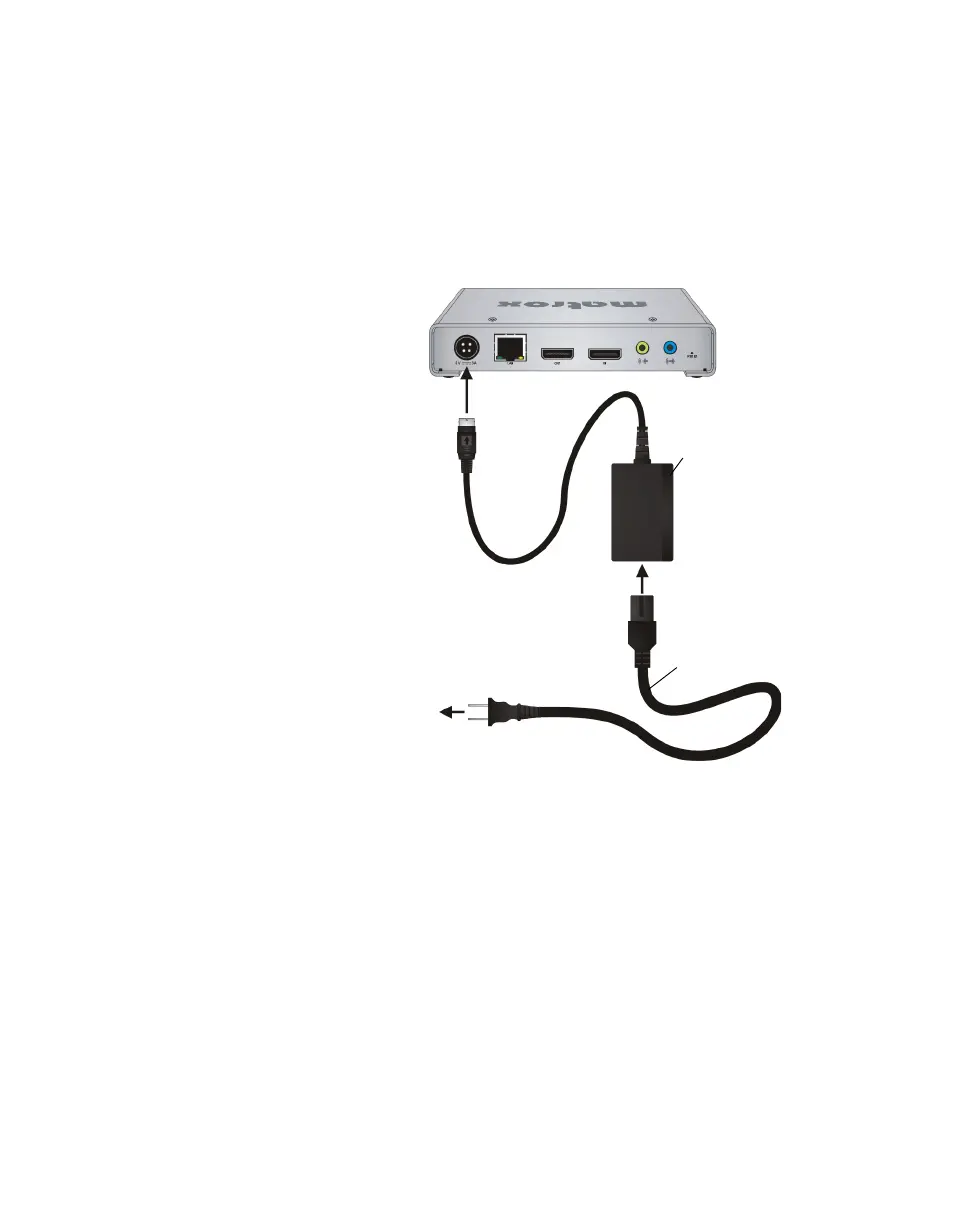
External
power supply
To AC
outlet
Power cord
²Caution When
disconnecting the power
supply from Monarch HD,
make sure that you slide
back the casing on the
connector to release the
locking mechanism.
Monarch HD


 To Next Page