42
Chapter 4, Using the Command Center
°To prevent the Monarch HD from appearing:
1 Access the Monarch HD Command Center (see “Accessing the Command
Center” on page 19).
2 Choose Device > IP Setup.
3 Clear Display this Monarch HD on the network as a UPnP device.
4 Click Apply.
The Monarch HD will no longer be visible in Windows Explorer as a UPnP
device. You may need to restart Windows Explorer for Monarch HD to no longer
appear on the network.
¦NoteBy using this option, this Monarch device will not automatically appear
on the Monarch HD Utils list of connected devices. You must use the
Find All
button for the Monarch HD to appear.
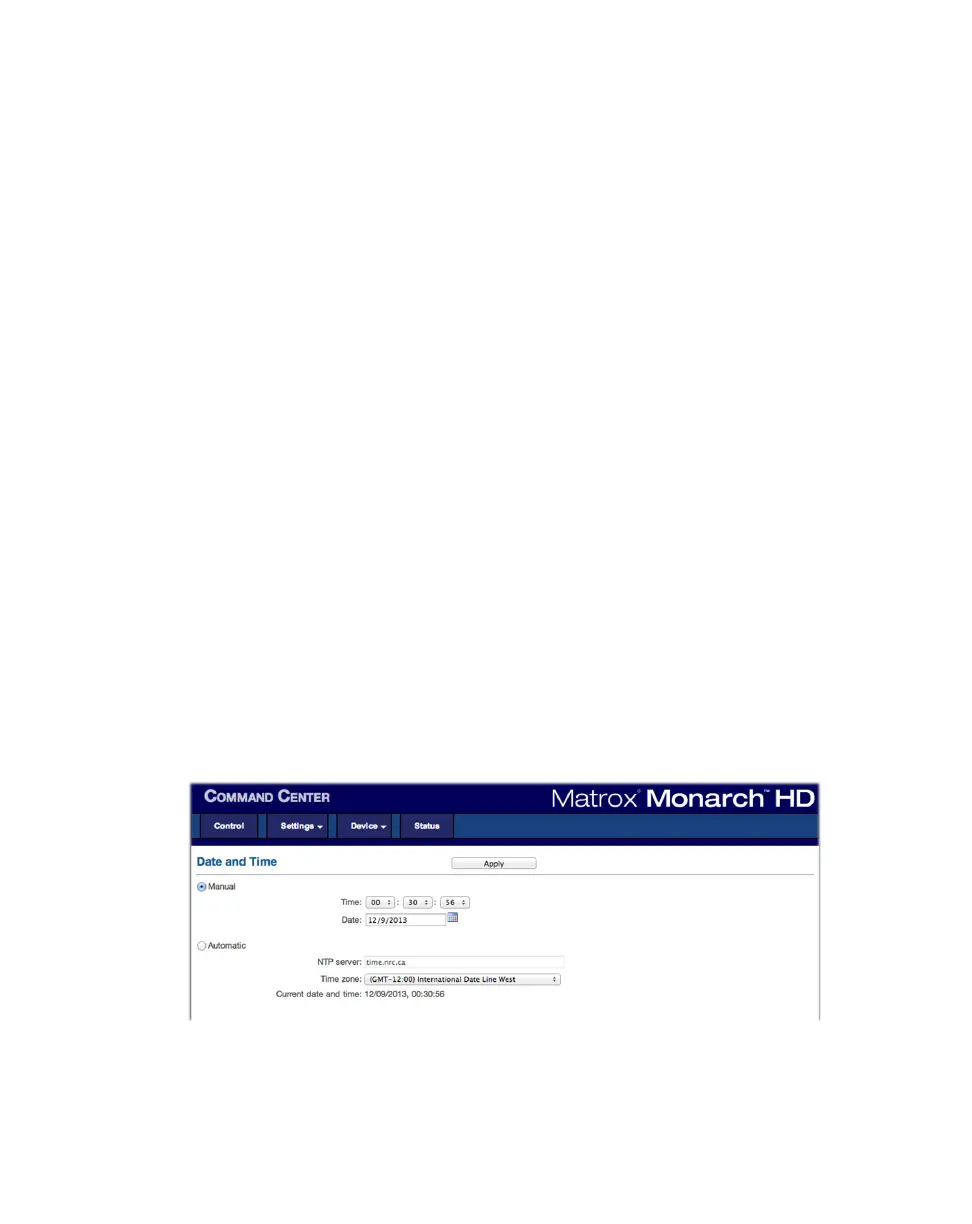
Date and Time page
The Date and Time page in the Command Center lets you set the date and time
for your Monarch HD device. You can set the date and time manually or
automatically by using an NTP server. The date and time are used in the naming
of the recorded files (see “Path and filename” on page 37).
¡ Important To save changes made in the Date and Time page, you must click
the
Apply button. A Monarch HD hardware reboot is required to apply the
changes. If you leave the
Date and Time page before clicking Apply, all
changes will be lost.
To access the
Date and Time page, open the Monarch HD Command Center
(see “Accessing the Command Center” on page 19), and then choose
Device >
Date and Time
.


 To Next Page