40
Chapter 4, Using the Command Center
the Matrox Monarch HD Utils application (see “Monarch HD Utils application”
on page 16). This is especially useful when you have multiple Monarch HD
devices on the same network. To change the name of your Monarch HD, type the
desired name in the
Device name box, and then click Change.
By default, the Monarch HD username and password are set to admin. The
device username cannot be changed, however, we do suggest that you change the
device password. To change the Monarch HD password, enter the current and
new passwords and then click
Change. For information on resetting the
password to factory default, see “Reset to factory defaults” on page 12.
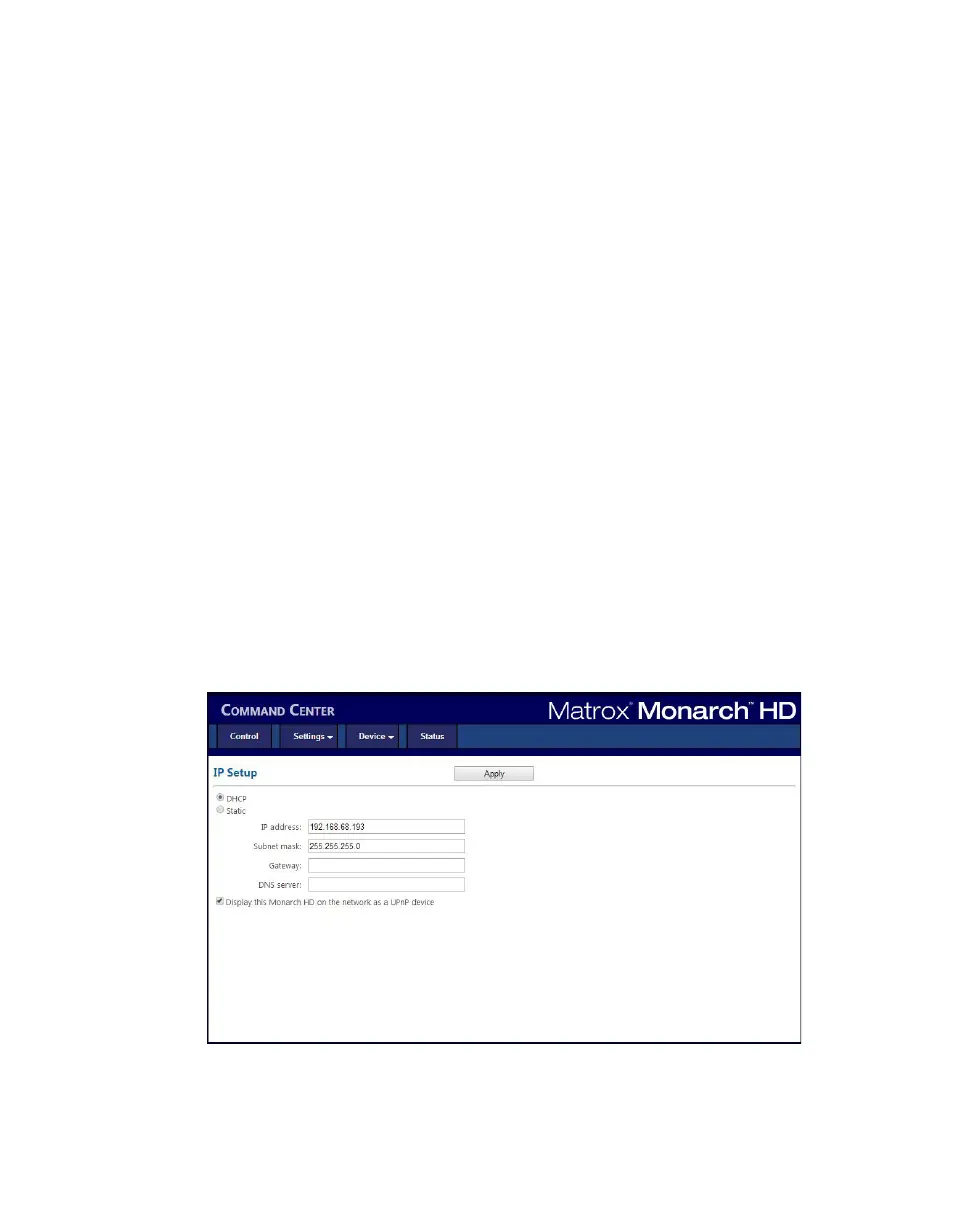
IP Setup page
The IP Setup page in the Command Center lets you switch the Monarch HD IP
mode between DHCP and Static. By default, Monarch HD is set to DHCP mode.
¡ Important Changing the IP mode will end the current Command Center
session. To access the Monarch HD Command Center again, you’ll need to enter
a different Monarch HD IP address in your browser’s address field. If switching
to
Static mode, you may also be required to change your computer’s network
configuration. For information on obtaining the Monarch HD IP address and
accessing the Command Center in DHCP or Static mode, see Chapter 3,
“Network Connection and Setup.”
To access the
IP Setup page, open the Monarch HD Command Center (see
“Accessing the Command Center” on page 19), and then choose
Device > IP
Setup
.


 To Next Page