CS033663DE ZP-CS01E TORKEL 900-SERIES
19
4 MENU SYSTEM
4.2 TORKEL Viewer
TORKEL Viewer is delivered together with TORKEL
(not with TORKEL 910) on a USB stick.
TORKEL Viewer runs under MS windows 7,8 and 10.
1] Double click the:
“TORKEL Viewer Setup.msi” file.
2] Follow instructions and the TORKEL Viewer
will be installed on your computer.
Note After installation you can find a demo file at
C:\Program Files (x86)\Megger\Torkel Viewer\
Reporting.
3] Click to open the program.
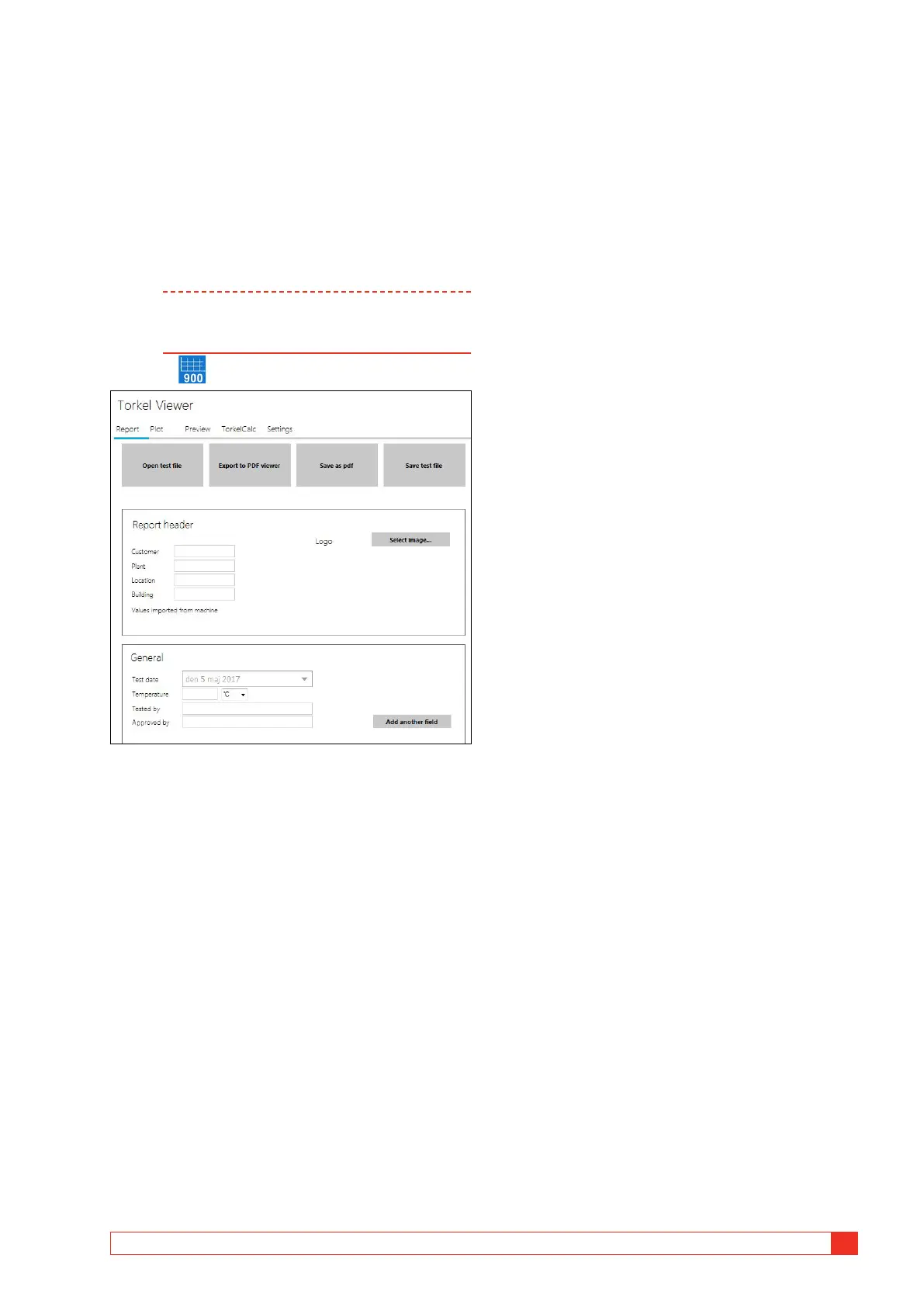
▪ The "Report " tab includes several settings and options
on how to set up the test report.
With the “Save test file” button a test can be prepared in
advance with information of the test object.
▪ The “Plot” tab gives you the possibility to check the
battery measurements or the BVM voltages diagram.
By right click and drag on the y-scale of resp. entity the
diagram lines can be modified.
The time scale can also be adjusted by right click and drag
the scale.
By placing the cursor in the diagram and scrolling with
mouse, zooming of the time scale will be done.
Clicking the “Auto zoom” will reset the diagram to the
default appearance.
Clicking the “Export Plot” button will export the diagram
in a .png format.
The BVM measurements can also be examined by
selecting the BVM voltage diagram in the “Choose plot to
display”.
The diagram can be moved by right click and drag.
Each voltage cell can be checked by clicking on the cell
bar. Float, start and end values are presented.
▪ The “Preview” tab is simply a way of checking the report
after modification, prior saving or print out of the report.
▪ The "TorkelCalc" tab is used for calculating how many
TORKELs and TXLs are needed.
▪ The "Settings" tab contains, among other things,
language setting.



 To Next Page