X
5
OPERATION
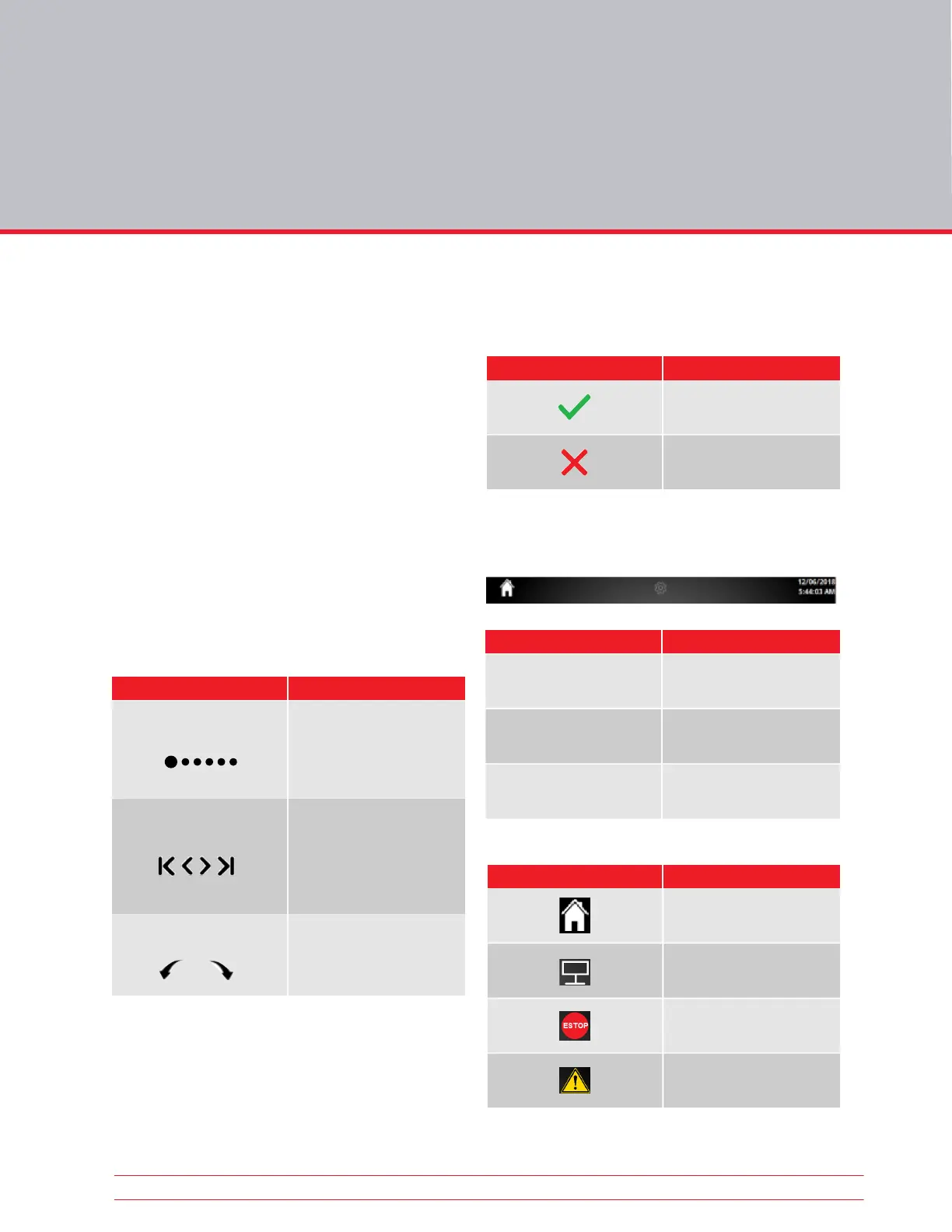
5.3 Confirm/Cancel
Settings can either be saved or discarded using the
buttons below:
5.4 Menu Bar
The Menu bar has three sections
5.4.1 Menu Bar Buttons
Button Description
Confirm
Accept changes
Cancel
Discard changes
Button Description
Available when not on the
Home screen
1 Home
2 Navigation
3 Notification
Date & time,
notifications
Information about the
current screen
1 2
3
Button Description
Home
Return to the Home
Screen
Emergency Stop
Engaged
Alert
Displays error message
PC Connected
See Connected PC info
5.1 Initialization & Interface
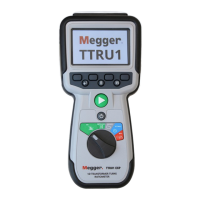
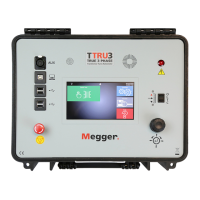
Turn on the TTRU3 using the Input AC Module. A
boot screen with the Megger Logo will appear,
followed by a Loading bar, then the Home Screen.
The TTRU3 graphical user interface (GUI) utilizes a
resistive touchscreen. Gloves or moisture will not
interfere with operation of the touchscreen.
The rotary control knob can also be used to control
the TTRU3. To enable the control knob, use the di-
rectional functions. A yellow highlight will show the
cursors current position.
5.2 Options
Options are displayed a few different ways within
the TTRU3. A brief explanation can be found below:
Option Type Description
Pills
Multiple Selection
Rotary Knob
When less than seven
options are available, pills
are displayed. The largest
pill indicates which option
is selected.
When seven or more
options are available, a
multiple selection screen
is displayed. Use page left/
right and first/last buttons
to navigate.
When displayed, indicates
that values can be changed
using the rotary knob.
20 TTRU3 User Manual www.megger.com


 To Next Page