© Midmark Corporation 2016
Rhythm Screen
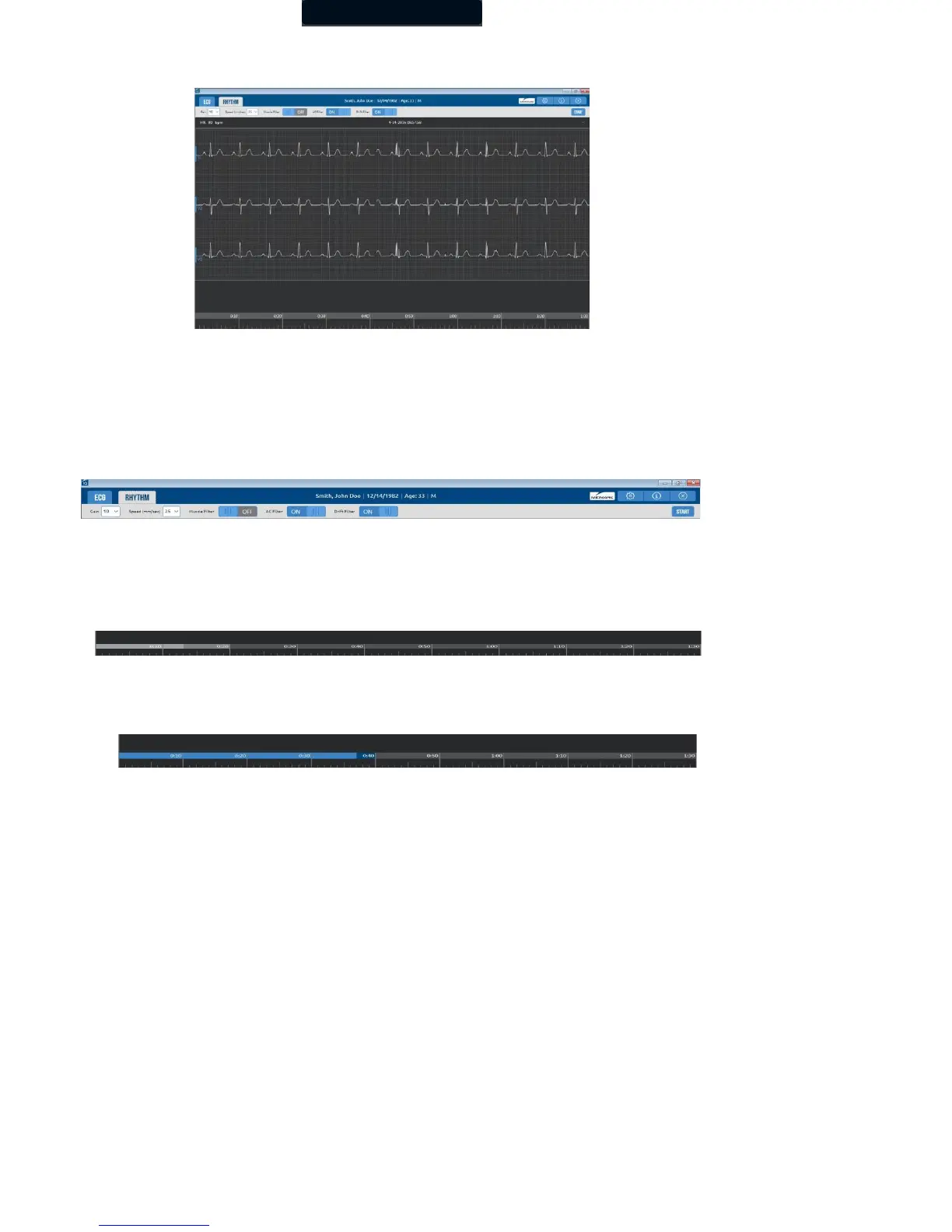
Click the Rhythm tab in the Live ECG screen to open the live Rhythm screen for acquiring a Rhythm report.
The gain, speed, and filter settings are displayed above the moving tracings. Click the appropriate drop- down item, or toggle to modify
its setting. Use the drop-down list on the left-side of each tracing to change the rhythm leads. Changes to these settings made from this
screen are temporary and only apply for as long as the test is active. You can make changes and set them as the default settings for all
new ECG tests by clicking Settings.
The patient’s name is displayed at the top center of the screen, with the heart rate display on the left of the screen with the heart rate
display on the left of the screen. Lead offs and any error messages are displayed on the top right of the screen.
Click Start to begin the Rhythm test and start recording three rhythm leads.
The time scale is displayed at the bottom of the screen. A colored bar moves across the time scale to indicate the current 10-second
window. Note the following details:
• The gray bar indicates that data collected has not reached the 30-second minimum required for a rhythm report.
• The bar changes to blue once the 30-second minimum has been reached.
• The light blue bar indicates the current data that has been collected.
• The dark blue bar indicates the current 10 seconds of data that is displayed on the screen.
No test data is recorded during the first 30 seconds. After 30 seconds, the Cancel button will change to an End button. This is
indicated on the screen by a gray bar on the time scale.



 To Next Page