System - 22 Midway Amusement Games, LLC
CALIBRATE
This procedure lets you correct the accuracy of the Touchscreen controller.
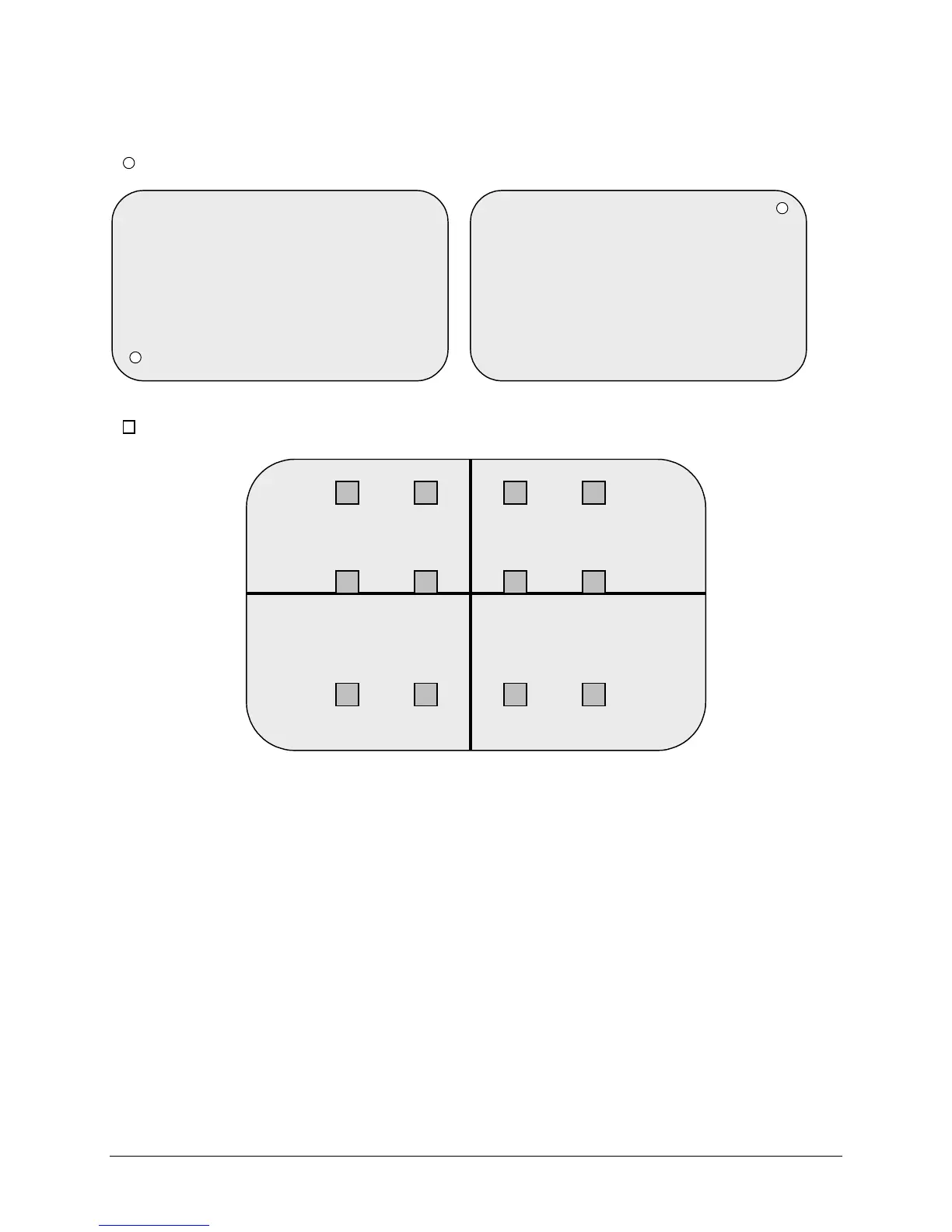
Dot for controller calibration. This sets the ability to correctly recognize a player’s touch.
TYPICAL CALIBRATION SCREENS
Box for controller verification. This verifies the Touchscreen accuracy in critical areas.
TYPICAL CALIBRATION TEST SCREEN
The Touchscreen Controller in the Touchmaster
®
senses the position of your finger based on its
capacitance. The Touchscreen uses a very weak uniform electrical field. Touching the screen disturbs the
field. The controller tracks the disturbance and translates it into a location. The game electronics interpret
the location information into commands. The process occurs in a fraction of a second, allowing the game
to respond rapidly.
When the Touchmaster
®
is moved from one location to another, the amount of capacitance changes. This
causes the controller to shift its tracking coordinates and may generate errors in some screen areas. The
Calibration routine allows the controller to adjust its tracking to match the touch point.
Calibration screens require you to touch one specific location as indicated by a single dot. Touch the dot
and hold this position until coarse tracking adjustments are completed (about two seconds). The
Touchmaster
®
automatically advances to the next screen and emit a short burst of sound. Repeat this
procedure for each screen with a single dot. The Calibration Test screen (see next page) tracks finger
position over the entire screen, allowing the entire playing surface to be checked for accurate calibration.
Verification screens require you to touch several locations as indicated by several boxes. Touch each box
and hold this position until fine tracking adjustments are completed (about one second). The
Touchmaster
®
displays one vertical and one horizontal line on the screen. The lines should intersect over
the box when you remove your finger. Repeat this procedure for each box on the screen.
CALIBRATE TOUCHSCREEN
TOUCH WHITE DOT IN:
LOWER LEFT CORNER
1 2
9 10
3 4
11 12
CALIBRATION TEST
PRESS EACH RED BOX
CYCLE POWER AND RECALIBRATE
IN CASE OF TROUBLE
5 6 7 8
CALIBRATE TOUCHSCREEN
TOUCH WHITE DOT IN:
UPPER RIGHT CORNER



 To Next Page