4. Access the Sensor
G50 provides user-friendly web GUI for configuration and users can get access to it via Wi-Fi
connection. The default settings are listed below:
Wi-Fi SSID: Gateway_XXXXXX (can be found on the label)
Wi-Fi IP Address: 192.168.23.1
Browser: Chrome (Recommended)
Username: admin
Password: password
Configuration Steps:
Step 1: Connect M12 power cable to the device to turn on the device and ensure the Wi-Fi LED is
statically on.
Step 2: Enable the Wireless Network Connection on your computer and search for the
corresponding access point, then connect the computer to this access point.
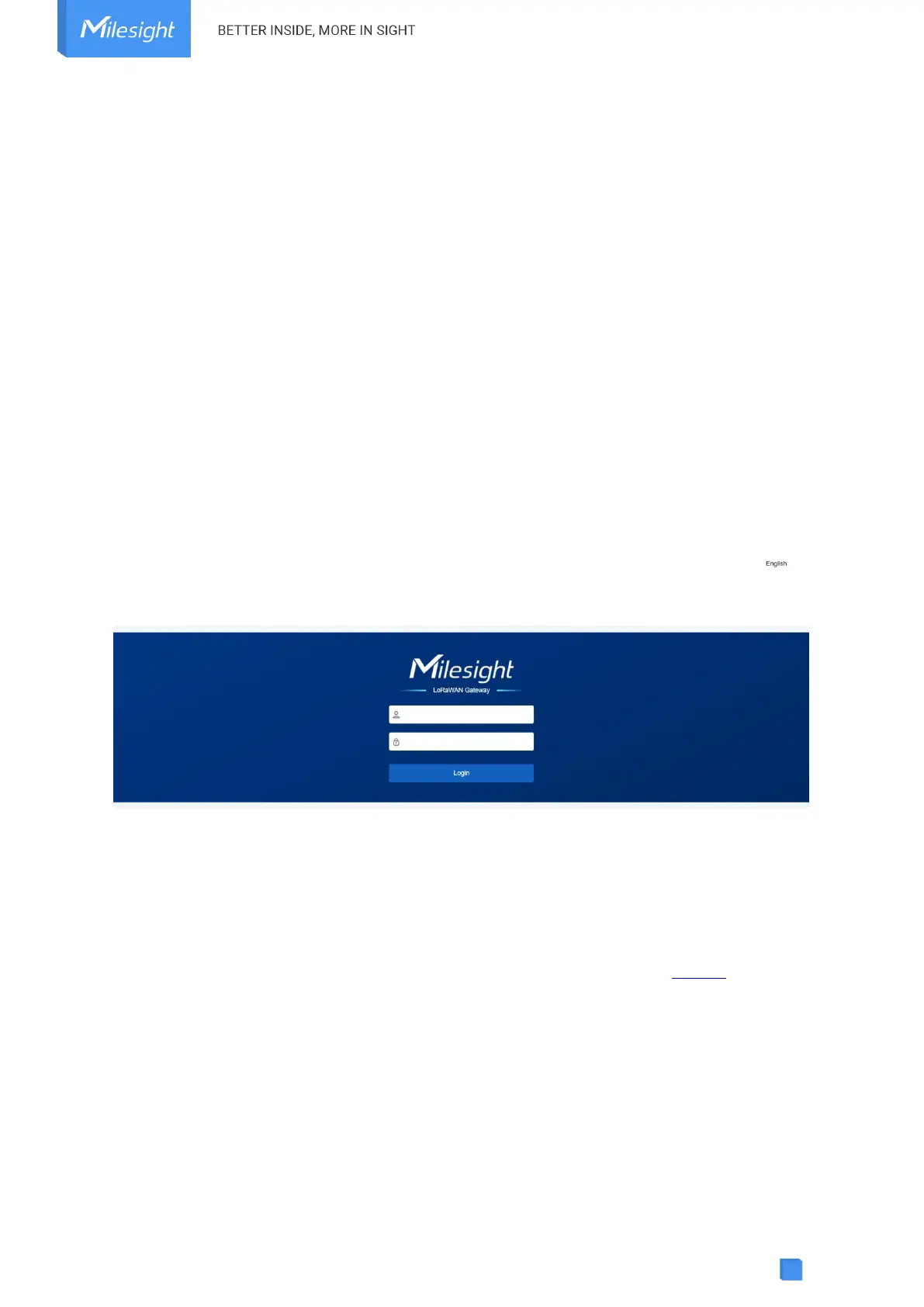
Step 3: Open the browser and type 192.168.23.1 to access the web GUI.
Step 4: Select the language.
Step 5: Enter the default username and password to log in the web GUI.
Step 6: It is suggested to follow the wizard to complete basic settings. Users can also skip all
steps or exit the wizard to configure the device.
1) Configure the cellular settings to set up cellular connections. Usually, it is necessary to type
the APN parameter to register to cellular networks. For details please refer to Cellular chapter.


 To Next Page