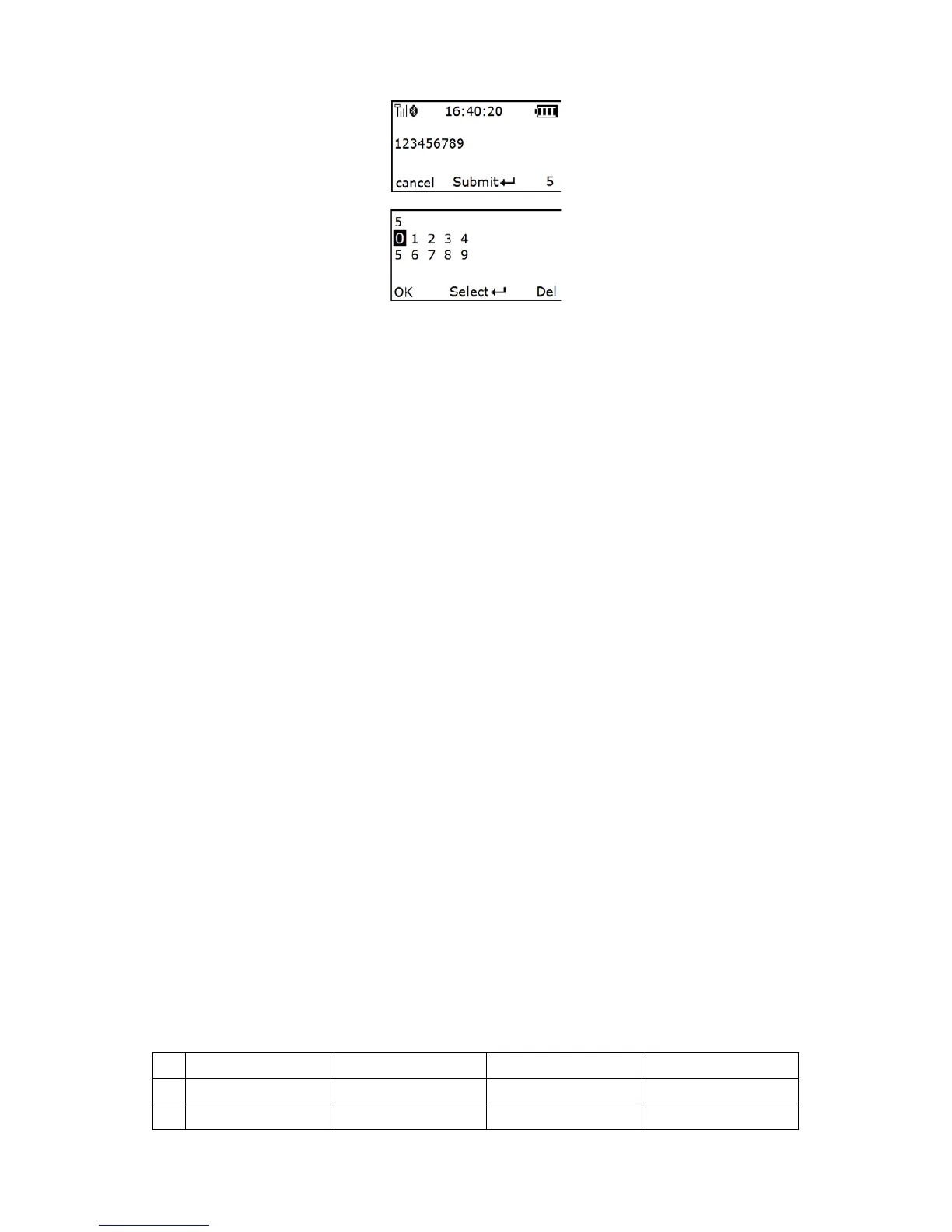
Step 3: Use Navigation Keys to move the cursor, Scan/Select Key to select number(s), Right Soft Key to
delete selected number(s). And then press Left Soft Key to continue.
5-1-4 Add Time/Date
The time information can be added as an appendix to a barcode by enabling the Add Time.
For example:
When Add Time is enabled, a barcode “123456789” is read in 12:00:00, “123456789*12:00:00” will be
received by the host.
The date information can be added as an appendix to a barcode by enabling the Add Date.
For example:
When Add Date is enabled, a barcode “123456789” is read at 25.05.2012, “123456789, 25.05.2012” will
be received by the host.
The time and date information can be added as an appendix to a barcode by enabling the Add Time and
Date.
For example:
When Add Time and Add Date is enabled, a barcode “123456789” is read in 12:00:00 at 25.05.2012,
“123456789,12:00:00, 25.05.2012”will be received by the host.
5-1-5 Set Separator
The barcode and Time/Data/quantity will be separated by separator, the default separator is comma
<,>. By using the virtual keypad, user can input character manually. The length of the separator string
can be at most 8 characters.
Example1: A barcode “123456789” is read in 12:00:00 at 25.05.2012. When user selects Output
Quantity mode, “123456789, 5” will be received by the host, given that the quantity is 5.
123456789*5*12:00:00*25.05.2012
Example2: When user enables the Data Statistics, the barcode and quantity will be separated, the eighth
barcode is “123456789” in the example below.
5-1-6 Database Function
5-1-6-1 Database Query
Database query includes: After successfully scanning the barcode, the barcode information would be
displayed on the OLED screen. The database query function demands the use of MS3 DB database
supporting software tool to generate database files: *.IDX and *.DAT. By applying the database query
functionality, the user can rapidly and accurately locate the barcode information.
When user scan the barcode, the terminal would perform a database searching upon the database files
stored in the flash disk and display the barcode information if matching is found when the database
query function is enabled. User would require scrolling to left or right for more information displayed on
the OLED screen. If no matching is found then “No Record” is displayed on the OLED screen.
Example:
User barcode information as follows:



 To Next Page