22
5-2-2 Wi-Fi
The terminal can be configured to send data to a PC/Notebook/PAD/other instrument which equipped
with an integrated Wi-Fi module or receive data from these instruments under the same WLAN.(
See
5-3-2 Wi-Fi)
Auto reconnection – By enable, when terminal’s Wi-Fi is power on, it will try to set up the WLAN and
the connections with the host which it last connected.
5-2-3 USB HID Keyboard
When the terminal is USB connected to a PC, it will be identified as a USB HID keyboard and behaves
as a USB wired terminal.
5-2-4 USB Virtual COM
When the terminal is USB connected to a PC, it will be identified as a USB Virtual COM and acts as a
RS-232 wired terminal.
5-2-5 U Disk
Barcode data is always stored in a text file (TXT file), that is, the terminal functions as a barcode data
collector. The terminal will be identified as a USB removable driver when it is USB connected to a PC.
The terminal decides target file to store barcodes according to following rules:
If a file is selected by the user, the selected file will be the target file.
If there is no file in the U-Disk, a file will be created and named “TARGET.txt” by the terminal when it
is powered on or restart. In this case, TARGET.txt will be the target file.
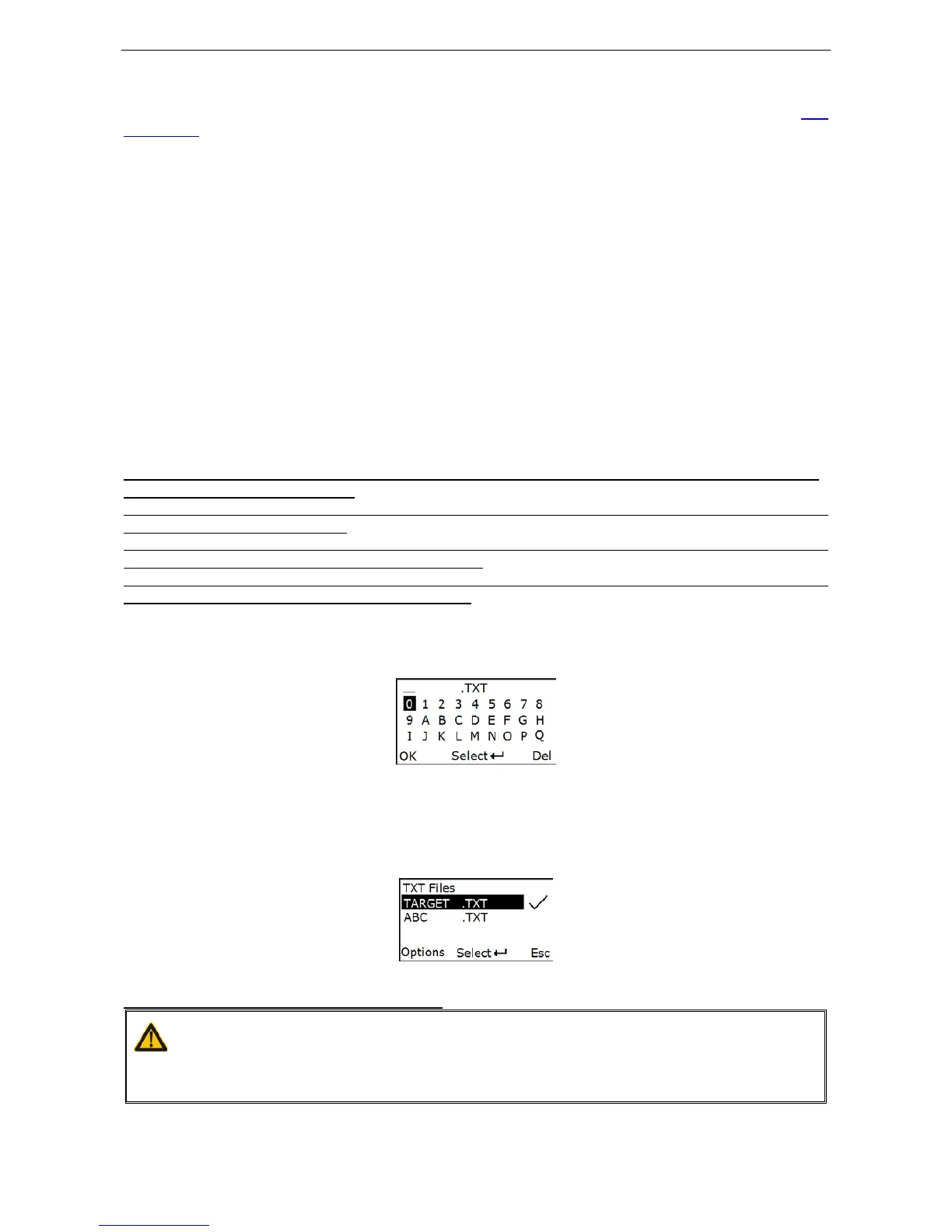
The file selected to be the target file is labeled √.
5-2-5-1 Create New Files
Note 1: Files can be opened/edited/saved/renamed/deleted by the user of a PC and created/ emptied/
deleted by the user of a terminal.
Note 2: Files can be opened/edited/saved/renamed/deleted by the user of a PC and created/ emptied/
deleted by the user of a terminal.
Note 3: Only part of the filename will be displayed if there are more than 8 characters in a filename. e.g.
“TextFile1Mine.txt” will be shown as “TEXTFI~1.TXT”
Note 4: Lower case is not supported and “a”-”z” will be displayed as “A”-”Z” respectively for a filename.
e.g. “ABCabc.txt” will be shown as “ABCABC.TXT”.
When a file is created, the filename can be input by using the virtual keyboard. Use Navigation Keys to
move the cursor, Scan/Select Key to select number(s), Right Soft Key to delete selected number(s). And
then press Left Soft Key to complete.
5-2-5-2 List Files
This menu can be selected to list all files in the root directory. The file selected to be the target file is
labeled √. The operations described below are imposed to the cursor-on file, which is not necessary to
be the target file.
Example:
Options Menu
Note: Press Left Soft Key to popup this menu.
Caution:
Empty and Delete operations are not undo



 To Next Page