EasyManua.ls Logo

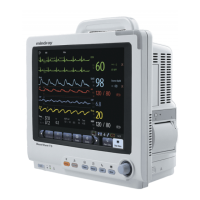
Mindray BeneView T6 - Service Manual

Mindray BeneView T6
234 pages
Print Icon
To Next Page IconTo Next Page
Loading...
BeneView T6/T8/T9
Patient Monitor
Service Manual

Table of Contents

Other manuals for Mindray BeneView T6

Questions and Answers

  • J
    Jessica McculloughAug 21, 2025
    How to fix a Mindray BeneView T6 Medical Equipment patient monitor that fails to start?
    • S
      Steven PerezAug 22, 2025
      If your Mindray Medical Equipment patient monitor fails to start and neither the AC nor battery LED lights up, check the following: * Ensure the AC mains are properly connected and the battery has sufficient capacity. * Verify the cables from the power switch & LED board to the button board, from the button board to the main board, and from the power module to the main board are correctly connected and undamaged. * If the issue persists, the power switch & LED board, the power module, or the mother board may be defective and require replacement. For power supply protection issues, refer to section 4.6.9 Power Supply Failures.
  • E
    Edward WilliamsSep 4, 2025
    What should I do if a USB device doesn't work with my Mindray BeneView T6?
    • T
      Thomas SheltonSep 4, 2025
      If a device connected to the USB port on your Mindray Medical Equipment is not functioning (assuming the peripheral device is working correctly), check that the cable between the USB interface board and the motherboard is properly connected and undamaged. If the connection is good, the USB interface board or the motherboard itself may be defective and require replacement.
  • J
    Joshua DennisSep 2, 2025
    Why can't I view other patients on my Mindray BeneView T6 Medical Equipment?
    • A
      Allison GravesSep 3, 2025
      If your Mindray Medical Equipment is connected to a LAN but cannot view other patients in View Others mode, check that the LAN cable connection is correct and the cable is not longer than 50m. Note that a patient monitor can only be viewed by 4 other patient monitors at the same time in this mode, so excessive view requests will be ignored. Also, check for IP address conflicts and reconfigure the IP address if needed. Finally, the iView assembly may be faulty and need replacement.
  • J
    Javier BarronSep 1, 2025
    How to resolve poor print quality on Mindray BeneView T6?
    • M
      Michael TurnerSep 1, 2025
      To resolve poor print quality or paper feeding issues on your Mindray Medical Equipment, first stop the recorder and reinstall the paper roll correctly. Then, check the thermal print head and paper roller for any foreign matter and clean the thermal print head with an appropriate cleaning solution. If the problem persists, the print head or the recorder itself may be defective and require replacement.
  • B
    brennanjoseAug 30, 2025
    What causes the buttons on my Mindray Medical Equipment to stop working?
    • D
      dawn75Aug 31, 2025
      If the buttons on your Mindray Medical Equipment are not working, first check that the cable between the button board and the motherboard is properly connected and undamaged. If the cable is secure, the button board itself may be defective and require replacement.
  • C
    Cole CalhounAug 29, 2025
    Why does my Mindray BeneView T6 Medical Equipment have frequent dropouts and network disconnects?
    • R
      Rachel JohnsonAug 29, 2025
      Frequent dropouts and network disconnects in Mindray Medical Equipment can be caused by an incorrect LAN cable connection. Ensure the LAN cable is properly connected and is no longer than 50 meters. Also, check for IP address conflicts and reconfigure the IP address if necessary.
  • N
    Nicholas DicksonAug 27, 2025
    What to do if the integrated display is blank on my Mindray BeneView T6 Medical Equipment?
    • C
      Curtis LiuAug 27, 2025
      If the integrated display on your Mindray Medical Equipment is blank but the monitor still works, check that the cables from the display to the motherboard and from the backlight board to the button board/display are correctly connected and undamaged. If the connections are secure, the backlight board, power module, or the display itself may be defective and require replacement.
  • A
    Adrienne BaileyAug 27, 2025
    Why does the program upgrade fail on my Mindray Medical Equipment?
    • D
      Donald StarkAug 27, 2025
      If the program upgrade fails on your Mindray Medical Equipment, consider these potential causes: * Ensure you are using the correct network connection (not the iView network connector) and that the hub or switch is functioning correctly, with properly connected network cables. * Verify that the upgrade package is a .pkg file and is selected according to system requirements. * Configure a fixed IP address in range C as specified for the patient monitor. It's recommended to avoid upgrading the program when the patient monitor is connected to a network with multiple PCs.
  • M
    Matthew GonzalezAug 25, 2025
    Why is my Mindray BeneView T6 Medical Equipment not printing?
    • M
      Martha MorrisAug 26, 2025
      If your Mindray Medical Equipment is not printing, check the following: * Verify the recorder module is enabled in the [Factory Maintenance>>] menu, and check if the recorder status LED lights. * Ensure the paper roll is installed correctly. * Check that the cable between the recorder and the motherboard is properly connected and undamaged. * Confirm that the power module outputs 5 V DC and 12V DC correctly. * If the issue persists, the recorder itself may be defective and require replacement.
  • M
    Michael LittleAug 23, 2025
    What to do if there is no alarm sound but the alarm lamp is lit on my Mindray BeneView T6 Medical Equipment?
    • T
      Teresa HudsonAug 23, 2025
      If your Mindray Medical Equipment's alarm lamp is lit but there's no sound, first, check if the audio alarm is disabled. To enable it, go to [Main Menu]?[Maintenance >>]?[User Maintenance >>]?enter the required password? [Alarm Setup >>], and in the popup menu, set [Minimum Alarm Volume] to an appropriate setting. Also, in the [Others] window of the [Alarm Setup] menu, set [Alm Volume] to an appropriate setting. Then check that the cable between the speaker and the motherboard is properly connected and undamaged. If the problem persists, consider that there may be an FPGA audio logic error, speaker failure, or motherboard failure, which may require an upgrade of the audio logic part of the FPGA program or replacement of the speaker or motherboard.

Summary

1 Safety

1.1 Safety Information

Provides general safety guidelines including DANGER, WARNING, CAUTION, and NOTE statements.

1.2 Equipment Symbols

Explains various symbols used throughout the manual for equipment identification and warnings.

2 Theory of Operation

2.1 Introduction

Introduces the patient monitor's design and its capabilities in monitoring physiological parameters.

2.2 System Connections

Describes how the patient monitor connects to various systems and peripheral devices.

2.3 Main Unit

Outlines the components and structure of the patient monitor's main unit.

2.4 Parameter Module

Outlines the components of a parameter module.

2.5 Satellite Module Rack

Explains the features and structure of the satellite module rack (SMR).

2.6 BeneLink Module

Describes the BeneLink module's function in displaying, saving, and transmitting information from external devices.

3 Testing and Maintenance

3.1 Introduction

Introduces the chapter on testing and maintenance procedures for ensuring normal monitor function.

3.2 Preventative Maintenance Procedures

Details the procedures for preventative maintenance, including visual inspection and specific module tests.

3.4 Module Performance Tests

Covers various performance tests for different patient monitoring modules like ECG, SpO2, NIBP, etc.

3.11 BeneLink Module Check

Details the procedure for checking the BeneLink module's connection and integration.

3.12 Battery Check

Explains the function test and performance test for checking the battery.

3.14 Factory Maintenance

Explains how to access and use the factory maintenance menu for various settings.

4 Troubleshooting

4.1 Introduction

Introduces the chapter on troubleshooting, listing problems, causes, and recommended corrective actions.

4.6 Troubleshooting Guide

Provides a guide for troubleshooting common issues categorized by symptom (e.g., power failures, display failures).

5 Repair and Disassembly

5.1 Tools

Lists the tools required for disassembling and replacing parts of the patient monitor.

5.2 Preparations for Disassembly

Outlines the necessary preparations before disassembling the patient monitor, including safety precautions.

5.4 Further Disassembly

Details advanced disassembly steps for various internal components of the monitor.

5.6 Disassembling Modules

Introduces the procedures for disassembling various modules.

6 Parts

6.1 Introduction

Introduces the section on exploded views and parts lists for the main unit, SMR, and parameter modules.

6.2 Main Unit (T6;T8)

Provides an exploded view and parts list for the Main Unit (T6/T8).

6.5 Front housing Assembly

Introduces the Front Housing Assembly section, listing parts for different screen types.

6.11 Replaceable Parts

Lists common replaceable parts for the main unit, SMR, and parameter modules.

7 Upgrade

7.1 Introduction

Introduces the process of upgrading parameter modules, assemblies, and software using the System Update Tool.

7.4 Upgrading Software

Details how to upgrade the monitor's software using the System Update Tool.

A Electrical Safety Inspection

A.1 Power Cord Plug

Specifies acceptance criteria for inspecting the power cord plug and body for damage or defects.

A.2 Device Enclosure and Accessories

Details visual and contextual inspection criteria for the device enclosure and accessories.

A.4 Protective Earth Resistance

Explains how to measure protective earth resistance and the conditions applied during the test.

A.5 Earth Leakage Test

Describes how to perform an earth leakage test and the measurement methods.

A.6 Patient Leakage Current

Explains how to measure patient leakage currents between applied parts and earth.

A.9 Scheduled Electrical Safety Inspection

Outlines the electrical safety inspection test items and the required Electrical Safety Inspection Form.

Mindray BeneView T6 Specifications

General IconGeneral
BrandMindray
ModelBeneView T6
CategoryMedical Equipment
LanguageEnglish

Related product manuals