2322 B
ASIC IMAGE PROCESSING
BASIC IMAGE PROCESSING
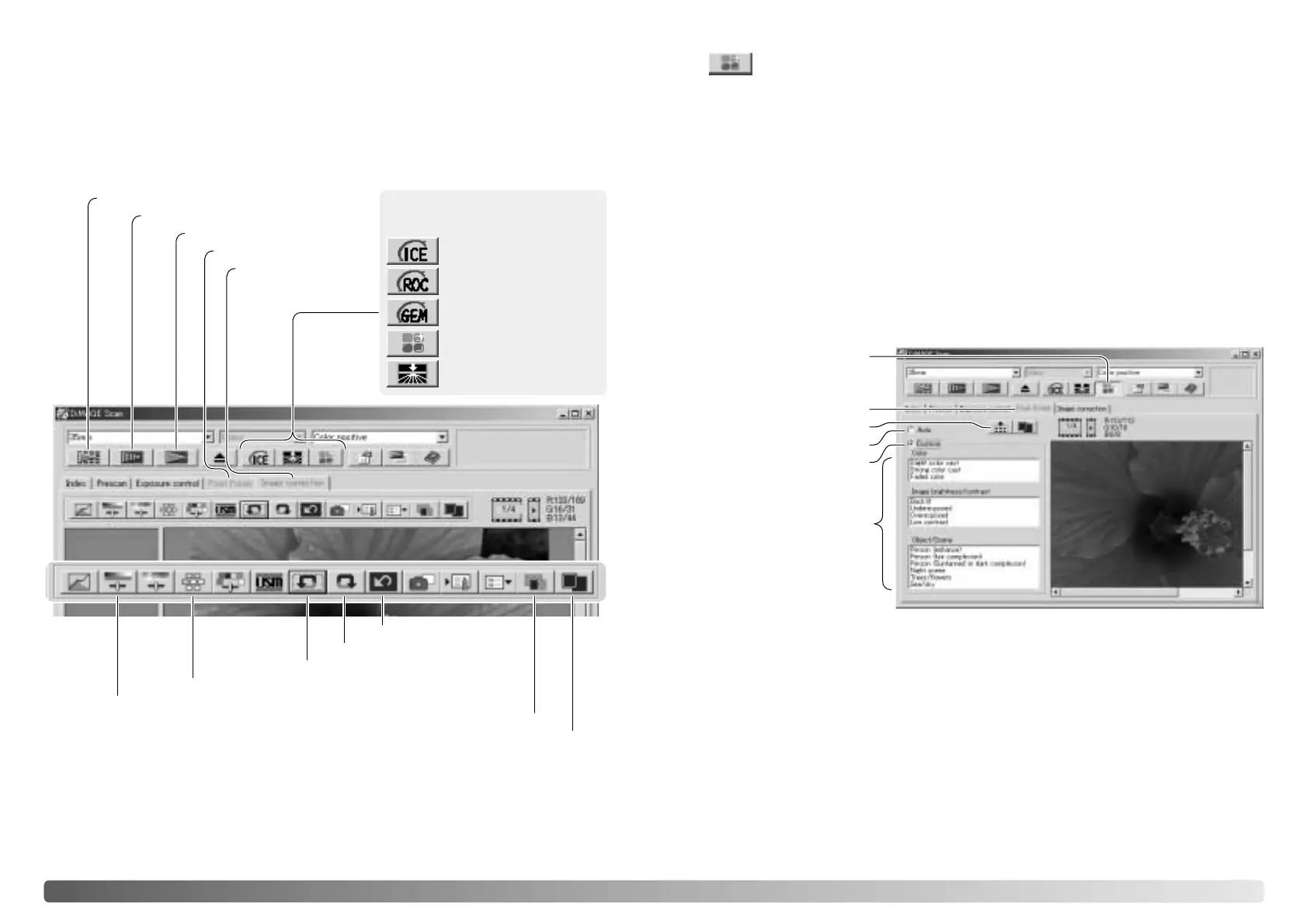
Main window and image-correction tab
Index scan button (p. 16)
Prescan button (p. 18)
Scan button (p. 20)
Image-correction tab
Fit-to-window button (p. 17)
Display area
Comparison display button (p. 28)
Reset-all button (p. 28)
Redo button (p. 28)
Undo button (p. 28)
Variation button (p. 25)
Brightness, contrast, and color-balance button (p. 26)
This section contains details on the basic image-processing tools. For descriptions of
the advanced tools, see pages 44 though 59. The prescan image or a selected index
image can be displayed in the image correction window by simple clicking the tab. If
the image has not been prescanned, a prescan will be made automatically.
The utility window can be resized by clicking and dragging the bottom right corner. If
the fit-to-window function is active, the displayed image will automatically adjust to fit
the display area. If any changes are made to the image using Pixel Polish or the
image-correction tab, the tab will turn red (Windows) or an asterisk will be displayed
(Macintosh).
Pixel Polish tab
To make custom corrections, click the Pixel Polish tab. If a prescan has not been
made, the scanner will make one automatically.
Click the custom radio button. Click on the descriptions in the list boxes which best
describes the image. To deselect a description, click on it again (Windows) or press
the command key and click on it (Macintosh).
The apply-all button applies the custom settings to all images in the film holder. To
reset the images to the auto correction setting, click the auto radio button and then the
apply-all button.
Pixel Polish
Pixel Polish button
Auto radio button
Custom radio button
Custom correction
list boxes
Apply-all button
Pixel Polish tab
Pixel Polish makes automatic or custom image corrections. This function is not
available with all scanner models. See the scanner notes section in the hardware
manual for compatibility and system requirements. Pixel Polish cannot be used with
black and white film, 16-bit or 16-bit linear color depth (p. 30). Scanning time
increases. The effect of Pixel Polish is based on the prescan image area. If the image
is cropped after applying Pixel Polish, click the crop-prescan button (p. 38) to view the
results.
Click the Pixel Polish button in the main window to automatically correct the images in
the film holder; previous corrections are canceled. The correction is applied to the
prescan image.
Pixel Polish remains in effect until canceled; click the Pixel Polish button again. To
reapply image corrections made before using Pixel Polish, open the image in the
image-correction tab and click the undo button.
The functions available vary
between scanner model.
Digital ICE (p. 24)
Digital GEM (p. 46)
Digital ROC (p. 45)
Pixel Polish (p. 23)
Grain Dissolver (p. 29)








 To Next Page