4140 A
DVANCED SCANNING
Inputting scan settings manually
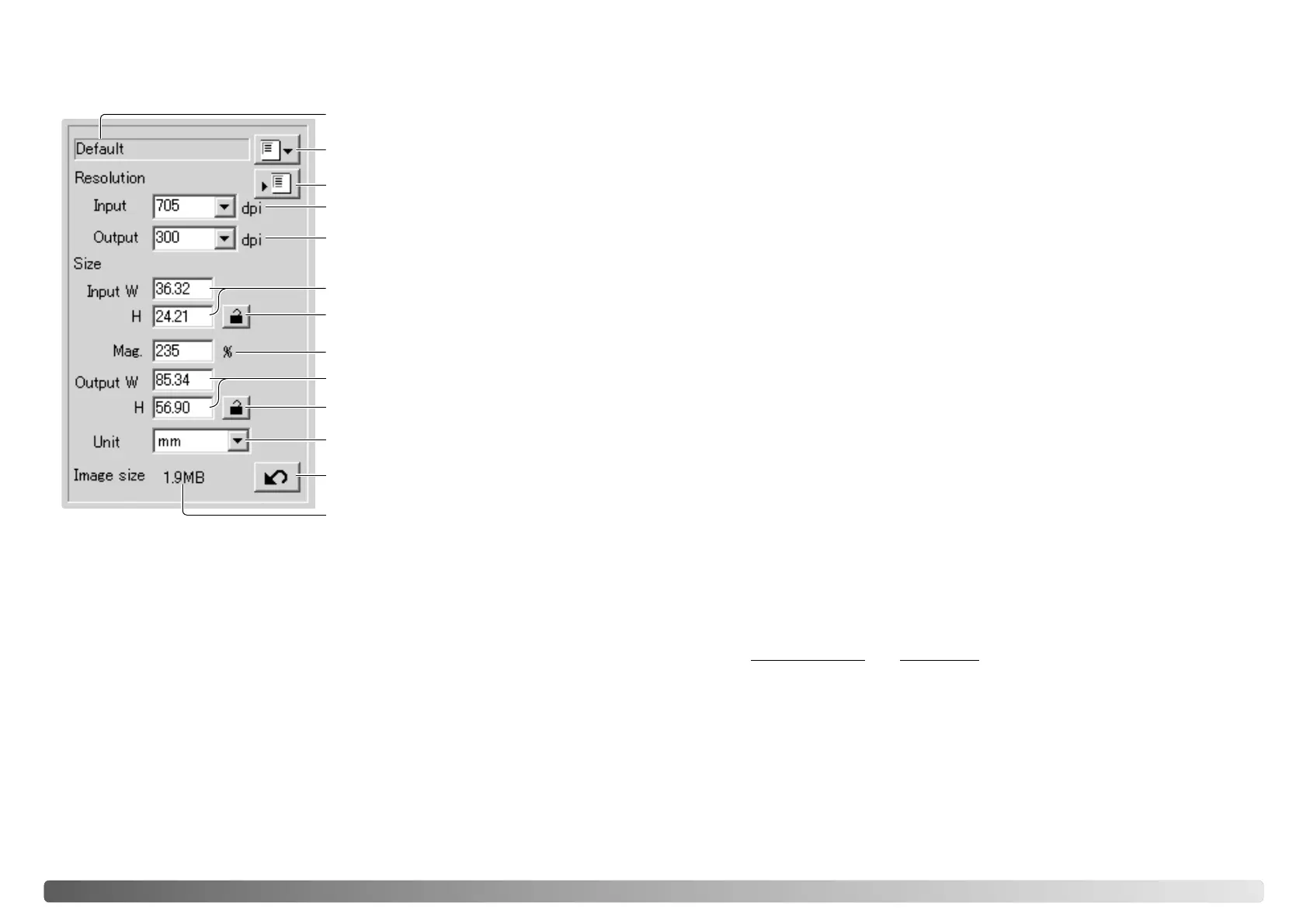
Settings for the final scan can be made in the index scan or prescan windows.
Job-name list box
Input-resolution list box
Output-resolution list box
Input-size text boxes
Magnification text box
Output-size text boxes
Unit list box
Image-size display
Load Job button
Save Job button
Input-size lock button
Output-size lock button
Reset button
Input-resolution list box: values can be selected among the drop-down list or be
entered into the box directly. See scanner resolution in the scanner notes section of
the hardware manual for the resolution of the specific scanner model.
Output-resolution list box: values can be selected among the drop-down list or be
entered into the box directly. Output-resolution cannot be entered if pixel is selected in
the unit list box.
Input-size text box: input size is determined by either the cropping frame dimensions
or the values entered in the width and height boxes. The cropping frame will adjust to
any value entered. Input-size cannot be entered if pixel is selected in the unit list box.
Input-size lock button: to lock the input values. The cropping frame can be moved,
but not resized while this button is clicked. Clicking the button again releases the lock.
The input-size lock button cannot be used if pixel is selected in the unit list box.
Magnification text box: to set image magnification. This value is based on input and
output resolution, or output and input size. The magnification text box cannot be used
if pixel is selected in the unit list box.
Resolution can be expressed in dpi (dots per inch). This refers to how many pixels are
placed along one linear inch. A resolution of 350 dpi, which is commonly used in
commercial printing, means that an area of one square inch would use 122,500 pixels.
The larger the resolution, the greater the detail in the image. However, as the
resolution increases, so does the file size.
The image resolution depends on the resolution of the output device. A printer with a
resolution of 150 dpi will not be able to print a 300 dpi file any better than a 150 dpi
file; the 300 dpi file will just be four-times larger. Once the output resolution is
determined, the input resolution can be calculated from the magnification needed to
match the output.
For example, to make a 144 mm x 96 mm print at a resolution of 150 dpi from 35mm
film (image size: 36mm x 24mm), the magnification can be calculated by dividing the
print dimensions by the film dimensions: 96 mm / 24 mm = 4 times. The input
resolution can then be determined from the magnification factor: 150 dpi X 4 = 600 dpi.
When scanning an image to be displayed on a monitor, the only important factors are
the pixel dimensions of the file and monitor. Although printers can print files with
different resolutions at a given size, monitors cannot add or remove pixels to fit the
display area. The image in the example above has a pixel dimension of 850 X 566,
too large for a 800 X 600 pixel 15-inch monitor.
About resolution and output size
Input resolution
Output resolution
Output size
Input size
Magnification factor
==
When the input size and output size are unlocked, the input resolution and output size
vary according to the entered magnification value. When the output size is locked, the
input resolution and input size vary according to the entered magnification value.
When the input size is locked, the input resolution and output size vary according to
the entered magnification.
Output-size text box: output size is determined by either the cropping frame
dimensions or the values entered in the width and height boxes. The width and height
of the output image can be directly entered into the text boxes; the input resolution,
input size, and cropping frame adjust according to the entered dimensions.
Output-size lock button: to lock the output size values.
Unit list box: the input and output size unit can be changed: pixels, millimeters,
centimeters, inches, pica, and points.
Image size display: size based on the total number of pixels in the image and can be
different from the size of the saved data depending on the file format selected.
Reset button: to initialize all current settings.








 To Next Page