76 I
NSTALLATION
Windows
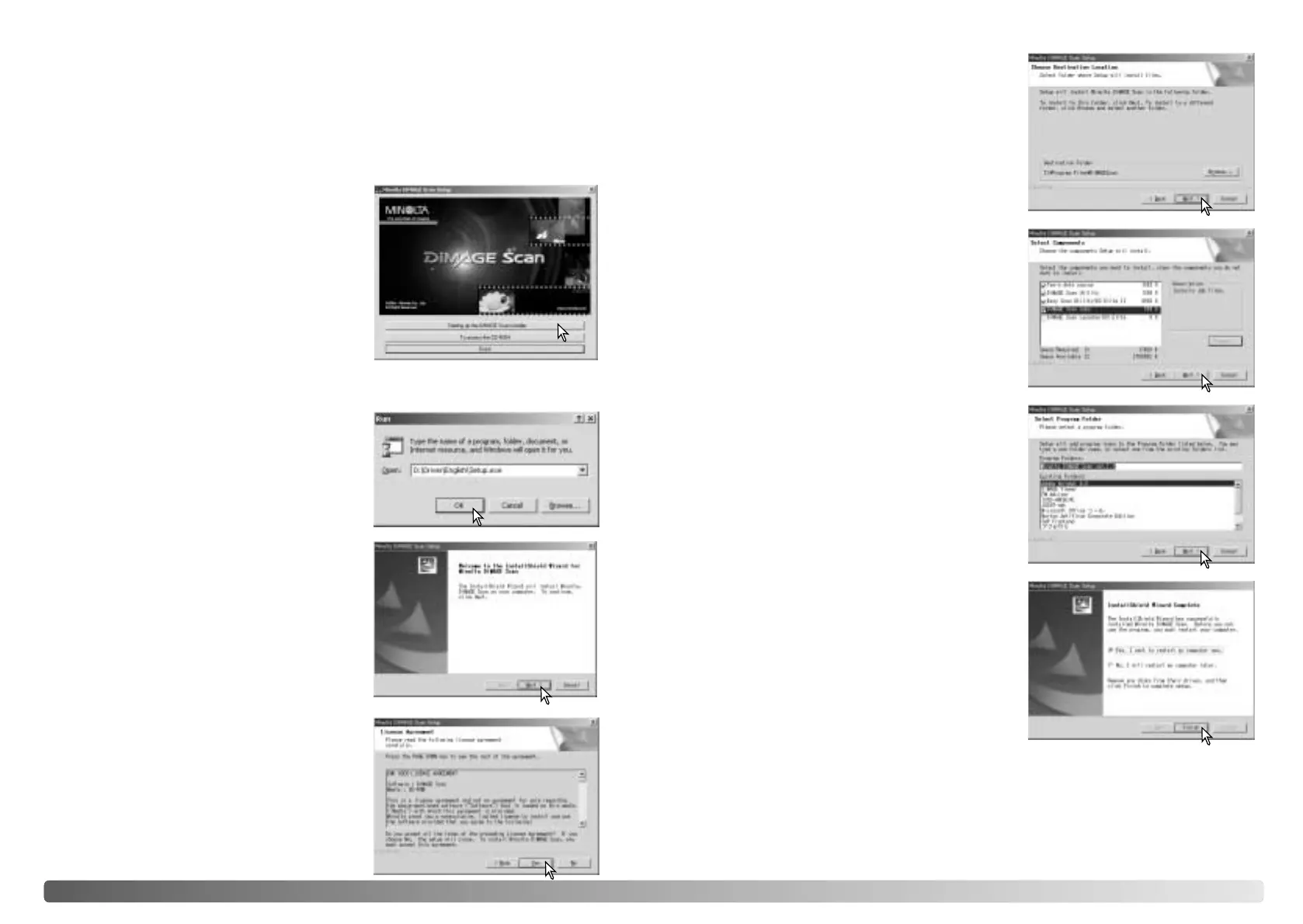
The InstallShield Wizard will indicate that
installation was successful. Select the restart-
computer option and then click Finish. When the
computer restarts, the scanner driver software
will be ready to use. Print out a copy of the Read
Me file for reference.
The name of the default program folder is
displayed. To install the software in this folder,
click Next.
To install the software to another existing folder,
select one of the folders listed in the existing-
folders box below. Click the next button to begin
installation.
Select the components to be installed, then click
the next button. The DiMAGE Scan Launcher
and Quick Scan Utility should only be installed
with compatible scanners, see “Compatibility
with the DiMAGE Scan Utility” in the scanner
notes section of the hardware manual. Normally,
the TWAIN data source should be installed. The
descriptions in this manual assume the utility
was installed with the TWAIN data source.
To install the software in the default folder
(C:\Program Files\DiMAGEScan), click Next.
To install the software in another folder, click the
browse button to display the folder selection
window. Specify the directory in which to install
the software, then click OK.
The opening screen of the InstallShield Wizard
will appear. Click the next button to continue.
Insert the DiMAGE Scan Utility CD-ROM into the
CD-ROM drive. The DiMAGE Scan Utility setup
screen will open.
Click the “Starting up the DiMAGE Scan installer”
button. The program decompression screen will
briefly appear. The Install Shield Wizard will start
automatically.
If the Install Shield Wizard does not start up
automatically, execute the following procedure:
1. Initiate the run routine on the start menu.
2. Click the browse button in the run dialog box.
3. Select the CD-ROM drive from the look-in
box in the browse window.
4. Open the driver folder.
5. Open the English folder.
6. Click on the Setup.exe file. It will be dis-
played with its location in the run dialog box:
D:\Driver\English\Setup.exe. Click OK.
Turn on the computer to start up the Windows operating system.
In the example below, the hard disk is drive C, and the CD-ROM drive is drive D. The
letters designating the drives will vary between computers.
Click the yes button to accept the agreement and
continue. Read the entire agreement carefully
before continuing. If you do not agree to the
terms of the license agreement, click the no
button to exit the setup program.
The scanner software can be launched directly from most image-processing
applications. Although the TWAIN driver cannot be seen, it allows the utility to be
launched from an image-processing application using the import option as well as
allowing the computer and scanner to communicate.
INSTALLATION








 To Next Page