32 C
OLOR EXAMPLES
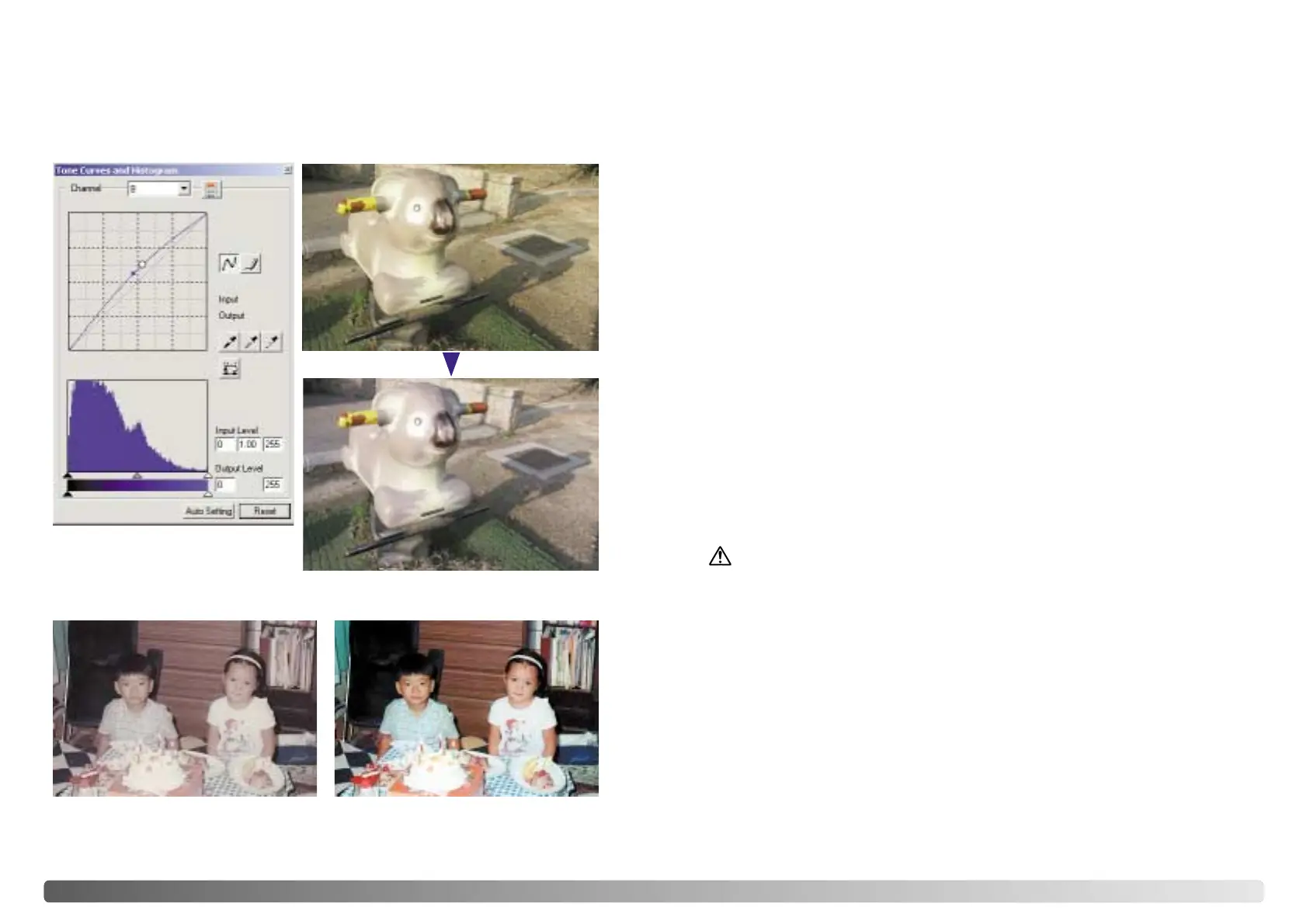
By selecting individual color channels on the tone curve, adjustments to the overall
color of an image can be made. In this example, the image is too yellow. By moving
the blue curve up, the image looks more neutral. For more on tone curve corrections,
see page 50.
BEFORE YOU BEGIN
Original image After Digital ROC processing
Digital ROC - Reconstruction Of Color
Digital ROC restores the color of old faded film, see page 45.
RAM-stationed programs such as anti-virus or installation-monitoring software may
cause the installer to fail. Remove or disable these programs before installing the
DiMAGE Scan Utility. Reinstall or enable the software when the installation is
complete.
The scanner hardware manual contains the system requirements for the purchased
scanner unit; do NOT connect the scanner to a computer before installing the DiMAGE
Scan Utility software.
Before installing the DiMAGE Scan Utility
Tone-curve corrections
Microsoft, Windows, Windows 98, Windows Me, Windows 2000 Professional, and Windows XP are
registered trademarks of the Microsoft Corporation. Macintosh, Apple, and Power Macintosh are
registered trademarks of Apple Computer, Inc. Adobe and Photoshop are registered trademarks of
Adobe Systems Incorporated. Digital ICE
3
, Digital ICE, Digital ROC, and Digital GEM are trade-
marks of registered trademarks and technologies of Applied Science Fiction, Inc in U. S. A. Other
corporate and product names are the trademarks and registered trademarks of their respective
companies.
Thank you for purchasing this Minolta product. Please take the time to read through
this instruction manual so you can enjoy all the features of your new scanner. Check
the packing list in the scanner hardware manual before using this product.
The DiMAGE Scan functions available vary between scanner models. To find the
functions listed in this software manual that are not compatible with your scanner, see
“Compatibility with the DiMAGE Scan Utility” in the scanner notes section of the
hardware manual.
If the operating system’s display controls are set to a large font size, the text in the
DiMAGE Scan applications will not be displayed correctly. Use the computer’s initial
display text size.
This instruction manual does not provide instruction in the basic operation of the
personal computers, nor the basic operation of Windows or Macintosh operating
systems; refer to the manuals supplied with the computer.
The examples in this manual use Windows software. The appearance of the screens
may differ from the examples when using Macintosh or other Windows operating
systems. The screens can also vary with the scanner model.
Every precaution has been taken to ensure the accuracy of this material.
Specifications in this manual are based on the latest information available at the time
of printing and are subject to change without notice. Minolta is not responsible for any
loss or damage caused by the use of this software. This instruction manual may not
be copied either in part or in its entirety without the prior permission of Minolta.








 To Next Page