6968 C
OLOR MATCHING
Monitor ICC profiles are located in the same folder as the scanner color profiles, see
below. When using Mac OS X, the monitor profiles are in the following location:
[Library] -> [ColorSync] -> [Profiles] -> [Displays].
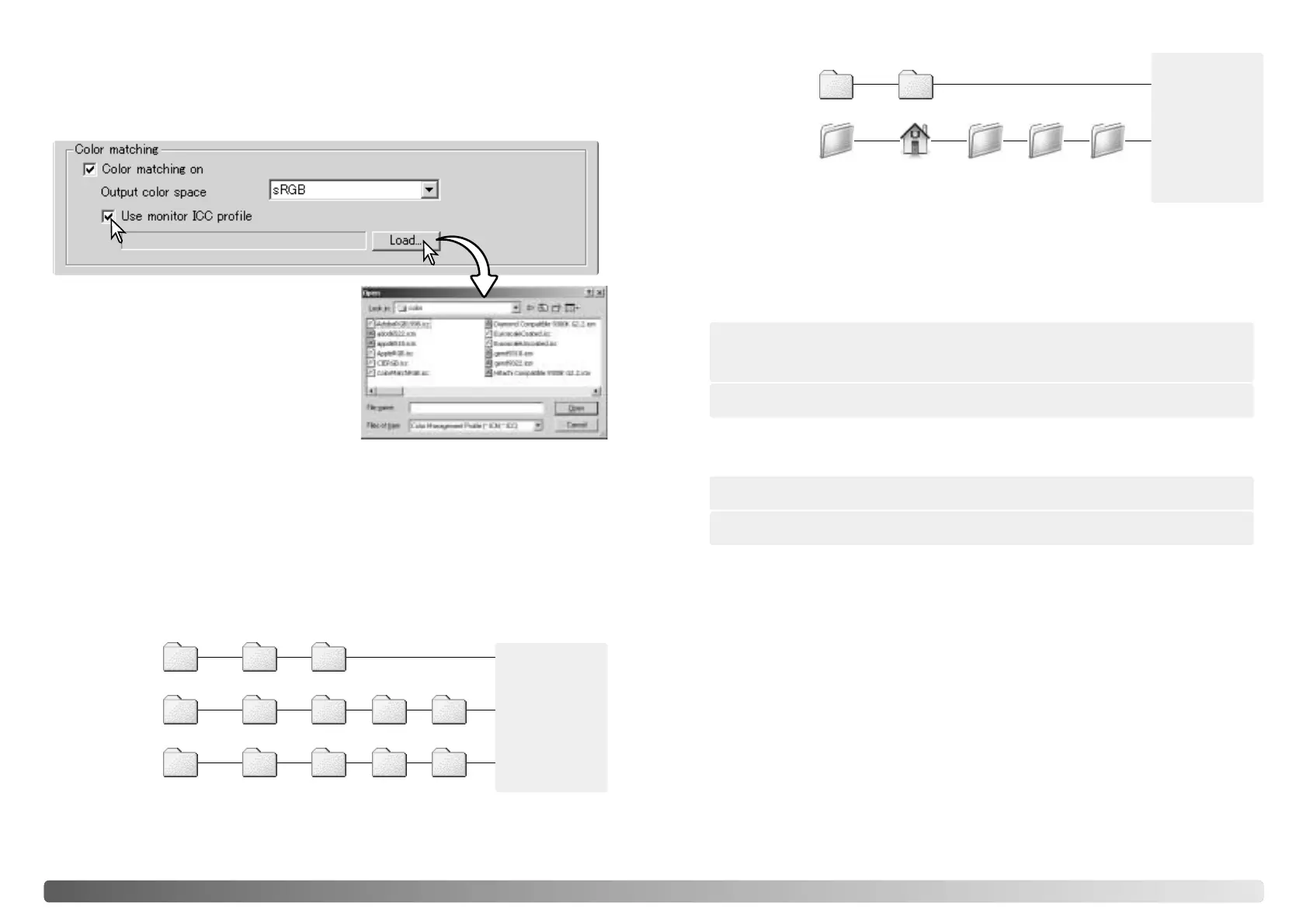
Setting the monitor ICC profile
The ICC profile for a specific monitor can be specified in the color-matching section of
the Preferences dialog box. Refer to the monitor instruction manual for the profile
name.
Click the use-monitor-ICC-profile check box.
Click the load ICC-profile button. The operating
system’s file-open dialog box will open.
Locate and open the ICC profile for the monitor
in use. The selected profile will be displayed in
the preferences window. Click OK in the
preferences window to set the ICC profile.
When installing the DiMAGE Scan Utility software, scanner color profiles will be
automatically installed. These profiles have been included for advanced color
matching with profile-to-profile conversions in sophisticated image-processing or DTP
applications. Refer to the scanner notes section of the hardware manual for the profile
for a specific scanner model.
Scanner color profiles
Windows
Windows
(98, 98SE, Me)
System Color
System32 Drivers
MLTF2920.icc
MLTF2920p.icc
MLTF3100.icc
MLTF3100p.icc
MLTF5000.icc
MLTF5000p.icc
WINNT
Windows
(2000)
Spool Color
MLTF5400.icc
MLTF5400p.icc
The following are recommendations for output color space and monitor ICC-profile
settings with image-processing applications. Some applications, such as Adobe
Photoshop 5 or later, have a monitor correction display function which automatically
corrects the monitor display to a specific color space.
Color matching recommendations
System
Mac OS 8/9
ColorSync profile
MLTF2920.icc
MLTF2920p.icc
MLTF3100.icc
MLTF3100p.icc
MLTF5000.icc
MLTF5000p.icc
Mac OS X
Users (User logon
name)
Library ColorSync Profiles
MLTF5400.icc
MLTF5400p.icc
System32 DriversWindows Spool Color
Windows
(XP)
The ICC profile for a specific monitor should be available from the manufacturer.
These may be downloaded from the manufacturer’s web site. See the monitor’s
instruction manual on how to install the ICC profile.
Color monitor ICC profiles can be created with one of the profile creation tools on the
market. They can also be created with the monitor-adjustment-assistant function
installed in a Macintosh operating system, or with Adobe gamma included in Adobe
Photoshop 5 or later for Windows.
ICC Profile: Use the profile for the monitor in use.
Output Color Space: Monitor RGB
When using an application without a monitor correction display function such as
Photoshop Elements, or when the function is disabled:
ICC Profile: Use the profile for the monitor in use.
Output Color Space: select the same color space as set in the application. With
Photoshop 5.0 or later, look in the color-setting option in the file menu for the profile
setup window.








 To Next Page