7170 A
PPENDIX
Mac OS X
Library CFMSupport
MFSIOFW.bundle
MCM Library DS
MFSBaseLib
DICEMLT003 Library
DRAGMLT002 Library
MFSButton Monitor*
MFSIOScsi.bundle
MFSIOUsb.bundleDRAG Library
MFSLib
MFSIFLib
PQueen20 Lib
DICEMLT004 Library
Users
(User logon name)
Library Preferences
DiMAGE Scan
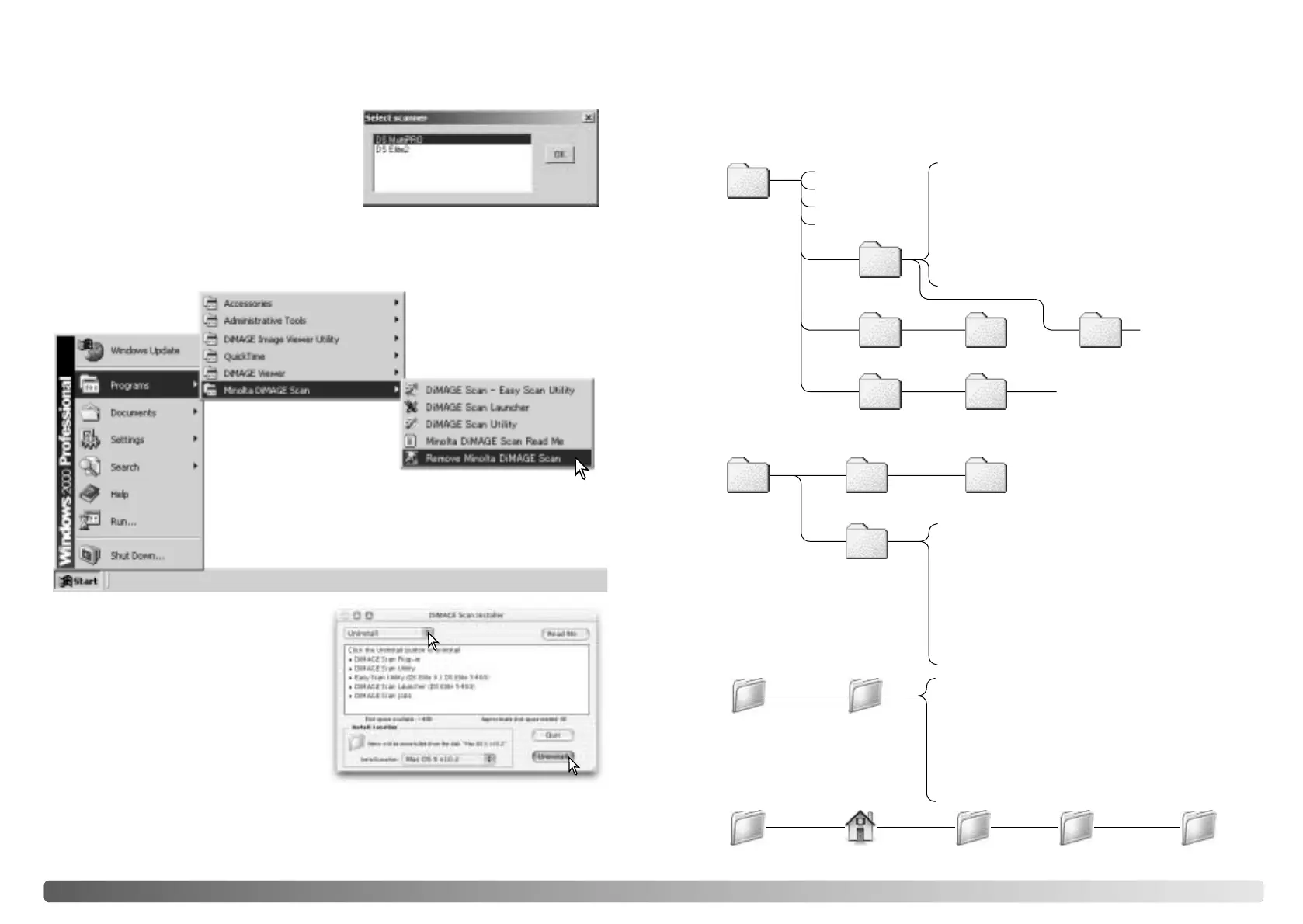
Installed files and folders
The following files and folders are installed in the computer system at the same time
as the DiMAGE Scan Utility application software. For the location and names of the
installed scanner profiles, see page 68.
Windows
(98, Me, XP)
OR
WINNT
(2000)
Windows
Twain.dll
Twain32.dll
Twunk_32.exe
System
wowpost.exe (NT only)
MCMLDS.dll
Winaspi.dll
(NT only)
Winaspi32.dll (98 and NT only)
Twain_32
DiMAGEScan
System32 Drivers
aspi32.sys (NT only)
System
Mac OS 8/9
Preferences
Extensions
DiMAGEScan
MFSLib
MCM Library DS
MFSBaseLib
DICEMLT003 Library
DRAGMLT002 Library
MFSFWDriver
MFSFWFamily
MFSFWExpLoader
MFSUSBDriver
DICEMLT003.dll
DRAGMLT002.dll
Twunk_16.exe
MFSLib.dll
MFSIFLib.dll
MFSBaseLib.dll
DRAGLib.dll
DRAG Library
MFSScsiLib
MFSIFLib
DICEMLT004.dll
PQueen20.dll
PQueen20 Lib
DICEMLT004 Library
MFSButton Monitor*
DS Elite5400 Driver
Using multiple scanners
When multiple scanners are connected to the
same computer, the select-scanner window
will open when the DiMAGE Scan Utility is
launched. Select the scanner to be used from
the list and click OK to continue.
If the scanners are the same model, the select-scanner window will not open. The
computer will use the first scanner detected during startup.
APPENDIX
MFS001.clp*
Files marked with an asterisk
(*) are installed with the
DiMAGE Scan Launcher.
To uninstall the DiMAGE Scan software
from a Macintosh computer, place the
DiMAGE Scan CD-ROM in the CD-ROM
drive repeat the installation procedure, but
select uninstall from the pop-up menu in
the installer dialog box. Confirm the
location of the software. Click the uninstall
button to remove the software from the
computer.
Uninstalling the DiMAGE Scan Software
When using Windows, select Remove Minolta DiMAGE
Scan from the Minolta DiMAGE Scan folder in the program
option of the start menu. Simply follow the instructions in
the windows to complete the operation.
iosubsys
apix.vxd (NT only)








 To Next Page