Managing Your MP3 and Picture Files
Various buttons are available for you to manage the files:
z Rename
Changes the name of the selected file.
z Delete
Removes the selected file.
CAUTION: Be discrete when you delete files. Deleting files of which the function is unknown
can cause programs or features to malfunction.
z Cancel
Aborts the ongoing action of file transfer.
z New Folder
Creates a new folder in the selected drive or folder.
8.4 Copying Contacts Information to Your Device
You can copy the Microsoft Outlook Contacts information from your computer to
your device using Mio Transfer. This saves you the time for entering the
information all over again on your device or on your computer. (For information
on Contacts, see Chapter 2.)
1. Turn on your computer and your device.
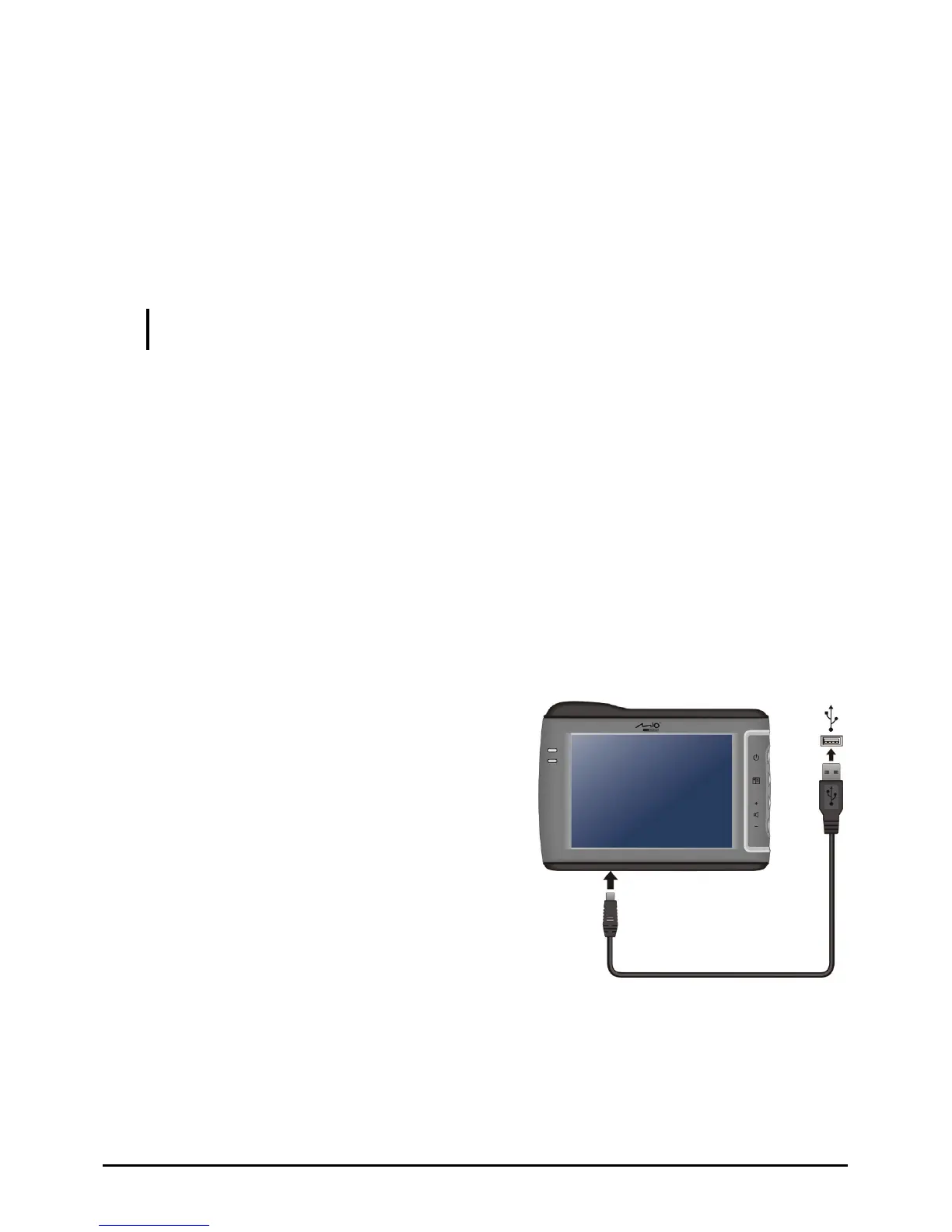
2. Connect the mini-USB end of the USB
cable to the bottom of your device and
the other end to a USB port on your
computer.
3. Start Mio Transfer by clicking
Mio
Transfer
icon on the Windows Desktop.
The Mio Transfer screen appears.
4. Click
Contacts on the top menu bar.
5. Select your option and click
Start.
68




 To Next Page