5. Commissioning
MiR Fleet PC Getting Started (en) 01/2021 - v.1.5 ©Copyright 2019-2021: Mobile Industrial Robots A/S. 42
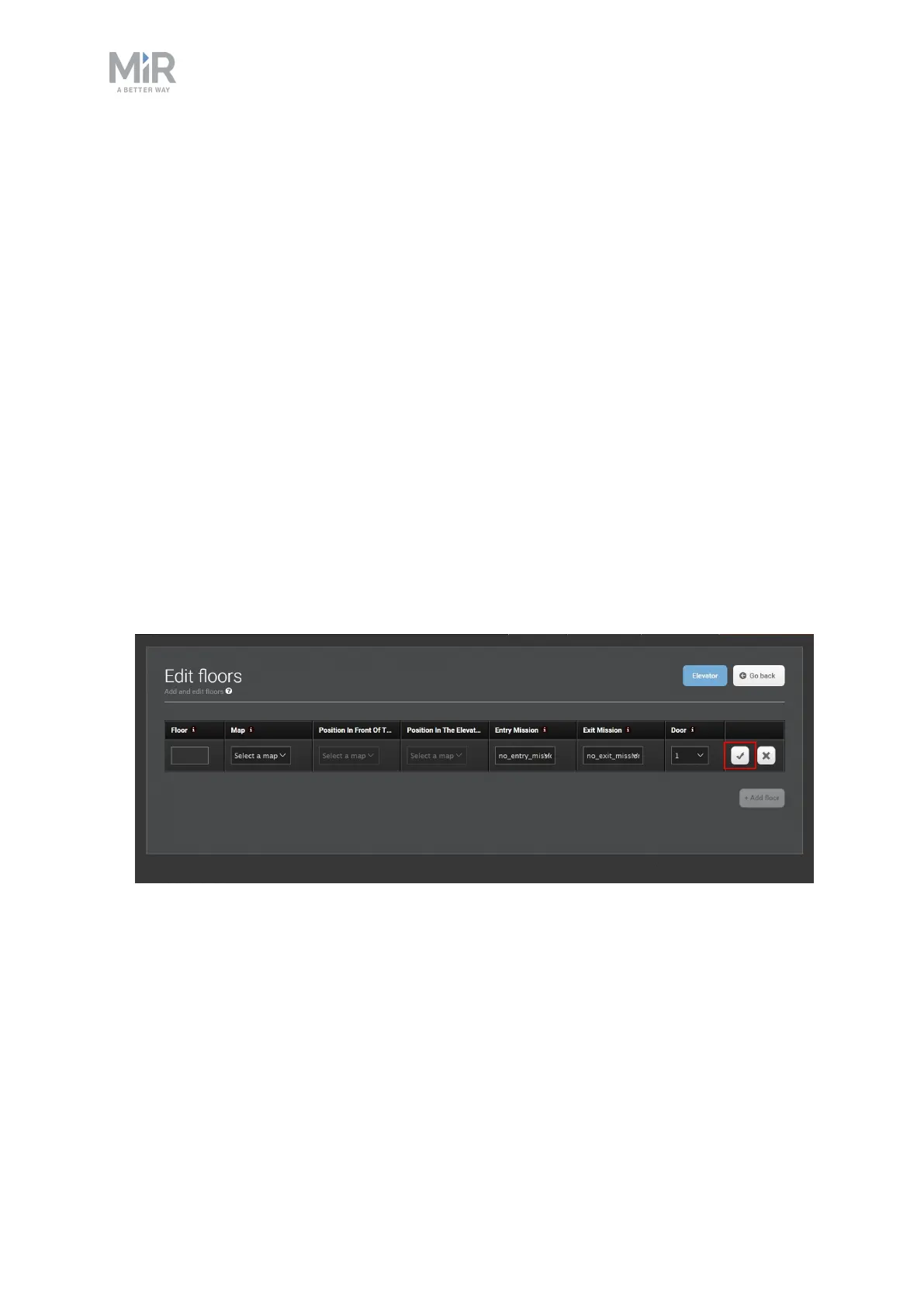
4. Select + Add floor to add a new floor and modify the settings for it. Positions and
missions must have been setup previously in the map editor (Setup > Maps > Create
map / Edit map).
• Floor: Enter a floor number.
• Map: The map must have been created on a robot and include an elevator position
that will enable the switching from one map to another.
• Position in front of elevator: The Elevator entry position in front of the elevator
where the robot waits for the elevator to arrive and the door to open.
• Position in the elevator: The Elevator position that represents the robot’s position
inside the elevator.
• Entry mission: An entry mission is not mandatory. An example of an entry mission
could be a sound as the robot enters the elevator. An entry mission must include a
Move action with a variable position.
• Exit mission: An exit mission is not mandatory. An example of an exit mission could be
a sound as the robot leaves the elevator.
• Door: If you have an elevator with two doors, select which of the doors open on the
selected floor. If the elevator has only one door, select 1.
Select the checkmark when you are done.
5. Keep adding floors until you have the required number for your building.



 To Next Page