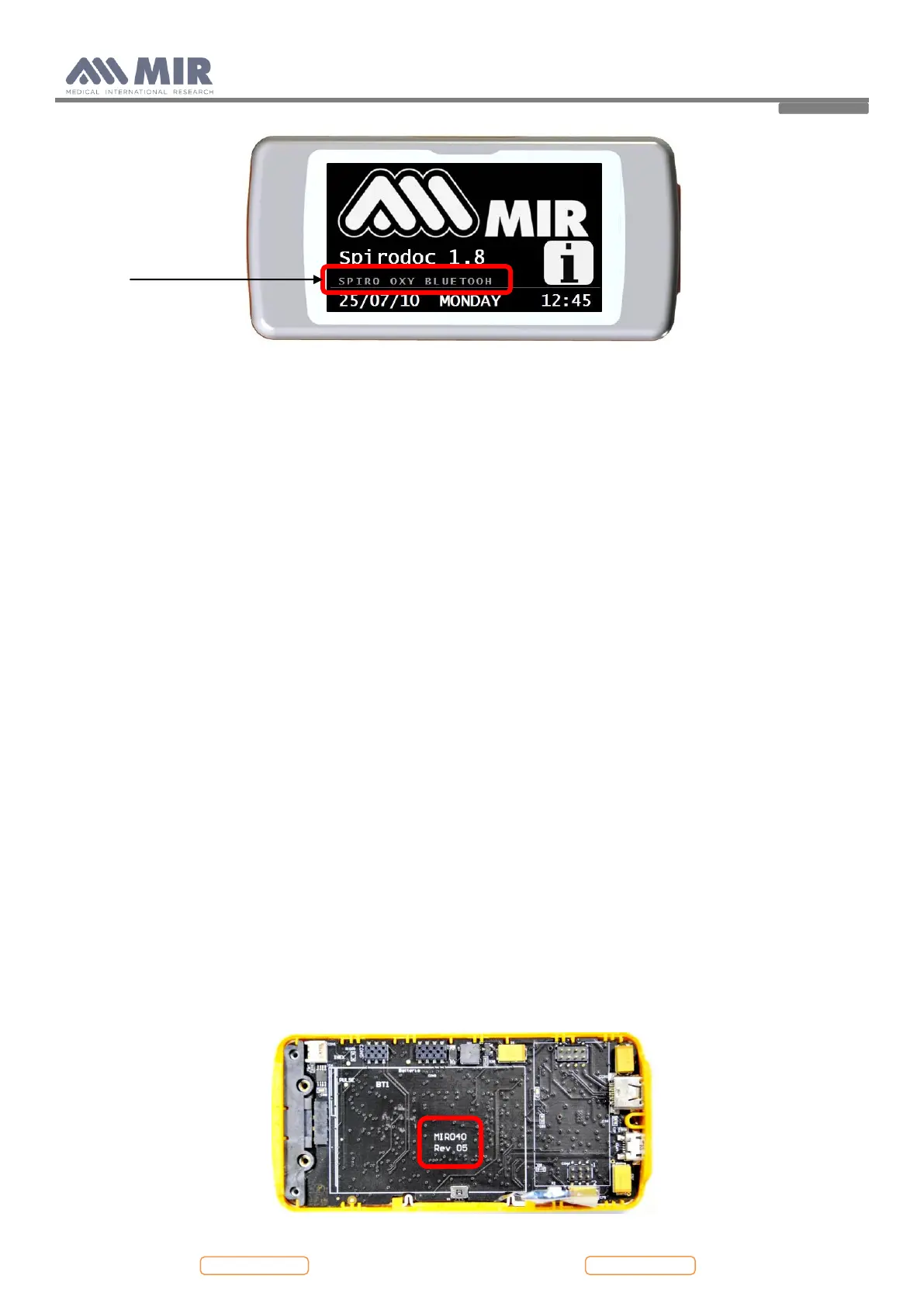
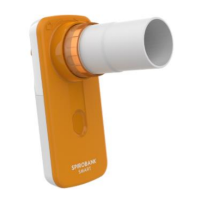
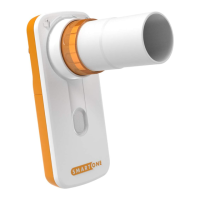
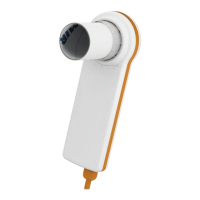
In the part pointed out in the previous image it is possible to check if the device is provided with the
oximetry function or not.
6.8. The device does not measure oximetry correctly
Check the correct connection of the sensor
– The connector must be fully inserted in the plug
– Check if there is any damage on the cable connector
– Check the correct position of the sensor on the patient, see section regarding the oximetry tests on the
user manual
6.9. The data communication via USB does not function
Check the cables, if there is any visible damage.
– Replace the cable
– If after changing the cable the problem persists, then send the device to the manufacturer
Verify the correct installation of the winspiroPRO software
– Check the winspiroPRO USB connection: from menu “Configuration”, “Options”, “Communication”
– Check that the driver is installed in the following folder:
C:\MIR\winspiroPRO\Drivers\MIR USB drivers\WinVista-Win7
if the driver is not installed then it can be obtained from the manufacturer or downloaded from:
www.spirometry.com. Then copy into the above-mentioned folder.
– If the problem persists contact the manufacturer.
6.10. Index of components
To simplify component identification they are marked in the attached drawing of the components layout of the
Printed Circuit Board (PCB) MIR 040.
See Appendix C for more information on the component name and description.
The revision of the PCB is indicated where highlighted in red below:


 To Next Page