Mirtone QuickStart Front Panel Programming Getting Started Guide 18
Programming system options
With most systems simply AutoLearning and AutoLooping a panel is not enough. At the
very least, descriptions for the devices are needed. QuickStart FPP lets you program
system user labels, inhibit timing, and AC failure timing. Card configuration lets you
program device descriptions.
For our example we are going to customize the operation of the system, then enter
descriptive messages for the devices. For some of these steps you will need the QS-
SCAN scanning wand. This plugs into the barcode scanner port located next to the
Enable Controls key switch on the front of the panel. The wand will be used to scan in
text messages and device serial numbers.
We’ll begin by entering the user labels. This information is not mandatory, but we
recommend that you enter it for the convenience of the building owners and for
technicians servicing the system.
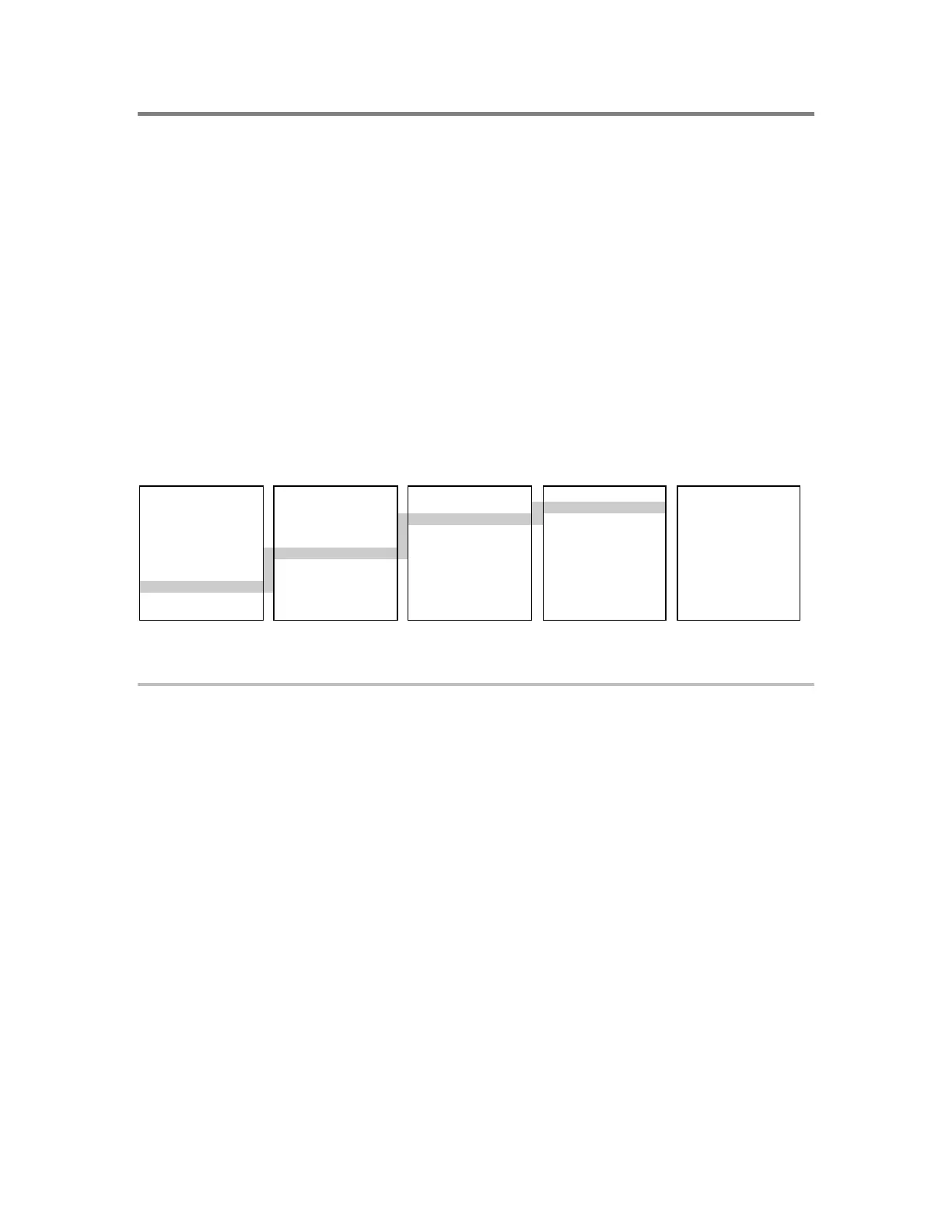
MAIN MENU PROGRAM CONFIGURE SYSTEM USER LABELS
1) Status 1) Time/Date 1) AutoLearn 1) User Labels 1) Facility Name
2) Reports 2) Edit Password 2) System 2) ALM/RST Inhib 2) Inst Company
3) Test 3) Restart 3) Cards 3) AC Power Dly 3) Phone Number
4) Enable 4) Clear History 4) Zone 4) Exit 4) Programmer
5) Disable 5) Configure 5) Outputs 5) Exit
6) Activate 6) ECP Port 6) Exit
7) Restore
8) Program
9) Login
To enter user label information:
1. At the panel press Menu and log in as before.
2. Choose Program > Configure > System > User Labels.
3. From the User Labels menu, choose Facility Name and enter a description using the
QS-SCAN scanning wand.
This is the label that appears on the panel’s LCD under normal conditions. For our
example we’ll use 1 Office Place.
4. Choose Inst Company and enter the name of the company installing the system.
5. Choose Phone Number and enter the phone number of the installation company.
6. Choose Programmer and enter your name.
7. Choose Exit then Save Edits.
This returns to you to the Configure menu.


 To Next Page