Mirtone QuickStart Front Panel Programming Getting Started Guide 30
Configuring zones
The last step in the programming process is to create zones and correlate them to our
output groups.
Zones are groups of input devices. A zone can contain a single device, or several devices.
When you are front panel programming, every input device must be assigned to a zone.
The zone is then correlated to an output group. Earlier, we created the output groups. In
this topic, we’ll create the required zones, then correlate them to the proper output group,
starting with the waterflow devices.
If you’re not already at the Configure menu, log in and navigate to the menu as before.
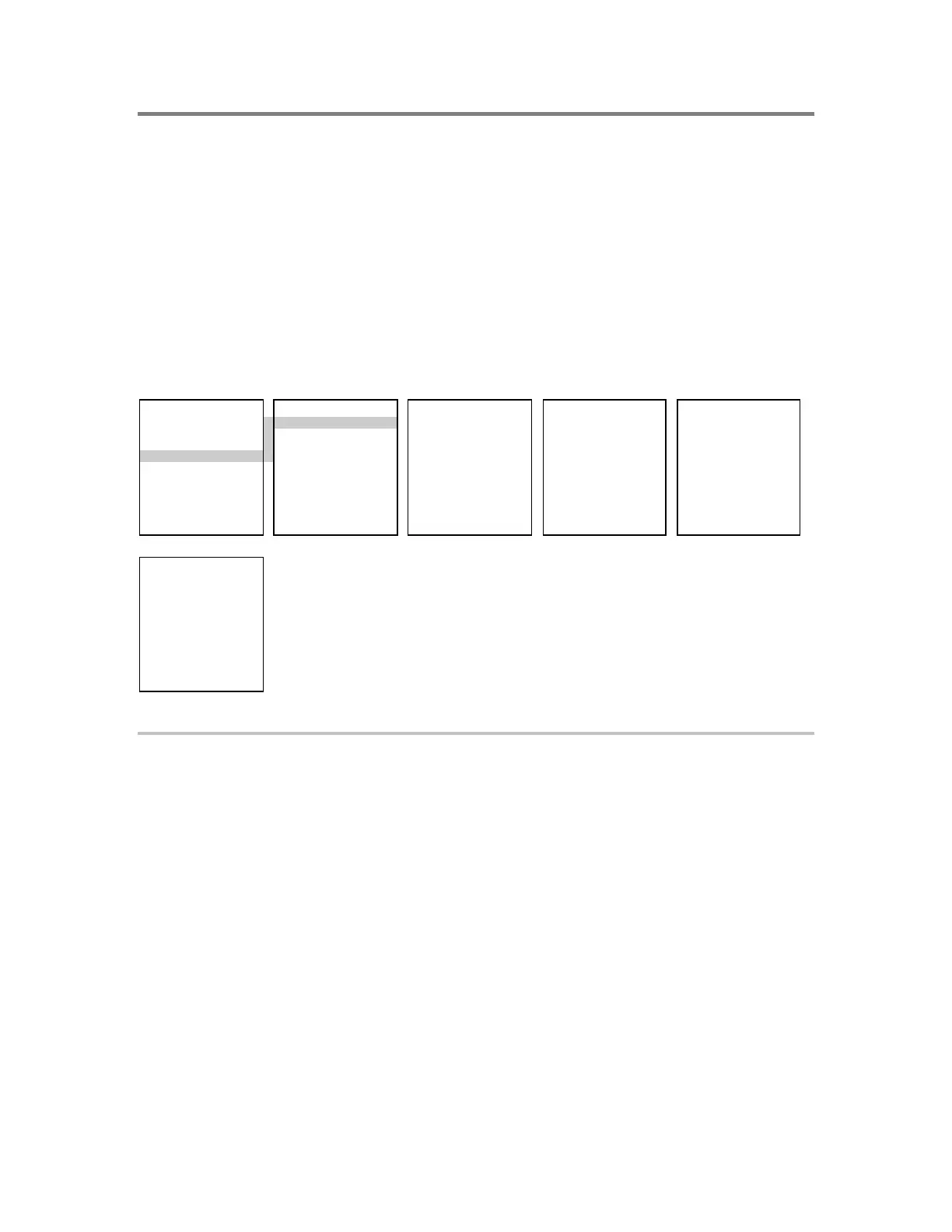
CONFIGURE ZONE ZONE TYPE ZONE EDIT ZONE MEMBERS
1) AutoLearn 1) Add 1) Alarm 1) Message 1) Device Address
2) System 2) Edit 2) Supervisory 2) Members 2) Enter Serial #
3) Cards 3) Delete 3) Monitor 3) Output Group 3) Delete
4) Zone 4) Coding 4) Review
5) Outputs 5) Type
6) Exit 6) Exit
OUTPUT GROUP
1) Add
2) Remove
3) Review
To create and correlate a zone:
1. From the Configure menu, choose Zone > Add.
2. From the Zone Type menu, choose Alarm. (For this example, we’ll begin with the
waterflow devices.)
3. From the Zone Edit menu, choose Message, scan in a text message for the zone using
the scanning wand, then press Enter.
4. Choose Members.
5. Use the Zone Members menu to enter either the device address or serial number of
the first waterflow device, then press Enter on the panel.
6. Repeat steps 4 and 5 for each waterflow device.
When all the devices have been added to the zone, we need to correlate that zone to
an output.


 To Next Page