Mirtone QuickStart Front Panel Programming Getting Started Guide 23
Card configuration - SLIC - modules
After you’ve entered all the detector information, enter information for the modules. If
you’re continuing on from the previous topic, you should be at the SLIC menu. If not, log
in as a level 4 user and navigate through the menus to return to the SLIC menu.
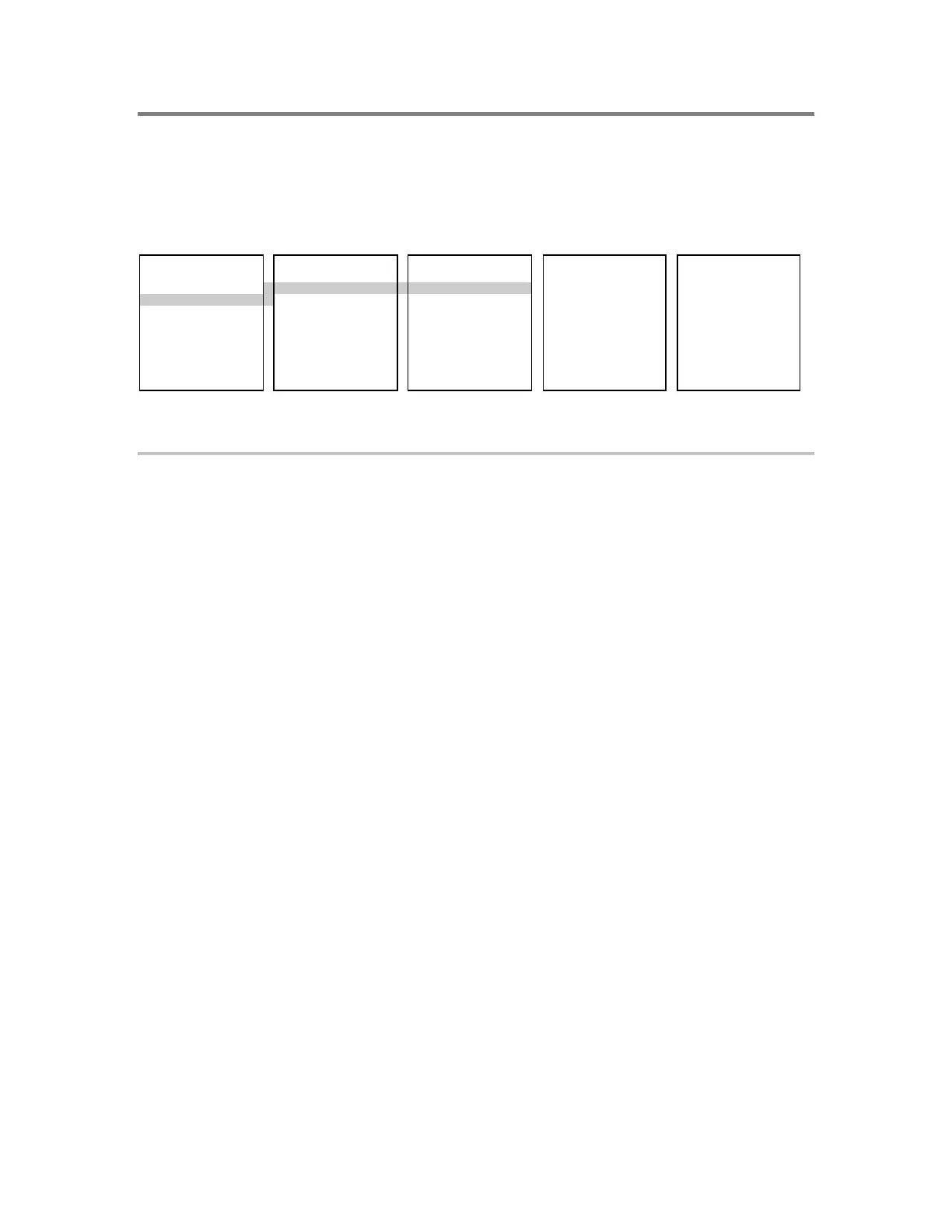
SLIC CONFIG MODULE CONFIG MODULE CONFIG MODULE CONFIG MODULE
1) Config Card 1) Add 1) Device Address 1) Model 1) Message
2) Config Detect 2) Edit 2) Enter Serial # 2) Device 1 2) Type
3) Config Module 3) Delete 3) Device 2 3) Personality
4) Autoloop 4) Exit 4) Exit
5) Accept Map P:pp C:cc D:ddd
6) Exit S# ssssssssss
To configure a SLIC module:
1. From the SLIC menu, choose Config Module.
2. Choose Edit > Enter Serial # and enter the serial number of the module.
You can enter the number manually, with the panel keypad, or by using the scanning
wand.
Note: The Config Module screen shows the module address and serial number. The
address shown is the one assigned to the module during the AutoLoop process.
Record this address on your programming worksheet, beside the module serial
number. The address of the module will be used in subsequent programming steps.
3. Choose Model and specify the type of Signature module.
4. Choose Device 1 > Message and scan in a text message.
Device 1 is the first address of the Signature module.
Note: As with detectors, you do not have to assign a message to every module if you
are going to be adding them to zones.
5. Choose Type and specify the type of input being used (Alarm, Supervisory,
Audible…).
The system displays only those choices that are valid for the GSA model you’ve
specified.
6. Choose Personality and specify the personality code for the type you selected in the
previous step.
The system displays only those choices that are valid for that input type.


 To Next Page