PHONE LOCK KEY
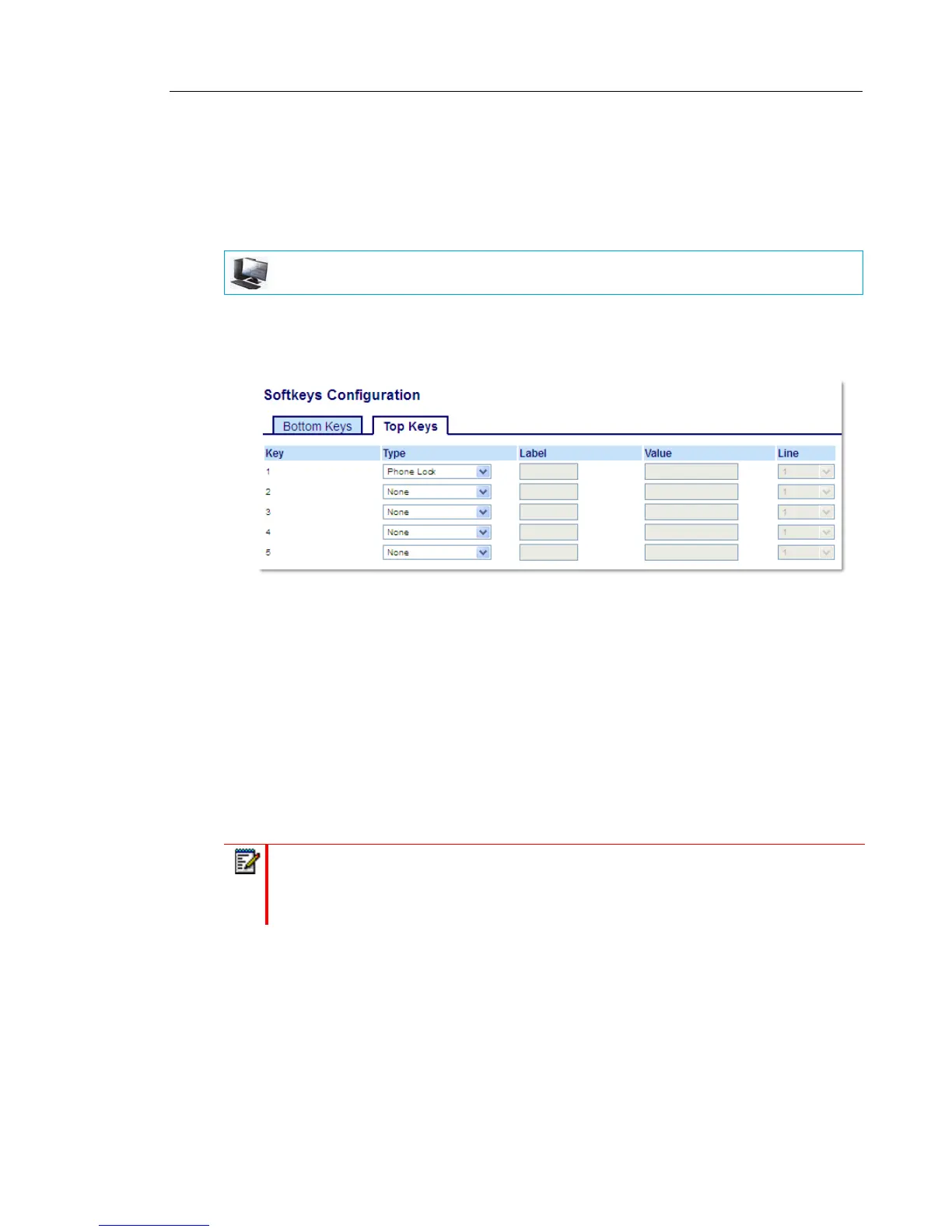
You can configure a key on the IP phone to use as a lock/unlock key. You assign the function
of the key as Phone Lock.
CONFIGURING A PHONE LOCK KEY
1. Click on Operation > Softkeys and XML.
or
Click on Operation > Expansion Module <N>.
Softkeys
2. Select from Key 1 through Key 20 on the Top keys.
or
Select from Key 1 through Key 18 on the Bottom keys.
3. In the Type field, select Phone Lock from the list of options.
Expansion Module Keys
4. Select from Key 1 through Key 16 (M680i) or Key 84 (M685i).
5. In the Type field, select Phone Lock from the list of options.
6. Click Save Settings.
MITEL WEB UI
Note: You can lock/unlock the phone using the new key you just configured, using the
Mitel Web UI at the path Operation > Phone Lock, or using the Phone Lock option on
the IP phone UI at the path Options > Lock > Phone Lock. For more information about
using the lock/unlock feature, see “Locking the Phone Using the IP Phone UI” on page 56.


 To Next Page