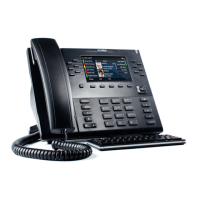
Mitel 6867i SIP Phone Release 4.0.0 SP1 User Guide
pressed again, Executive Call Filtering will deactivate and the key’s corresponding LED will
turn off.
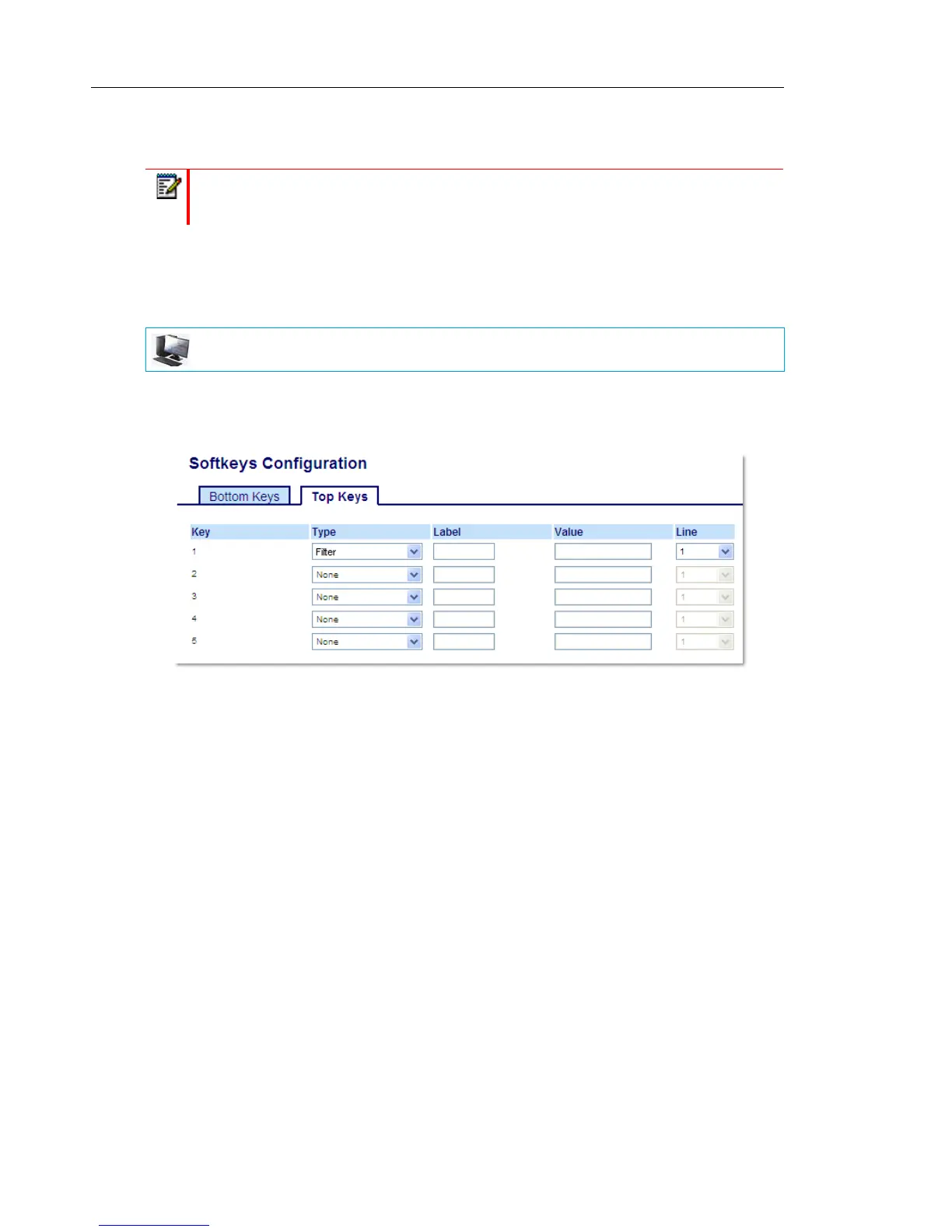
Configuring the Filter Key on the Executive’s Phone Using the Mitel Web UI
Use the following procedure to configure the Filter key on the Executive’s phone using the Mitel
Web UI:
1. Click on Operation->Softkeys and XML.
or
Click on Operation->Expansion Module Keys.
2. Select a key that you want to use as a Filter activate/deactivate key.
3. In the "Type" field, select "Filter".
4. In the "Label" field, enter a label to apply to this key (e.g. Filter).
5. (Optional) In the "Value" field, enter the Executive Call Filtering Activation FAC (e.g. #61)
or both the Executive Call Filtering Activation and Deactivation FACs followed by a semi-co-
lon (e.g. #61;*61).
6. In the “Line” field, select the line for which you want to use the key functionality.
7. Click Save Settings to save your settings.
Filter Key for the Assistant’s Phone
As an Assistant can be associated with multiple Executives simultaneously, the Assistant’s
phone can be configured with multiple Filter softkeys; one softkey for each Executive. In this
case, the value of each Filter softkey should correspond to the phone number or extension of
the respective Executive as per configured in the user’s profile.
When Filter softkeys are configured with key values, pressing the respective Filter softkey will
activate Executive Call Filtering for the applicable Executive and the softkey’s corresponding
Note: Upon a reboot, the initial state of the Filter key LED will correspond to the Executive
Call Filtering state configured on the call manager.
MITEL WEB UI


 To Next Page