• WWW DD MMM
• DD MMM
• DD.MM.YYYY
11. Press the Save softkey to save your changes.
TIME ZONE
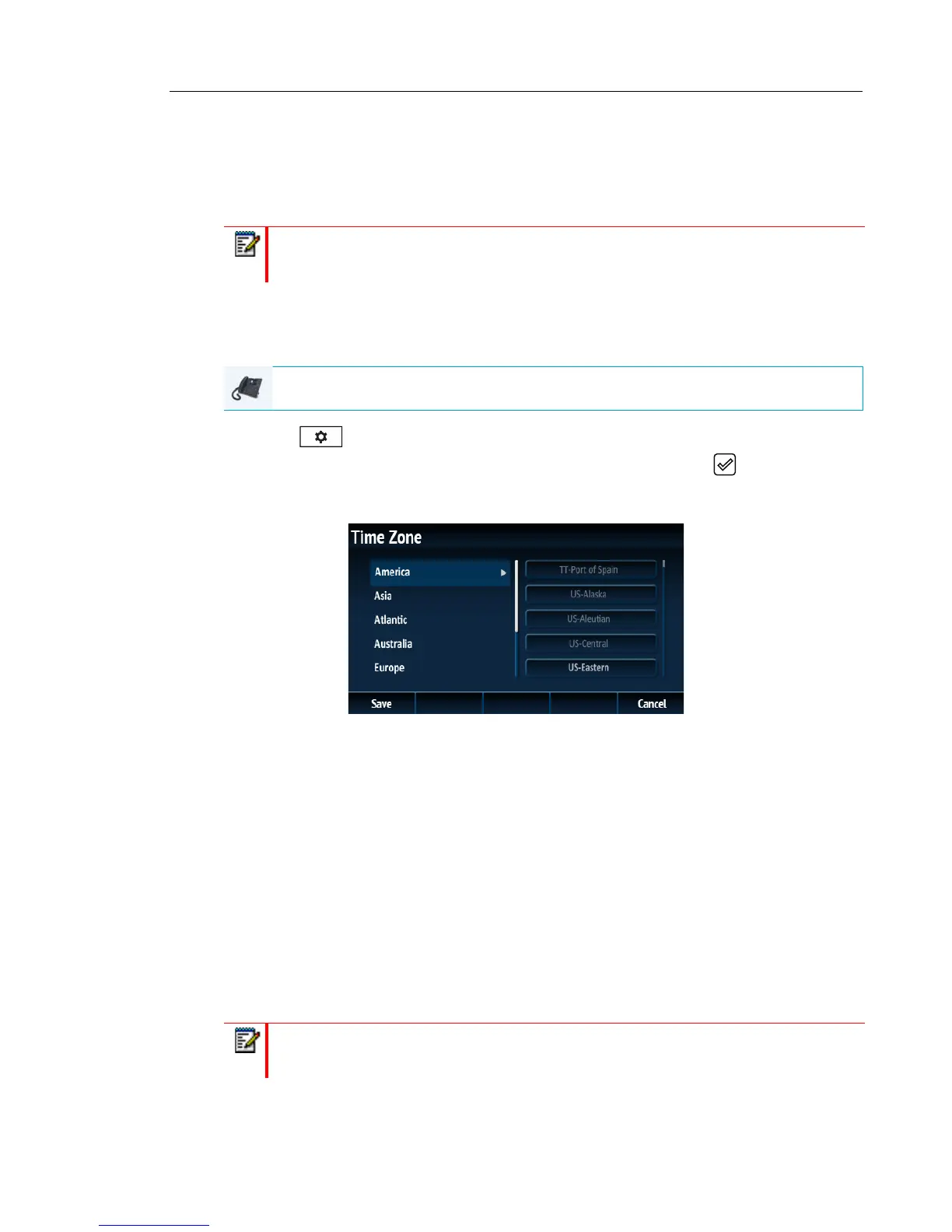
Configuring the Time Zone Using the IP Phone UI
1. Press on the phone to enter the Options List.
2. Navigate to the Time and Date > Time Zone option and press the button or Select
softkey.
A list of time zones displays for different areas of the world.
3. Use the 5 and 2 keys to scroll through and highlight the desired region. Valid values are:
• America
• Asia
• Atlantic
• Australia
• Europe
• Pacific
•Others
4. With the desired region highlighted press the 4 key to move to selection column.
5. Use the 5 and 2 keys to scroll through and choose the time zone that applies to your area.
The default time zone is US-Eastern.
6. Press the Save softkey to save your changes.
Note: The time and date formats you configure are applicable to the Home screen as
well as the Callers and Redial Lists.
IP PHONE UI
Note: For a list of the time zone values available on the IP phone, see “Appendix A -
Time Zone Codes.”



 To Next Page