When you configure the country's tone set, the country-specific tone is heard on the phone for
the following:
• Dial tone
• Secondary dial tone
• Ring tone
• Busy tone
• Congestion tones
• Call waiting tone
• Ring cadence pattern
You configure global ring tones and tone sets using the IP phone UI and Mitel Web UI. Installing
a custom ring tone can be performed using the Mitel Web UI only.
Configuring Ring Tones Using the IP Phone UI
Global configuration only
1. Press on the phone to enter the Options List.
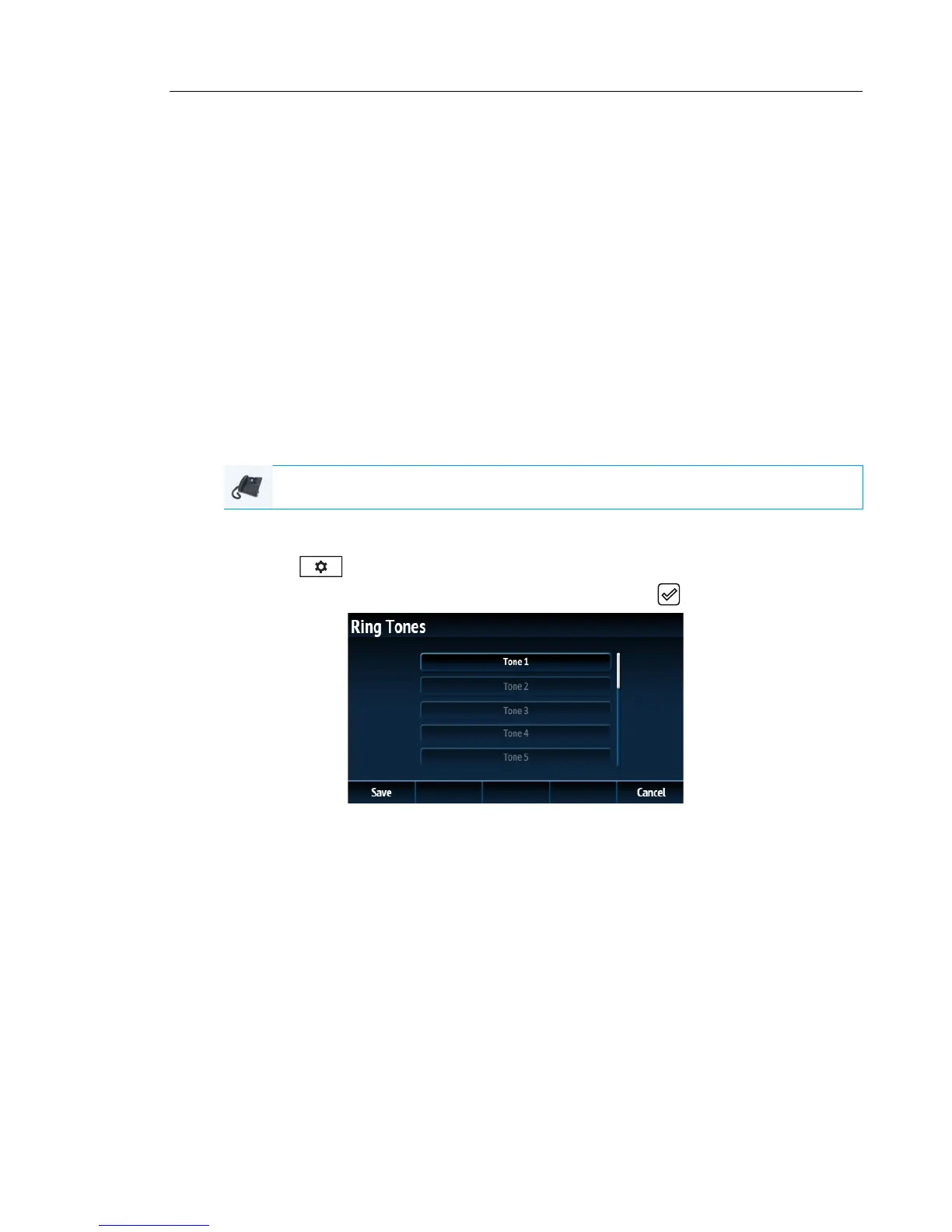
2. Navigate to the Audio > Ring Tones option and press the button or Select softkey.
3. Use the 5 and 2 keys to scroll through and choose the desired ring tone (Tone 1 through
Tone 15, Silent, or any custom ring tones installed).
4. Press the Save softkey to save your changes.
The ring tone you select is immediately applied to the IP phone.
IP PHONE UI



 To Next Page