4.4 LCD/LED SETTINGS
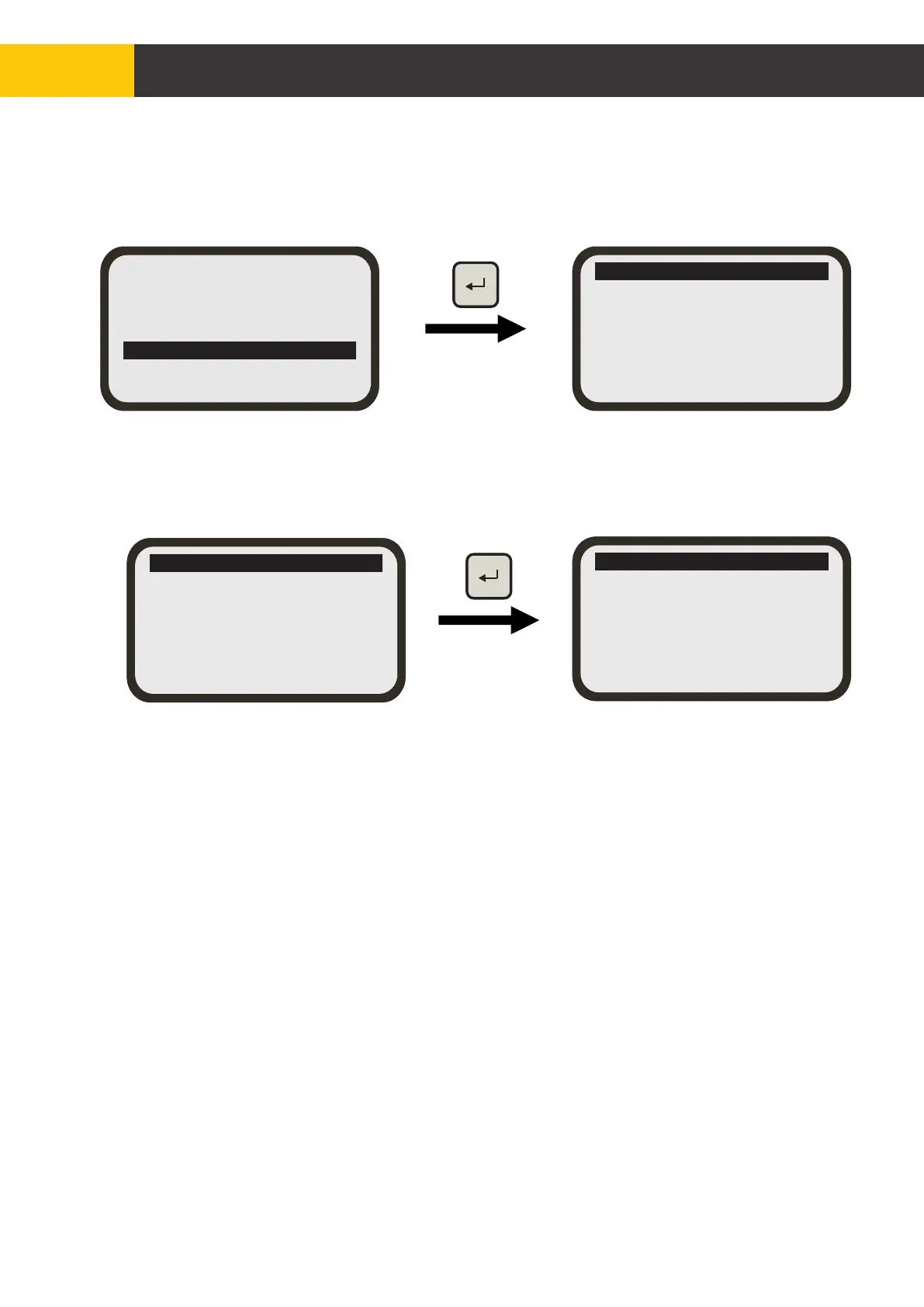
From the Main Menu screen, use [AUX] key to scroll down to ‘LCD/LED Settings’ then
press the [ENTER] key to access the sub menu.
4.4.1.1 LIGHT Off/[On]/Auto SETTING
With the Light ‘Off/[On]/Auto’ option highlighted press the [ENTER] key until the
desired power option for Backlight is selected. The selected setting is shown in
enclosed square brackets (e.g. [Auto]). The three settings work as below :
1. Off - If this option is selected the backlight will permanently stay off
2. On - If this option is selected the backlight will permanently stay On
3. Auto - If this option is selected the backlight will come on if a key is pressed and
automatically switched off after 5 seconds of user inactivity.
Use the [AUX] key to select exit and press [ENTER] key to exit menu.
4.4.1 LCD BACKLIGHT SETTINGS
Press [ENTER] key to access the ‘LCD Backlight’ sub menu.
Light Off/[On]/Auto
Brightness
Exit
LCD Backlight
LCD Contrast
Reverse LCD
LED Brightness
Exit
Figure 4.4.1.1
LCD Backlight
LCD Contrast
Reverse LCD
LED Brightness
Exit
Figure 4.4.1
© Copyright MOBA Mobile Automation Australia Pty Ltd
28
Working with Panel
Hydraulic Settings
Sensor Settings
Accessory Settings
Joystick
LCD/LED Settings
Advanced Settings
Exit


 To Next Page