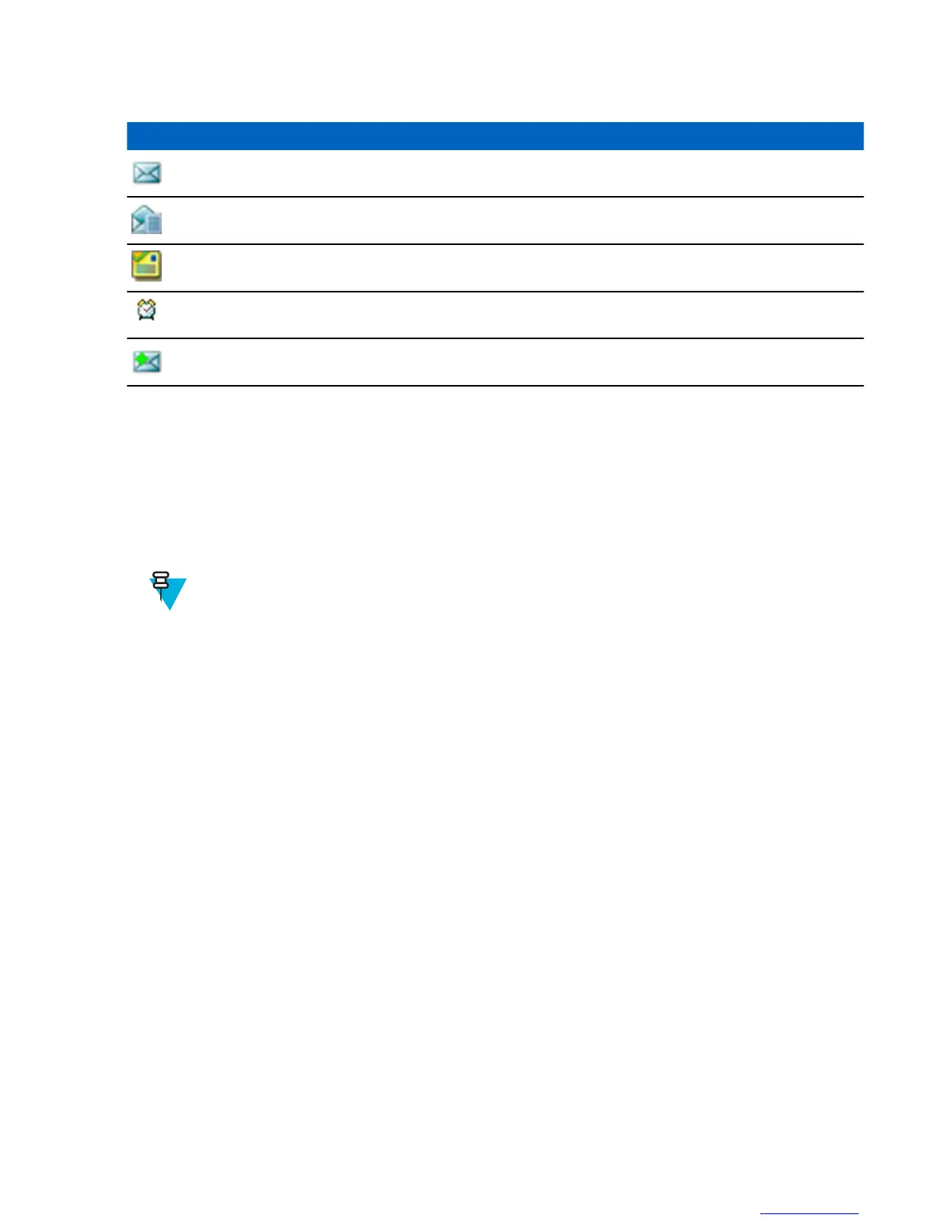
Table 15: Inbox Icons
Icon Description
Unread (New) Message
Read (Old) Message
Sender Information in Message View — name or number
Time and Date Stamp in Message View — arrival time and date
Delivery Status Received — delivery status for Store & Forward messages
Messages sub-menu indicates the number of the messages. If the indication is for example 2/4, it means that two
unread and four read messages are in the Inbox.
Entering the Inbox
Procedure:
1 From the home screen, press the MENU key.
2 Select Messages → Inbox.
Note: The status (if any) of the list is displayed for a few seconds:
• No New or Old Messages — The screen returns to the previous display within a few seconds.
• Inbox Full — Select Ok.
Receiving New Messages
Procedure:
1 New message received.
Your radio displays an animation and plays a New Mail Received tone.
2 Select one of the following:
• Read — opens the entire message.
• Back — dismisses the message. You can access the message later from the Inbox.
Using Submenus in the Inbox and the Outbox
Procedure:
1 From the home screen, press the MENU key.
2 Select Messages → Inbox or Outbox.
3 Highlight the required message and press MENU key.
4 Select one of the following:
• Store — Saves a message as a template. Change the default template name and press Ok.
• Delete — Deletes the selected message. Press Yes to confirm.
• Delete All — Deletes all the messages in the Inbox/Outbox. Press Yes to confirm.
• Reply (only for Inbox) — Invokes the edit screen with the old message as default text and the message
originator as a recipient. After editing, press Send, the PTT button, or the SEND key to send.
Main Menu | 59
| | Send Feedback



 To Next Page