Dyna-Link Setup 25
4.7 Filter Setup
Changing the filter settings allows the Dyna-Link to adjust to situations where there is
a lot of movement in the lift or the crane structure. If the reading is not stable, it can
often be improved by increasing the filter setting. Settling time will be longer as the
filter setting is increased. However, the MSI-7300 Dyna-Link 2 employs algorithms
that speed up large tension changes while still controlling vibration even with higher
filter settings.
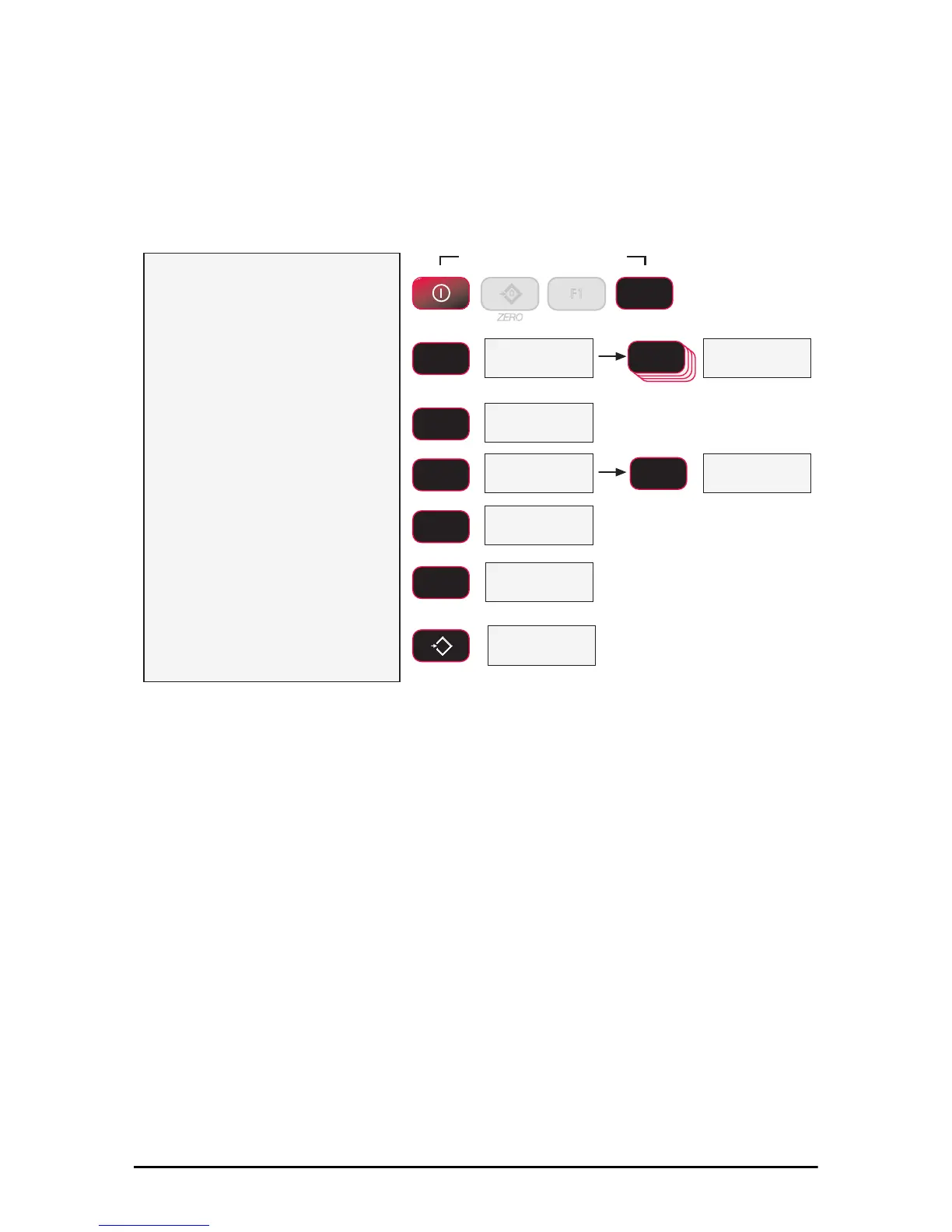
1) With the 7300 off, press and hold
the F2 key, then press the
POWER key.
...or while the 7300 is on, press F2 and
POWER simultaneously.
2) The first item of the setup menu
is Func1. Scroll to Filtr with
the F2 key.
3) To set up the filter, press F1. The
display will blink the current filter
setting.
4) Change the filter setting by
pressing the F2 key.
There are four available filter settings.
Not all choices are shown in this
example.
5) When the desired filter setting is
annunciated, press F1. The next
item in the setup menu appears.
6) Either press ZERO to exit setup
and store all changes, or
continue to another setup menu
item using the F2 key.
)YQF
+L
High Filter 1
2))
Blinking
)LOWU
2))
Blinking
/2
Low Filter, Blinking
8QLW
Next Setup Menu Item
Store and return to
weight display
6WRUH
Press Simultaneously
POWER
F2
0
EXIT/SAVE
ZERO
ENTER/SELECT
F1
ENTER/SELECT
F1
SCROLL
F2
SCROLL
F2
SCROLL
F2
SCROLL
F2
F2
SCROLL
0
ZERO
F1


 To Next Page