Chapter 3 – SMSFinder Basics and Setup Wizard
Multi-Tech Systems, Inc. SMSFinder User Guide for System Administrators (Document S000451B) 17
Chapter 3 – SMSFinder Basics and
the Setup Wizard
Starting the SMSFinder
Open a Web Browser
1. Be sure that the SMSFinder is cabled and that the power is connected as shown in Chapter 2.
2. Then open a Web browser.
3. Type the default gateway address line:
http://192.168.2.1
4. Press Enter.
Login
The Login screen for the SMSFinder Web Interface displays.
• Type admin (admin is the default user name) in the user name box.
• Type admin in the password box.
• Click Login.
Note: The User name and Password entries are case-sensitive (both must be typed in lower-
case). The password can be up to 12 characters. Later, you will want to change the password
from the default (admin) to something else (see the User Guide). If Windows displays the
AutoComplete screen, you may want to click No to tell Windows OS to not remember the
password for security reasons.
Password Caution: Use a safe password! Your first name spelled backwards is not a sufficiently
safe password; a password such as xfT35$4 is better. It is recommended that you change the
default password. Create your own password.
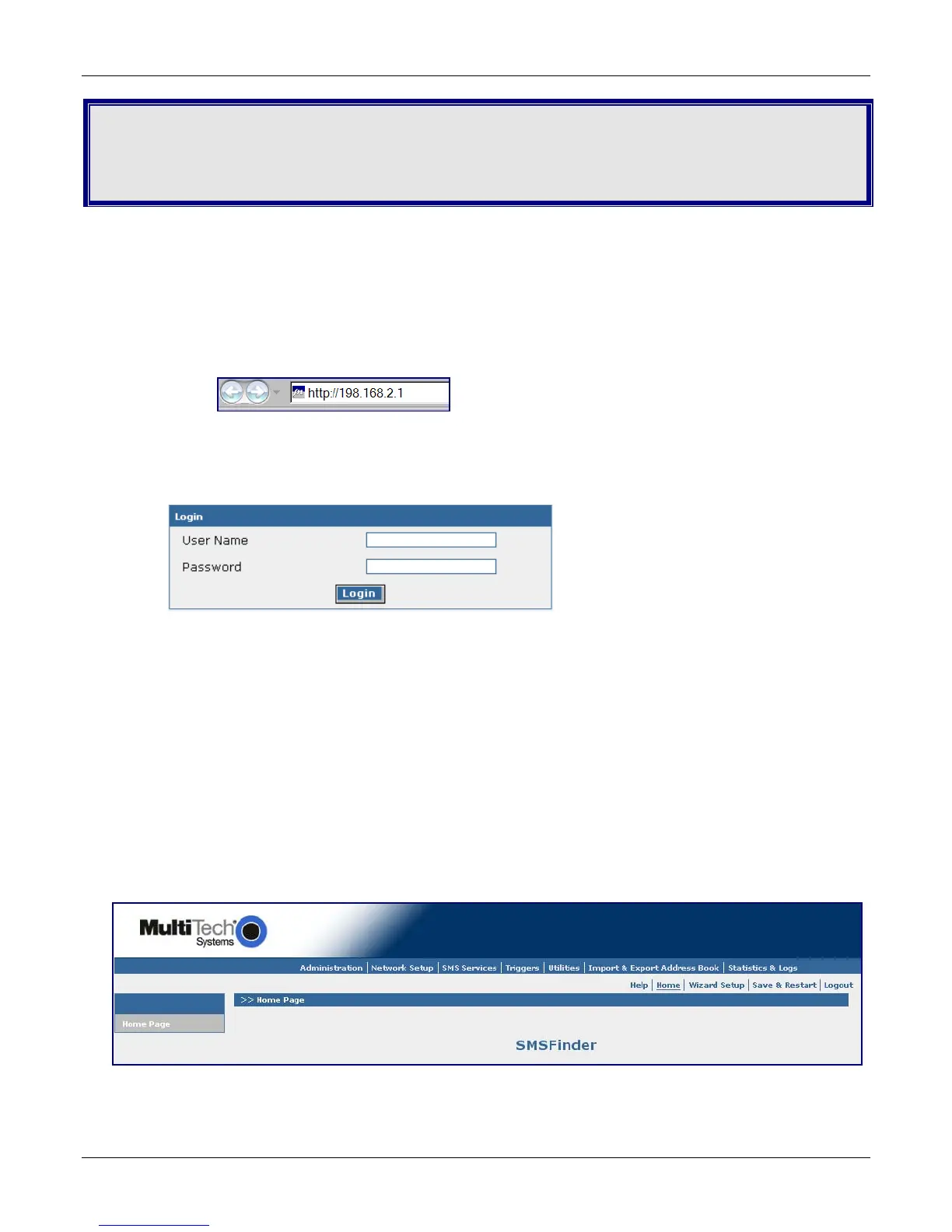
Web Interface Opens
This is the Home screen from which you can access all setup functions.
Note: Only the top portion of the Home screen is shown here.



 To Next Page