Chapter 4 – Using the SMSFinder's Web Interface
Multi-Tech Systems, Inc. SMSFinder User Guide for System Administrators (Document S000451B) 45
Utilities > Backup
Utilities > Firmware Upgrade
Utilities
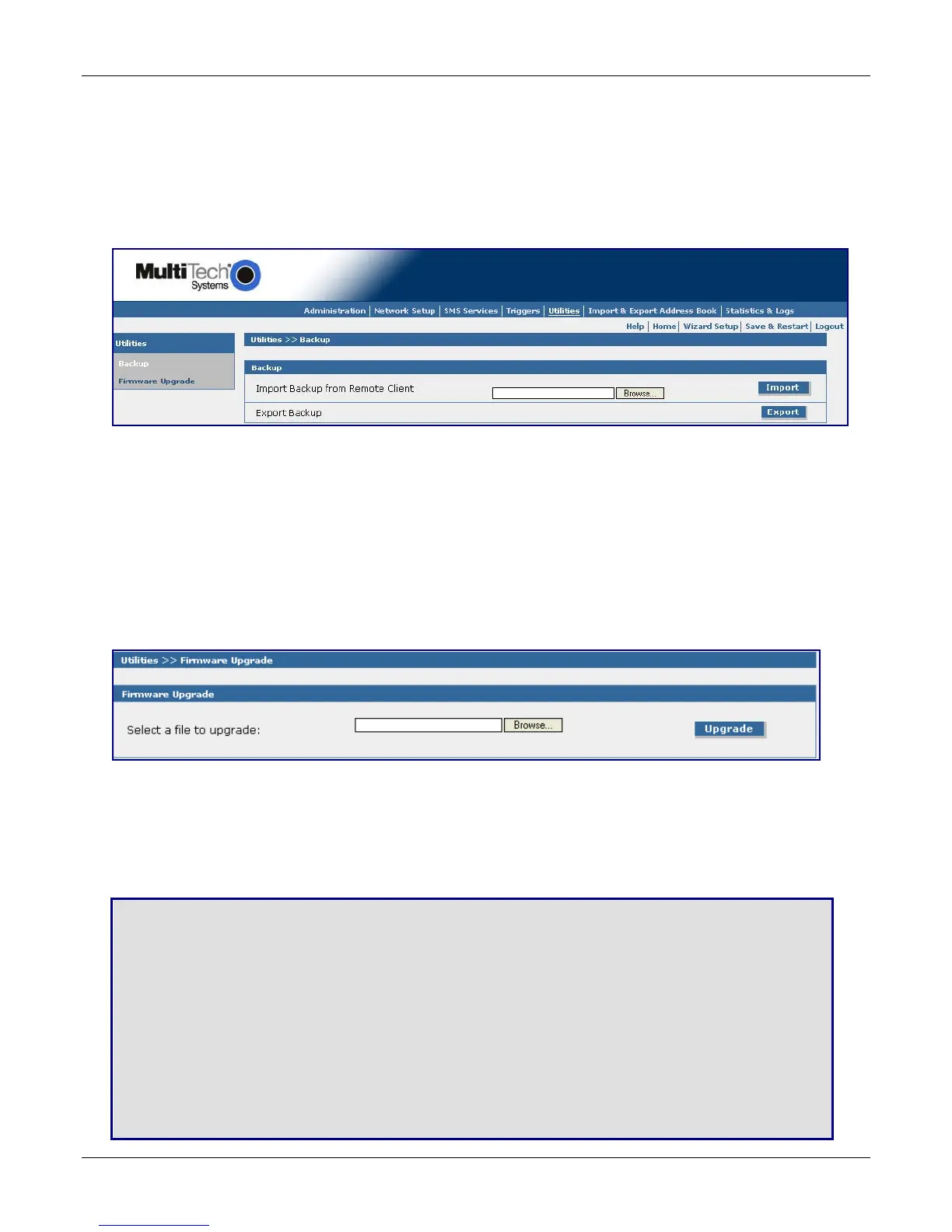
Utilities > Backup
The Backup function lets you save the SMSFinder settings to a local hard disk or to be exported to a remote
client. With a backup file, you can set a recently installed SMSFinder to the identical configuration level as an
existing SMSFinder. This is useful in case there is a problem with your new settings. Important Note: A
backup file should only be restored to SMSFinders that have the same firmware as the backup.
Backup
Import Backup from Remote Client
Use this section of the screen to import a saved configured. Click the Browse button to locate the file.
Then click the Import button to restore the SMSFinder configuration from this backup file. The
configuration file is uploaded to the SMSFinder and the saved configuration is restored.
Export Backup
Use this section of the screen to store the SMSFinder configuration. Click the Export button to save the
configuration file.
Utilities > Firmware Upgrade
The firmware on the SMSFinder can be upgraded to the latest version using this feature. All Multi-Tech
firmware upgrades are posted on the Multi-Tech Web site from which they can be downloaded.
Firmware Upgrade
Select a File to Upgrade
Click the browse button to locate the latest firmware version.
Click the Upgrade button to start the download.
Note: The SMSFinder will reboot automatically after the firmware upgrade.
Save & Restart
IMPORTANT Note About Save & Restart
When you have completed your SMSFinder settings and you are not going to enter any more data,
you must click the Save & Restart button located under the menu bar. The system will save the new
settings to the Flash Memory and give you the option to restart your SMSFinder. Saving to the Flash
Memory saves the new settings in the flash prom and prevents the settings from getting lost at the
next power up.
Note: The system will save the SMS settings every 8 hours automatically; however, it will not save the
system setting during this automatic save. The automatic saving of the SMS settings is helpful for
those times when the administrator does not have direct access to the Ethernet port.
Save
Click the Save button to save your system settings to the flash memory.
Restart is Optional
This is optional. You do not have to restart the SMSFinder after saving to the flash memory.



 To Next Page