Import a csv Site File
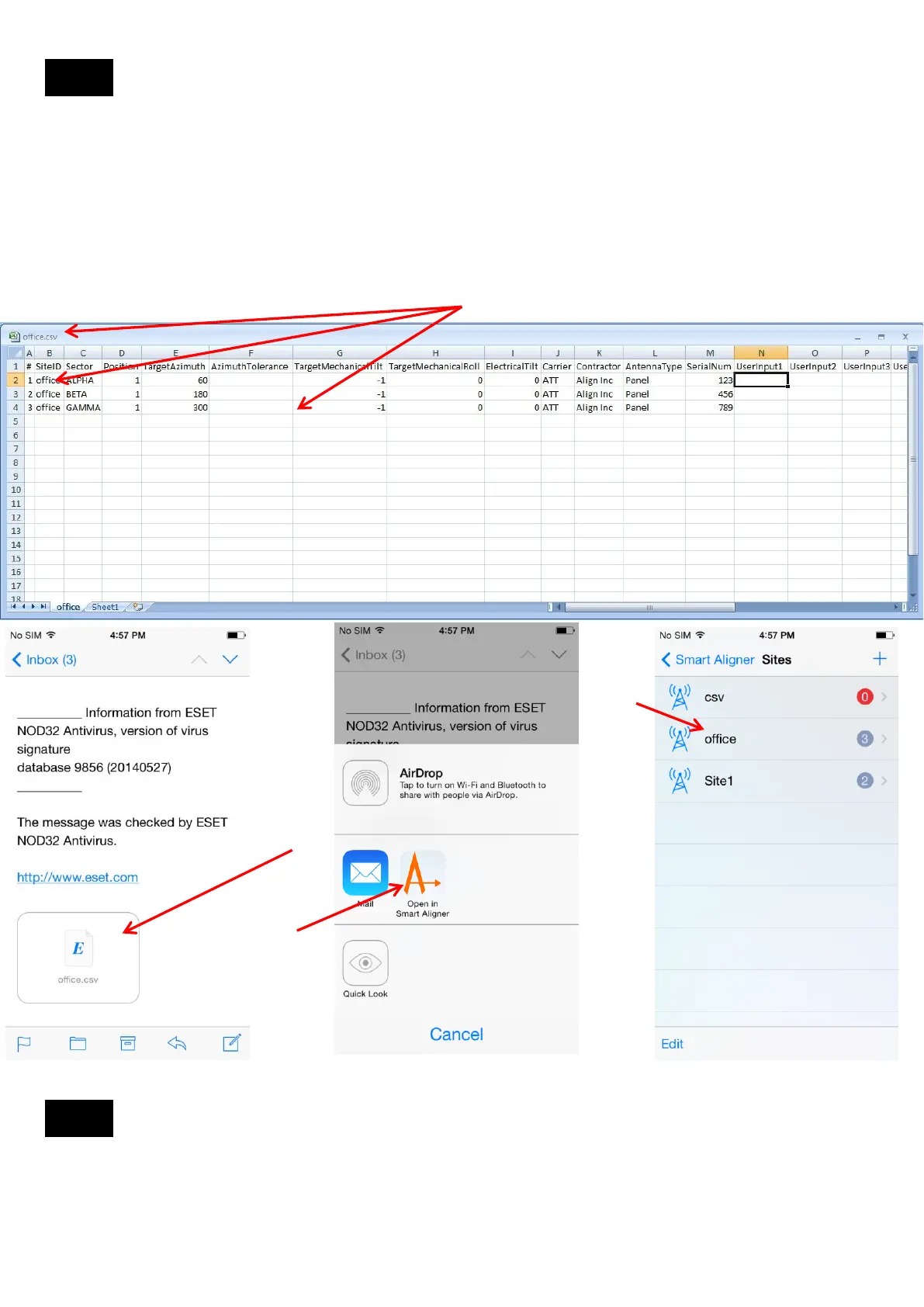
Open the blank/generic csv file. Name the file according to the Site name. Example: office.csv
NOTE: MUST be saved as a csv file. In Excel go to “Other Formats” and it will default to the csv format.
1. Enter data into the User Fields. Site ID for all antennas should be “office”. Save “office.csv”. Be sure that it is
saved as a csv file and not an xls file. For example see entered data example as below.
2. Email “office.csv” to your phone.
3. Tap and hold “office.csv” in the attachment and there will be an option to “Open in Smart Aligner”
4. Tap “Open in Smart Aligner”
5. The Site “office” has been added with three (3) antennas as per the example.
1
2,3
3
5
4
Export a csv Site File
Follow steps 2 to 6 in Create a blank/generic csv file (Section 14.1) for the selected site.
14.6
14.7
25


 To Next Page