026057 RevE 6 © 2020 Natus Medical Incorporated
Navigating the Echo-Screen III Interface Echo-Screen III Pro Instructions for Use
Navigating the Echo-Screen III Interface
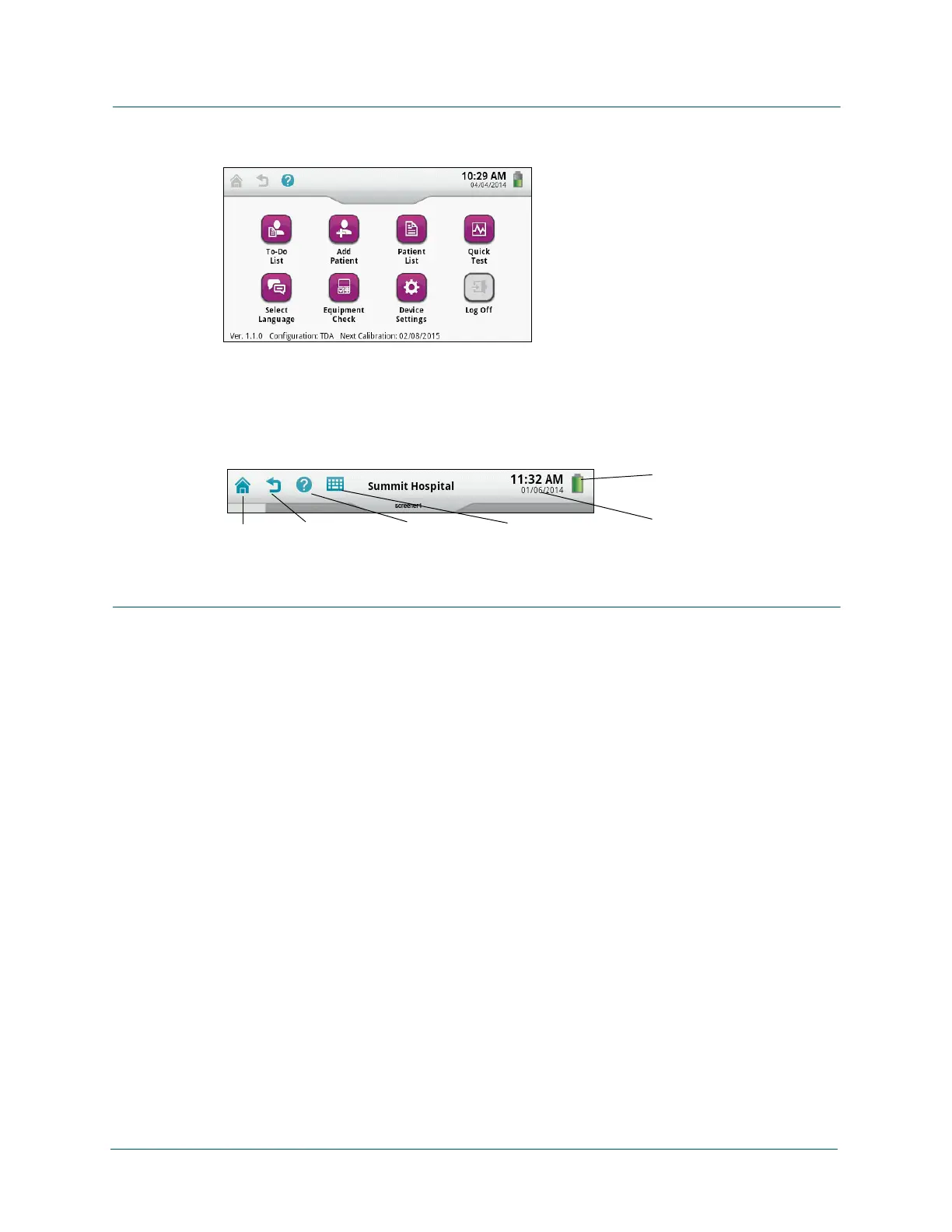
• Starting at the Home screen, touch a button to start a task. (Some buttons may be
grayed out or dimmed, depending on how the administrator configured the device.)
• On screens that contain more data than can be viewed, drag the screen up and down,
or press the up and down arrow keys to see more data.
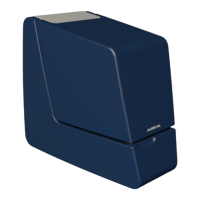
• Each screen on the device has a header that provides information and navigational
aids. Touch icons on the screen header to perform actions. Icons are grayed out or
dimmed on screens where the functions are not available.
Entering Data
Select options and enter data by using the touch screen, physical or touch-screen keyboard, or
optional barcode reader:
• Touch an option to select it.
• Touch a field and then type by using the physical or touch-screen keyboard. The device
might be configured to automatically show the touch-screen keyboard when you touch
a field that supports keyboard entry. If not, touch the keyboard icon in the screen header
to display the touch-screen keyboard.
• To move to the next field, touch the Enter key on either keyboard or press an arrow key
on the physical keyboard.
• To enter letters with diacritical marks, press and hold the related key on either keyboard
for about one second until the available letters are displayed. For capital letters, first
press the CAP key, and then press and hold the related letter key. On the displayed list
of available letters, touch the letter you need and then press Enter. To close the list
without selecting a letter, touch the small X to the right of the list.
• Double-press the CAPS key to lock in capital letters. Double-press the 123 sym key to
lock in symbols and numbers. Press the key again to release the lock. The screen
header indicates CAPS or SYM when capital letters or symbols are locked on the
physical keyboard. The associated buttons turn red when capital letters or symbols are
locked on the touch-screen keyboard.
• To scan a barcode into a field if the device includes a barcode scanner, touch the field
to activate the barcode reader, aim the barcode scanner at the barcode, and press the
barcode button. The selected field is filled with the data from the barcode.
Go to Home
Go back one
screen
View Help
Open touch-screen
keyboard
Date and time
Battery charge status


 To Next Page