026057 RevE 8 © 2020 Natus Medical Incorporated
Working with Patient Information Echo-Screen III Pro Instructions for Use
Working with Patient Information
Except for Quick Tests, patient information must be entered on the device before you can start
to screen. Quick Tests do not allow you to enter patient information and do not save any test
data.
Two lists store patient information on the device:
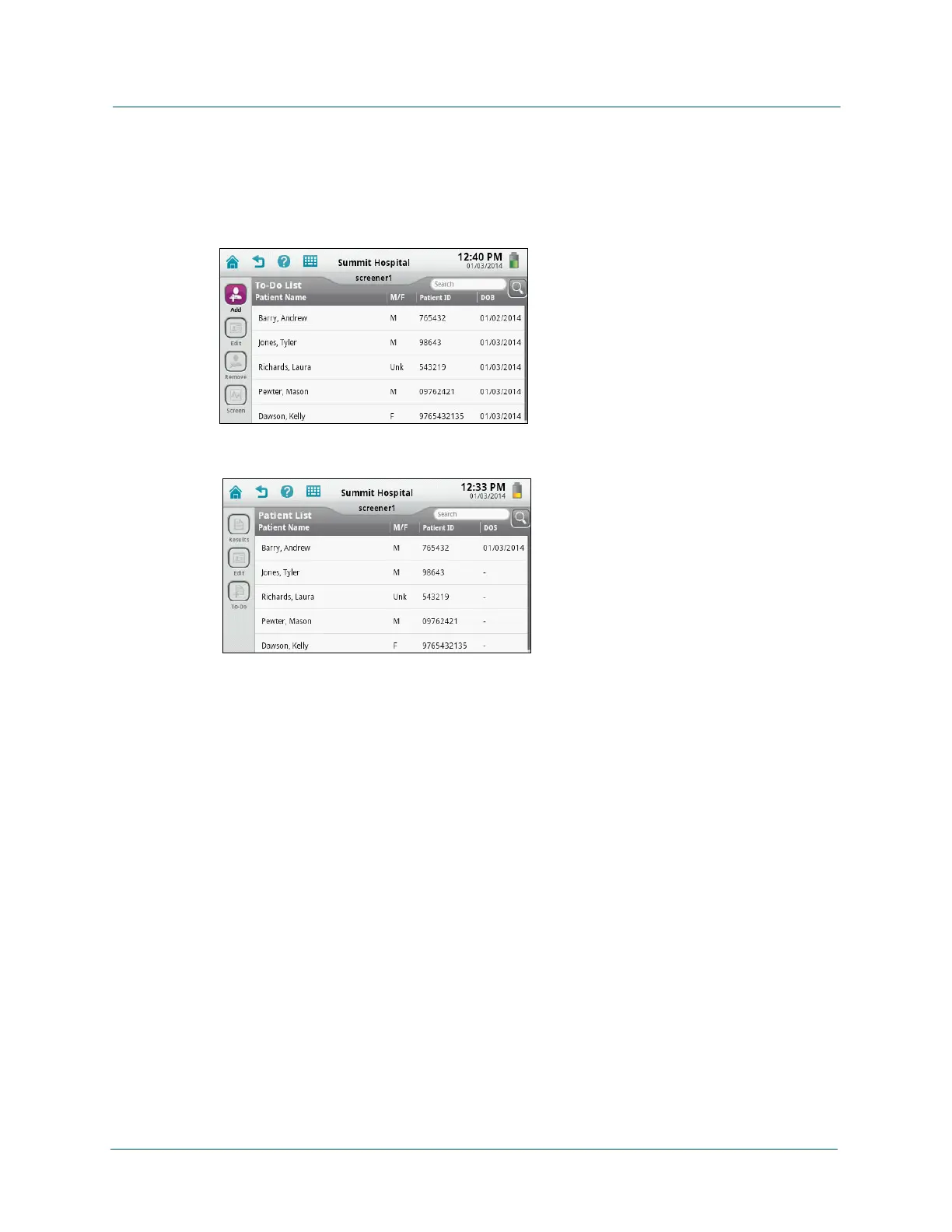
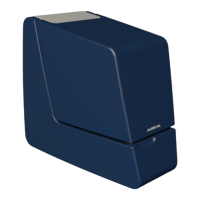
• The To-Do List contains all the patients who need to be screened.
• The Patient List contains every patient on the device, whether or not the patients have
been screened.
Enter patient information in either of two ways:
• Enter the information in the audble Desktop data manager and upload it to the device.
Uploaded patients are added to the To-Do List. See the audble Desktop User Guide
for details.
Note: When you upload patients with risk factors, you do not see the risk
factors on the device. However, any risk factors you add for the patient on the
device are merged with the risk factors in the audble database when you
transfer the patient and test records back to the audble software.
• Enter the information directly on the device and screen immediately or save the
information for later screening. Saved patients are added to the To-Do List and the
Patient List. Patients who are screened (that is, both ears screened to completion with
a Pass or Refer result during this session) are saved only in the Patient List.
Add new patient to the device:
1 On the Home screen, touch Add Patient.
— OR —
On the Home screen, touch To-Do List. In the To-Do List, touch Add.


 To Next Page