© 2020 Natus Medical Incorporated 9 026057 RevE
Working with Patient Information Echo-Screen III Pro Instructions for Use
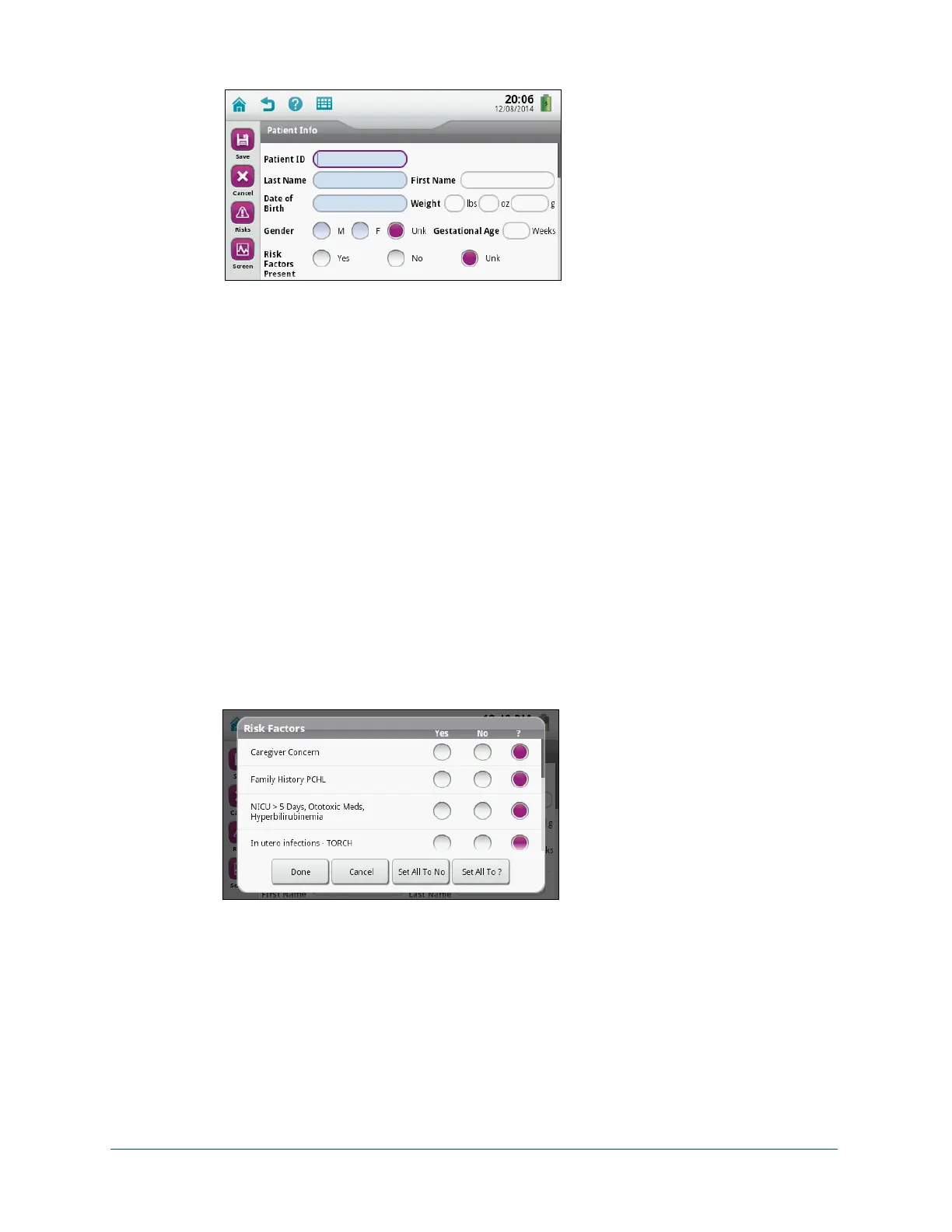
2 Enter the patient’s information.
Fields highlighted in blue are required. Patient ID is always required. Other required fields
are configured by the administrator. For details about the fields, see Echo-Screen III Help.
3 Touch Save to screen later, or touch Screen to start screening immediately.
Edit a patient:
1 On the Home screen, touch To-Do List.
— OR —
On the Home screen, touch Patient List.
2 In the list of patients, select the patient to be edited.
3 Touch Edit.
4 Change patient information as needed.
5 Touch Save to screen later, or touch Screen to start screening immediately.
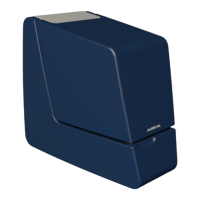
Enter risk factors (if configured on your device):
1 Add risk factors when adding or editing patient information, or before starting to screen:
• On the Patient Info screen, touch Risks.
• On the test selection screen, touch Risks.
2 On the Risk Factors screen, specify the appropriate risk factors:
• Touch Yes to specify a condition as a known risk factor.
• Touch No to specify a condition known to not be a risk factor.
• Touch ? to specify a risk factor as unknown.
• Touch Set All To No to reset all risk factors to No.
• Touch Set All To ? to set all risk factors to Unknown.
3 Touch Done.


 To Next Page