BenchMike Pro Instruction Handbook: Setup 4-5
When the Send command line is selected, the current measurements that have been selected for serial output
are transmitted via serial port #1 and serial USB, both located on the rear panel of the BenchMike Pro. This func-
tion can also be performed by pressing the Send Data data button on the front of the BenchMike Pro. To allow
data to be transmitted open the Setup->System->Communications Ports, under the Assignment tab, select the
Allow Measurement Data to be Sent option.
The Set Floating Nominal allows you to set floating nominal to the current reading. See Floating Nominal in the
Setup section, under Measurement Functions.
4.3 Feature Icon
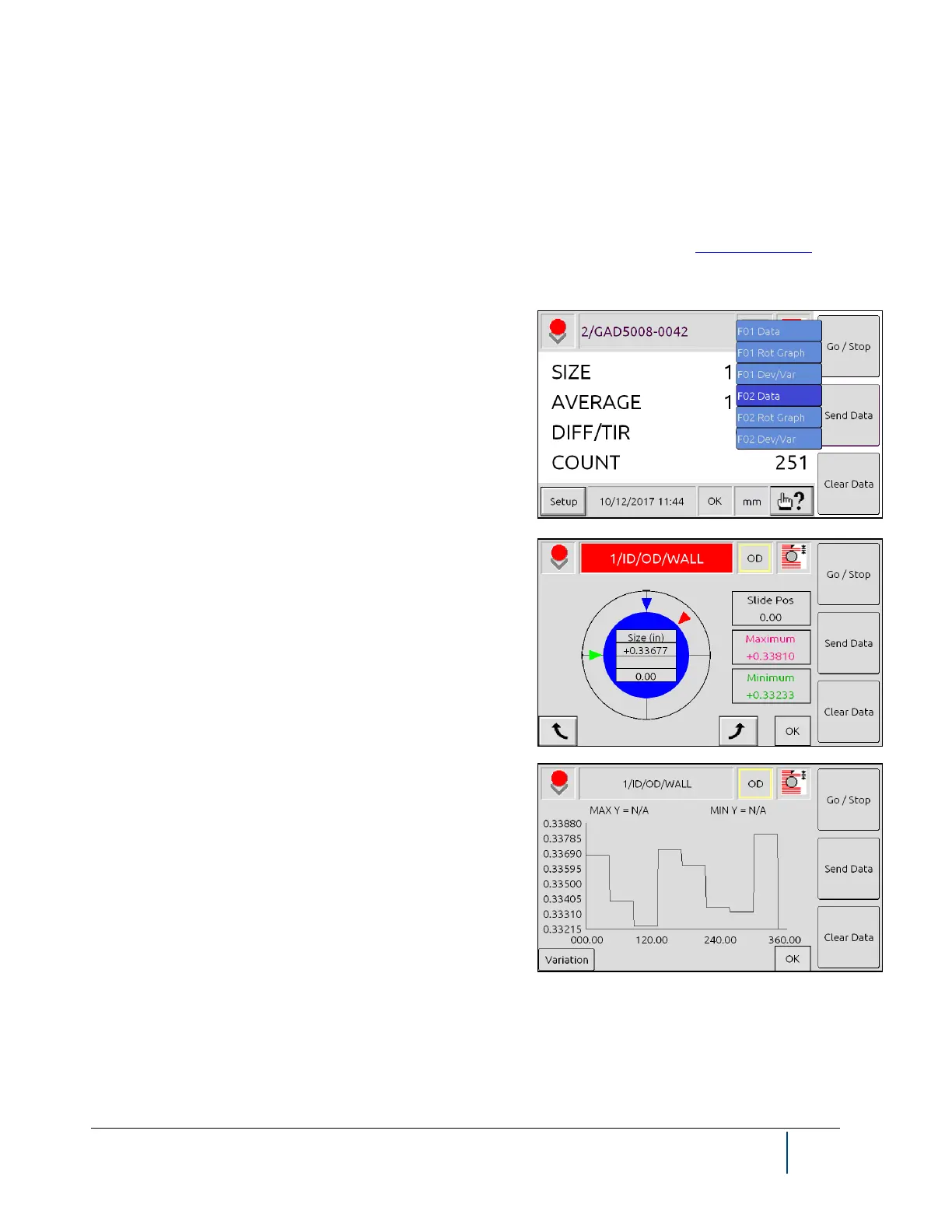
Touch the Feature icon in the upper right hand corner of the
screen to display the menu shown.
If you are using an Intelligent Fixture, you can also create Devi-
ation/Variation Graphs. If you have a rotary fixture, you can also
create a Rotary Graph (shown). If you do not have sufficient
data for the Deviation or Variation graphs (shown as Dev/Var),
those options will appear grayed out.
To move between the different graphs, touch the Feature icon
and select the desired view.
Deviation:
This graph shows the deviation from nominal at each position.
For each position “deviation” is the measured size minus the
nominal size entered by the user. The default nominal is 0.0.
Variation:
This graph shows the size variation between positions. For all
but the final position “variation” is the absolute value of the dif-
ference between the next measured size and the current measured size. For the final position “variation” is the
absolute value of the difference between the first measured size and the final measured size.


 To Next Page