Getting Started 2-9
ML440 End User Guide - Revision 1
Configuring the STATUS LED on the Handset
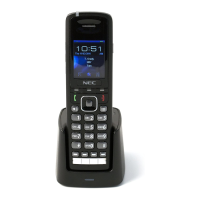
The STATUS LED at the top of the handset has three available colors:
red, green and yellow; green and yellow are configurable by the user.
You can specify what color the STATUS LED turns when you miss a call,
have a new voice message, or need to recharge the battery. Follow the
steps below the configure the STATUS LED.
Step 1 Press Menu to open the main menu screen.
Step 2 Select the General Settings icon, then select LED signal.
Step 3 Select Green LED, then choose what you want the green LED to mean.
Step 4 Press End to go back one menu level, then repeat the same selection
with the Yellow LED.
Step 5 For future reference, use Table 2-5 to record your settings. For example,
if you set the LED to turn yellow when you miss a call, place an X under
Missed
call on the YELLOW LED row.
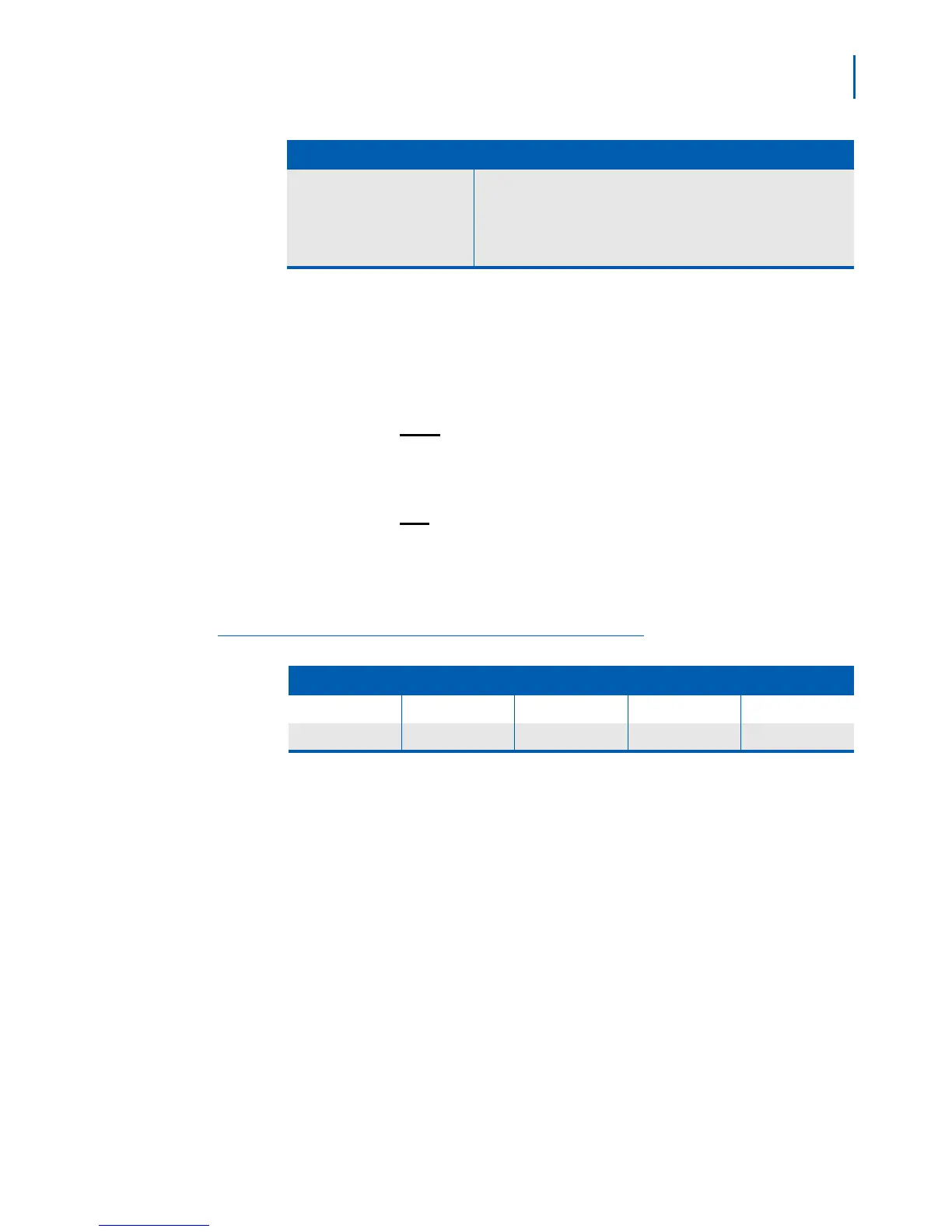
Table 2-5 STATUS LED Settings
LED Color Missed Call Voice Mail Low Battery None (Off)
GREEN
YELLOW
F1 (in function key 1)
F2 (in function key 2)
F3 (in function key 3)
F4 (in function key 4)
These four LEDs are controlled by the PBX: contact your system
administrator for information on the available LED states and what
each one means.
Handset LEDs Meaning


 To Next Page