INSTALLER SET
SETTING ACCESS
You can modify the default settings by entering one of the four Install modes :
6HW&RQÀJWRVHWWKHV\VWHPFRQÀJXUDWLRQLHWKHPDLQV\VWHPSDUDPHWHUV
- Optional Function: to set some optional functions
- Expert Setting: to set some expert parameters
- Expert Setting Plus: to set some secondary expert parameters
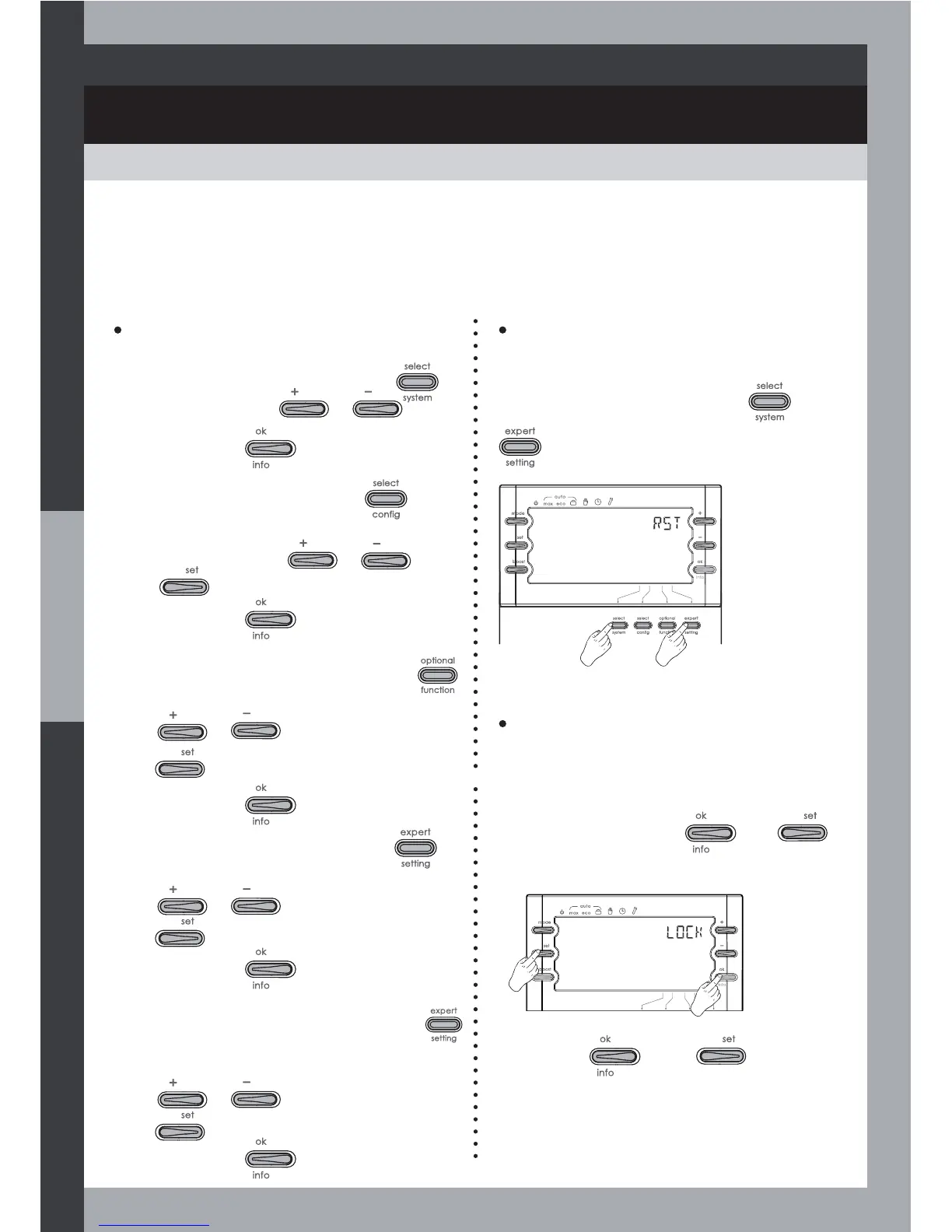
Restoring factory settings (reset)
The Reset function restores the factory
settings for all parameters.
To restore factory settings, press
and
and hold them down for 10 seconds.
10 sec.
Setting Lock
2QFH VHWWLQJ LV ÀQLVKHG \RX FDQ ORFN WKH
Install settings (so that the user is only able
to change the User settings).
From Expert Mode, press
and
and hold them down for 5 seconds.
Then press
and and hold
them down for 5 seconds to unlock the
keys.
5 sec.
How to set the product
1- Select system :
Press the button .
Select a system using
or .
Save by pressing
.
6HW&RQÀJ
Press the button .
6HOHFW WKH FRQÀJXUDWLRQ SDUDPHWHUV IRU WKH
selected system, using
or .
Press to modify.
Save by pressing
.
3- Optional function:
Press the button .
Select the options for the selected system,
using
or .
Press
to modify.
Save by pressing
.
4- Expert Setting:
Press the button .
Select the parameters for the selected system,
using
or .
Press
to modify.
Save by pressing
.
5- Expert Setting Plus:
Press the button
and hold it down for 5 seconds.
Select the parameters for the selected system,
using
or .
Press to modify.
Save by pressing
.
46



 To Next Page