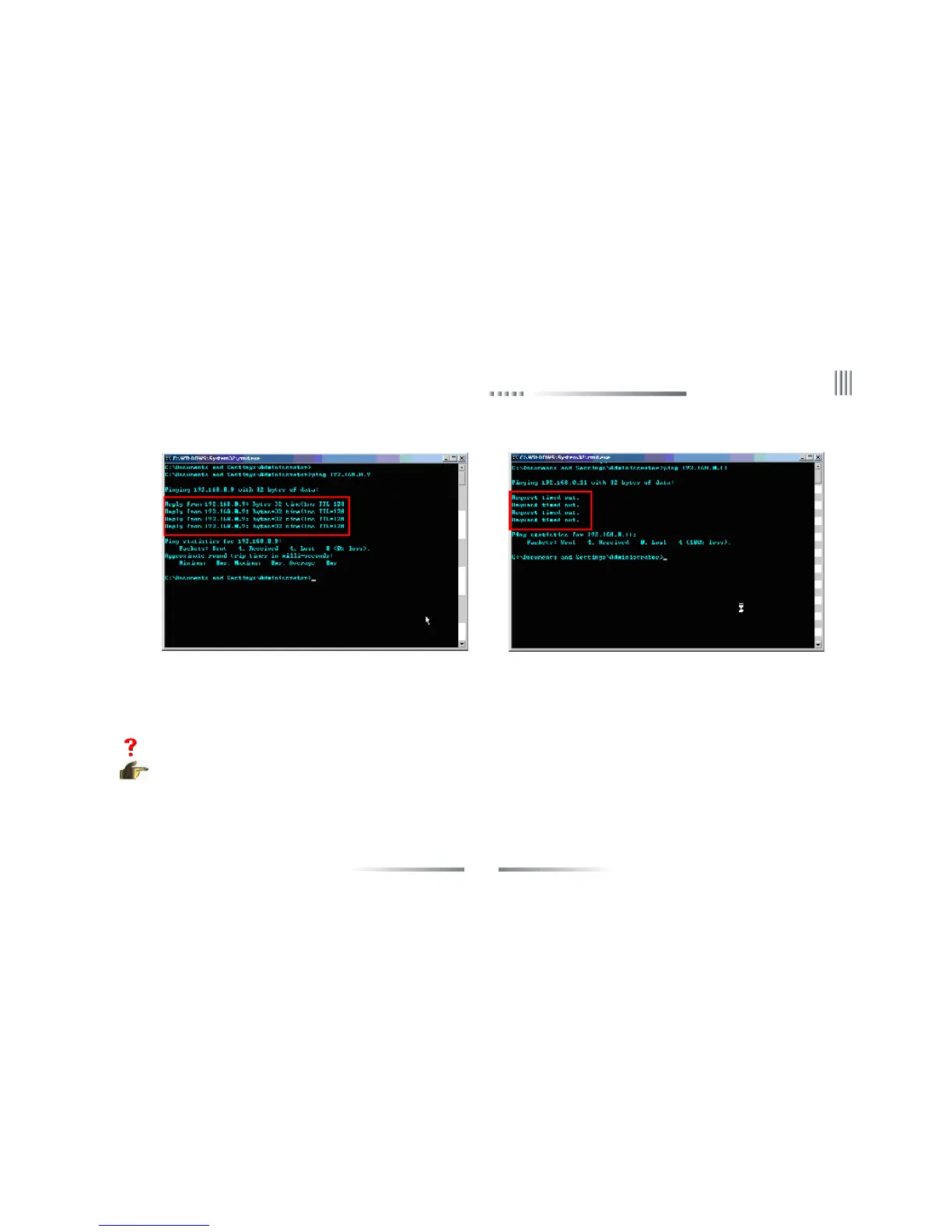
Following picture shows computer and 192.168.0.19 DVR connection has been established;Following picture shows computer and 192.168.0.
11 DVR connection has not been established:
E. Enter the client software. F. Input the IP, Port, user name, password of the DVR server, and then click login.
Note: If you still can not login successfully, please confirm the above user name and password or repeat checking A-> F steps. If you can not
login, please uninstall the client program, select new directory for installation, and then implement A-> F steps again.
06: I input DVR IP address, user name and password in client manager software, and system shows successfully connected to remote DVR, but
I cannot view the cameras. Why?
06: 1.Please check if the computer has opened firewall protection. If so, close it or set the security level lower.2. Try to close/open the
Multicast function in host DVR. When multicast data can’t be received, some devices fail to have images although user successfully log in. 3.
Check the model of your display card. Some diaplay cards are not compatible with our products.



 To Next Page