Manage the Extender Network and Security Settings
59
AC1200 WiFi Range Extender
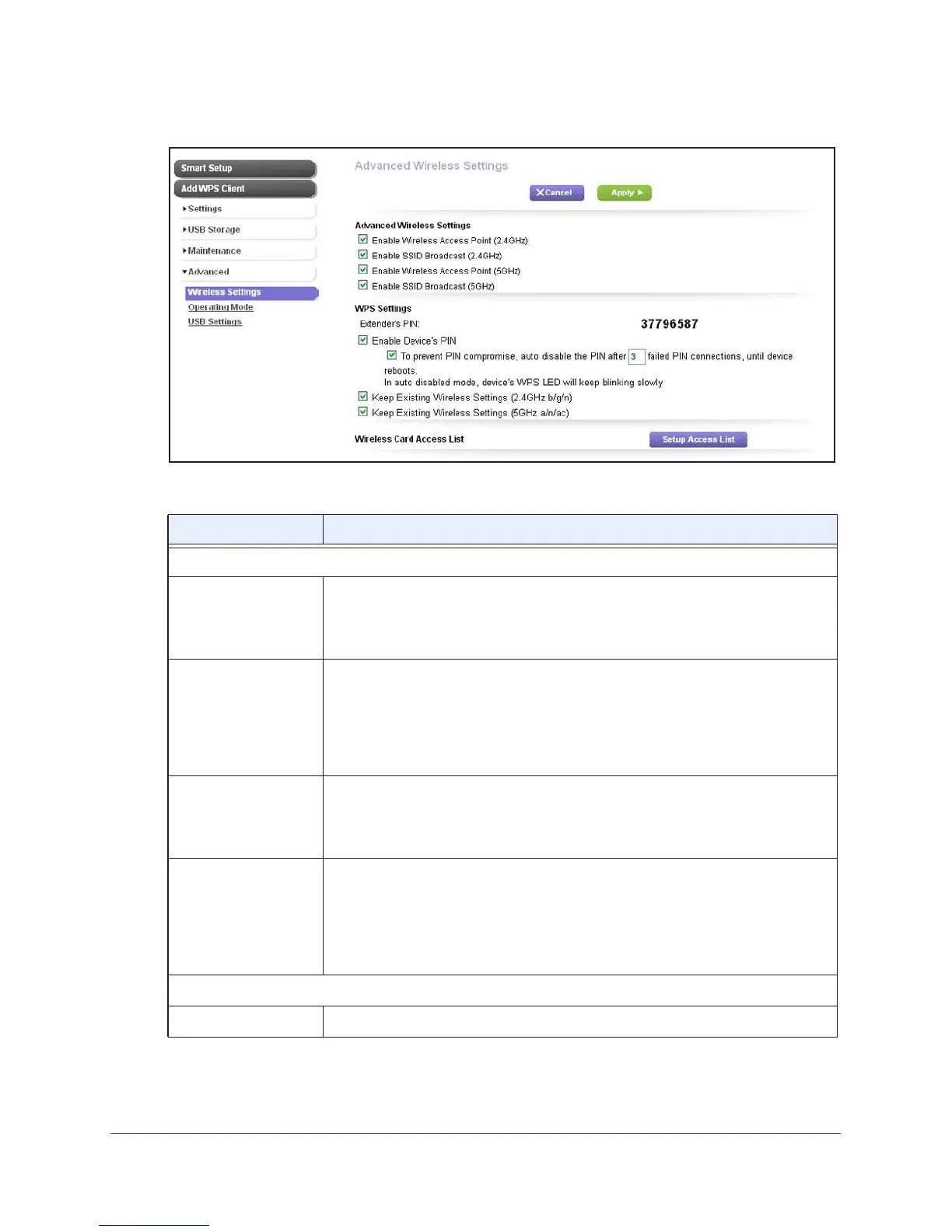
4. Select Advanced > Wireless Settings.
5. View or change the following settings as described in the following table:
Setting Description
Advanced Wireless Settings
Enable Wireless
Access Point (2.4GHz)
By default, the extender functions as a WiFi access point in the 2.4 GHz band.
Clear the Enable Wireless Access Point (2.4GHz)
check box only if you want to
prevent WiFi devices from connecting to the extender in the 2.4 GHz band. LAN
devices can still connect to the extender over an Ethernet cable.
Enable SSID
Broadcast (2.4GHz)
By default, the extender broadcasts its WiFi network name (SSID) for the 2.4 GHz
band. Clear the Enable SSID Broadcast (2.4GHz) check box only to hide the
network name of the extender in the 2.4 GHz band. In such a situation, the
network name of the extender does not display in a WiFi network manager
. A user
who wants to join the hidden WiFi network of the extender must know its network
name.
Enable Wireless
Access Point (5GHz)
By default, the extender functions as a WiFi access point in the 5 GHz band. Clear
the Enable Wireless Access Point (5GHz)
check box only if you want to prevent
WiFi devices from connecting to the extender in the 5 GHz band. LAN devices can
still connect to the extender over an Ethernet cable.
Enable SSID
Broadcast (5GHz)
By default, the extender broadcasts its WiFi network name (SSID) for the 5 GHz
band. Clear the Enable SSID Broadcast (5GHz) check box only to hide the
network name of the extender in the 5 GHz band. In such a situation, the network
name of the extender does not display in a WiFi network manager
. A
user who
wants to join the hidden WiFi network of the extender must know its network
name.
WPS Settings
Extender’s PIN This is a fixed field that shows the extender’s PIN.


 To Next Page