PPRROOGG
SS AA VV EE UU NN DDOO II NN VV EE RR TT
006600
009900 007700 002200 113355 000000 225555
====== 225555
0011
SSCCEENN
0022
UUNNIITT
0011
PPAANN TTIILLTT CCOOLLOOUURR
====== ====== ======
CCYYAANN MMAAGGEENNTTAA YYEELLLLOOWW
DDIIMMMMEERR SSHHUUTT//SSTTRR ZZOOOOMM MM--SSPPEEEEDD CCOOLL..MMOODDEE CCOOLLOOUURR 22
MMAASSKK CCHHAANNNNEELLSS......
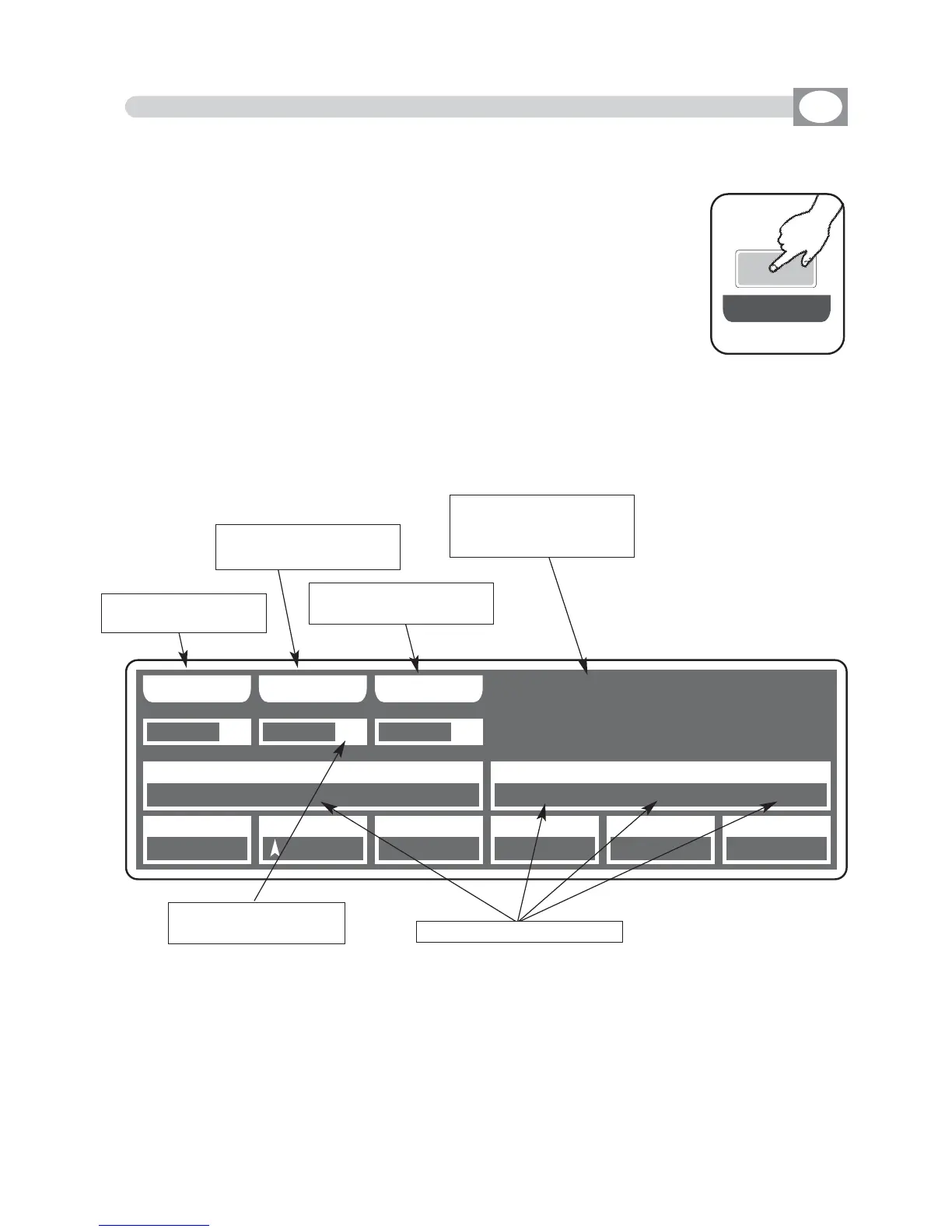
4.9 MASK FUNCTION IN SCENE MODE
GB
Press
MASK
key to activate
MASK
function
(Fig. 10)
The display changes as shown in (Fig. 11)
The graphic display indicates the channels masked with the sym-
bol"==="
(Fig. 11)
The operator in this case masks the tilt, cyan, magenta and yellow
channels. When you recall the scene The masked channels stay to
the value planned in precedence.
Very useful function for create scenes that make only change color etc.
THIS FUNCTION ALLOWS TO MASK THE CHANNELS OF THE PREVIOUSLY SELEC-
TED UNIT IN A DETERMINED SCENE.
Fig. 10
MM AA SS KK
Fig. 11
Press one of the 1÷12 keys to masks the correspondent
channels
.
For successive channels use the
PPAAGGEE
key
INVERT
key:
Press this key to reverse the selection of the actual mask, in the case of the
(Fig. 9)
tthhee ttiilltt,, ccyyaann,, mmaaggeennttaa aanndd yyeellllooww cchhaannnneellss bbeeccoommeess mmooddiiffiiaabbllee,, wwhhiillee
tthhee ootthheerrss ccoommeess mmaasskkeedd
.
Key to save the mask
of the scene
Key to return to the
mask of the saved scene
reverses the selection of
her actual mask
indicates that we are
inside at the function of
masking
Shows the scene that
we are masking
Shows the masked channel


 To Next Page