
 To Next Page
J
Jennifer HarrisSep 13, 2025
Why is the sound not synchronized with the video during playback on my NextBase Dash Cameras?
- MmatthewcobbSep 13, 2025
Download the latest Codecs from: http://www.nextbase.co.uk

Why is the sound not synchronized with the video during playback on my NextBase Dash Cameras?
Download the latest Codecs from: http://www.nextbase.co.uk
Why is the playback jumpy on my NextBase DUO Driver Recorder Player?
Download the latest Codecs from: http://www.nextbase.co.uk
Why can't video files be played from my NextBase DUO?
Install the supplied Datakam software and the additional Codecs from the www.nextbase.co.uk website if necessary.
How to fix a NextBase DUO photograph that is blurred?
To avoid blurred photographs, hold the camera still while taking the photo. The photo is taken approximately 1 second after the shutter noise is heard.
Why can't my NextBase Dash Cameras iN-CAR CAM lock onto a satellite?
After powering on the device, it can take up to 10 minutes to find the three satellites required for a stable signal. Ensure the device is mounted with a clear view of the sky.
Why won't the sucker stay in place on my NextBase DUO windscreen?
To ensure the sucker stays in place: * Remove the protective cover (plastic film) from the suction pad. * Moisten the sucker slightly before affixing it to the windscreen. * Ensure the locking dial is rotated clockwise to the end stop. * Make sure the glass is smooth and clean. Do not stick to glass that has any non-smooth effect or paint. Affix to the glass firmly and then rotate the dial to the full extent.
What to do if I get the message “Card Full” on my NextBase DUO Dash Cameras screen?
If you receive a “Card Full” message, you should delete unnecessary files or perform a full FORMAT on the SD card from within the iN-CAR CAM General Settings menu.
How to fix a blurred video image on NextBase DUO Dash Cameras?
To fix a blurred video image, remove the protective lens cover, clean the lens, and clean the windscreen.
Why is my NextBase Dash Cameras video file playback jumpy?
Jumpy video playback can occur due to non-contiguous files on the SD card. Remove the SD card and reformat it. For optimal recording, use a branded class 10 type (30MB/s) SD card with a recommended size of 8 to 32GB. The Datakam program is recommended video playback software. If your PC is insufficient for playback, try a different one. Copy the recorded video files onto the PC/Mac for direct playback rather than using the iN-CAR CAM as a card reader, as the USB system on your PC may be too slow for HD video playback.
What to do if I get the messages "Protect slot is xx% full" or "Protect slot full" on my NextBase DUO Dash Cameras screen?
Delete unnecessary files or perform a full FORMAT upon the SD card from within the iN-CAR CAM General Settings menu.
Covers basic device operation, video recording tips, memory card care, and playback software usage.
Details critical safety warnings, handling cautions, LCD characteristics, and WEEE disposal guidelines.
Instructions for inserting memory card and securely attaching device to windscreen mount.
Guides on cleaning windscreen and positioning mount for optimal visibility and adhesion.
Details connecting car adapter to device/vehicle and routing power cable safely.
Advice on device placement, avoiding driver obstruction, and safe operation while driving.
Explains icons displayed on screen in Video Mode.
Describes icons and information displayed on screen in Photo Mode.
Addresses blurred video, SD card insertion/removal, playback errors, and jumpy footage.
Solutions for power loss, battery life, card errors, and suction cup mounting problems.
Covers parking mode, menu issues, software download errors, time settings, and contact for unresolved problems.
 General
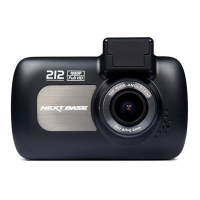
| Product color | Black |
|---|---|
| Auto power off | Yes |
| G-shock sensor | - |
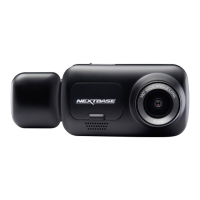
| Number of cameras | 2 |
| Maximum frame rate | 30 fps |
| Aperture range (F-F) | 2 - 2.2 |
| Main camera resolution | 1280 x 720 pixels |
| Main camera viewing angle | 150 ° |
| Video compression formats | MOV |
| Interior camera viewing angle | 22 ° |
| Main camera sensor resolution | 1 MP |
| Output current | 1.5 A |
| Battery capacity | 700 mAh |
| Operating voltage | 5 V |
| Power source type | Battery, Cigar lighter |
| Display diagonal | 2 \ |
| Built-in storage media | No |
| Compatible memory cards | MicroSD (TransFlash) |
| Maximum memory card size | 32 GB |
| Cables included | DC, USB |
| Quantity per pack | 1 pc(s) |
 Weight and Dimensions
| Depth | 24 mm |
|---|---|
| Width | 135 mm |
| Height | 52 mm |
| Weight | 95 g |