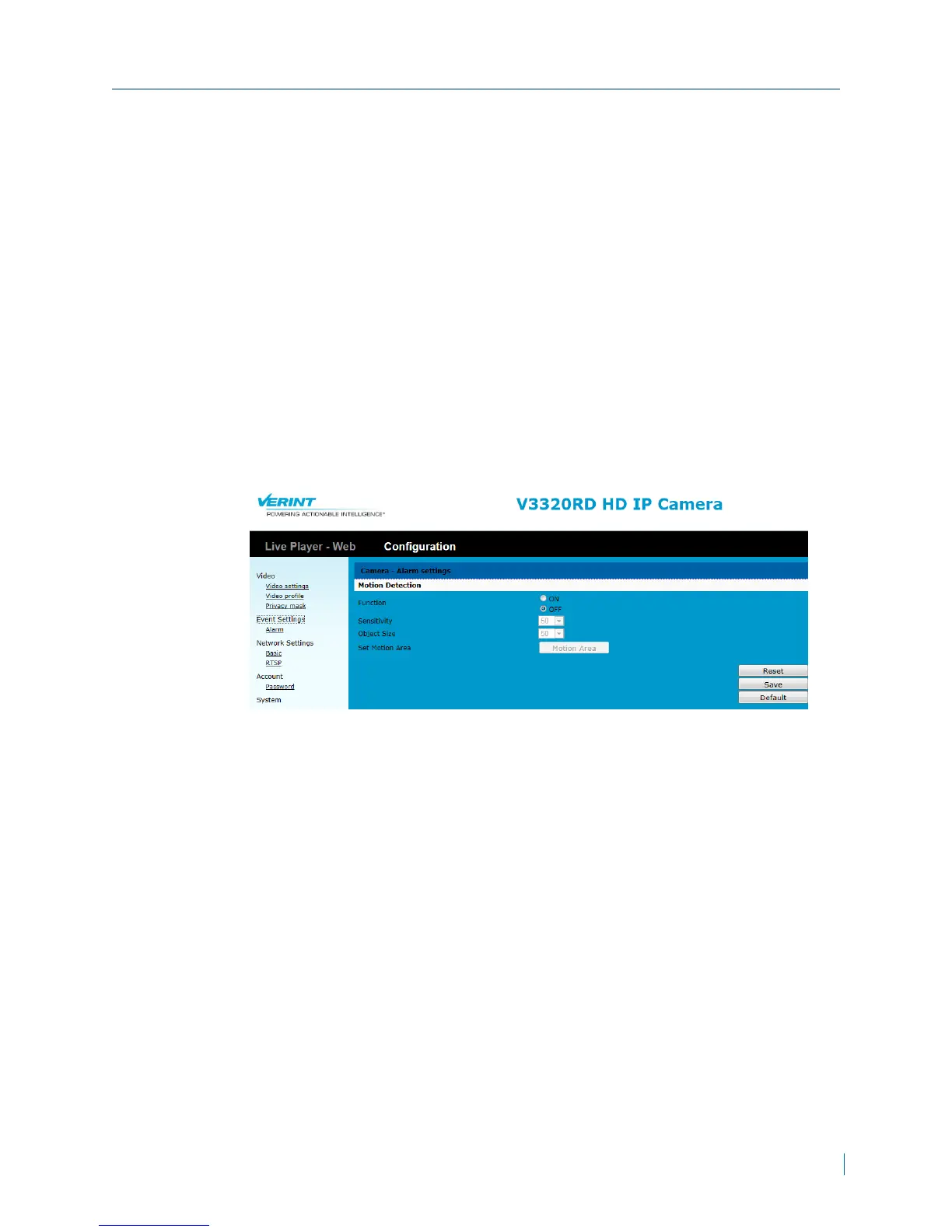
Configuring Motion Events
A Motion Area is a region of interest you have selected within a camera's field
of view. Once configured, each time motion occurs in the region of interest, you
can create an event to record video with a higher resolution and frame rate.
To detect motion, every captured video image is compared with the previous
one; if there is a change in the image, it is marked as having motion.
► To configure motions events
1. In a web browser, type the IP address of the Nextiva IP camera in the
Address bar, and then press ENTER.
2. Type the username and password.
3. Click Configuration >Event Settings>Alarms.
4. Select ON.
5. In the Sensitivity box, set the sensitivity level for motion detection. A
higher setting will trigger motion detection when there is any kind of
luminance difference. The higher the sensitivity, the higher the chances to
have false motion images.
6. In the Object Size box, set the object size relative to the region size. a
higher value will only detect very large objects in the window. If object size
is set to a low-value, it will detect small objects as well as large.
7. Click Motion Area.
8. In the dialog box, click and drag the mouse to create a window around the
Chapter 3: Configuration
© 2013 Verint Video Systems Inc. 32



 To Next Page