EN-50 PX Series Balance
9.4.4 USB Connection
The balance’s USB port terminates with a 4-pin, female, USB Type B connector.
A USB Cable (type B/male to type A/male) is required (not supplied).
1. Ensure that the balance is powered on and working properly.
2. Power on the computer and verify that its USB port is enabled and working properly.
3. Plug the cable’s USB connectors into the computer’s USB port and the balance’s USB port. Windows®
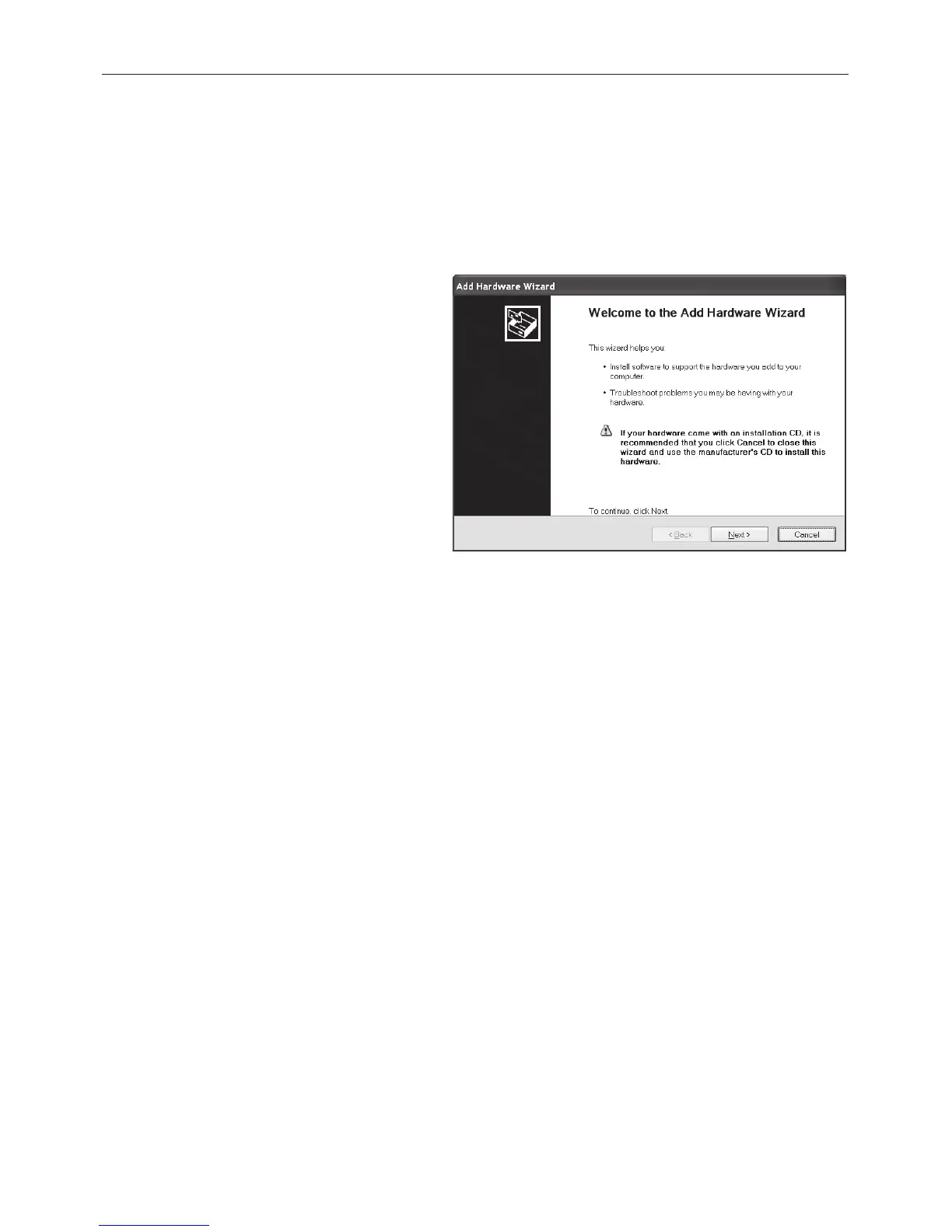
should detect a USB device and the New Hardware Wizard will be initialized.
Download from Ohaus' Website
1. The New Hardware Wizard guides you through
the required steps to select the driver that is
located on the website.
2.
After clicking Finish, the virtual port should be
ready for use.
Windows
®
typically adds the virtual port in
sequence after the highest number COM port.
For example, on PC’s equipped with up to 4
COM ports, the virtual port will be COM5.
When using the USB interface with programs
that limit the number of COM port designations
(e.g. Ohaus MassTracker allows only COM1,
2, 3, & 4), it may be necessary to assign one of
these port numbers to the new virtual port.
Example of Windows XP Hardware Wizard
This can be done in the Port Settings of the Device Manager utility, found in the Windows Control Panel.
USB INPUT
The balance will respond to various commands sent via the interface adapter.
Terminate the following commands when with a [CR] or [CRLF].
PX Commands
P same as pressing Print
SP print stable weight only
IP immediate print of displayed weight (stable or unstable)
CP Continuous print of weights
T same as pressing Tare
Z same as pressing Zero
PV print software version
xT establish a preset Tare value in displayed unit. X = preset tare value.
Sending 0T clears tare (if allowed).
Auto-Print Operation
Once Auto-Print is activated in the menu, the balance will send data as required.
If there is data in the print buffer the printer will finish printing this data.
10. SOFTWARE UPDATES
Ohaus is continuously improving its balance software. To obtain the latest release, please contact your Authorized
Ohaus Dealer or Ohaus Corporation.




 To Next Page