111
EN
8
Printing
All-frame reservation
Applies print reservation to all the pictures stored in the card. The number of prints is fixed at 1.
1 MENU[q][<]
2 Select [U] and press the i button.
3 Select the date and time format and press the i button.
[NO] The pictures are printed without the date and time.
[DATE] The pictures are printed with the shooting date.
[TIME] The pictures are printed with the shooting time.
4 Select [SET] and press the i button.
Resetting the print reservation data
You can reset all print reservation data or just the data for selected pictures.
1 MENU[q][<]
Resetting the print reservation data for all pictures
2 Select [<] or [U] and press the i button.
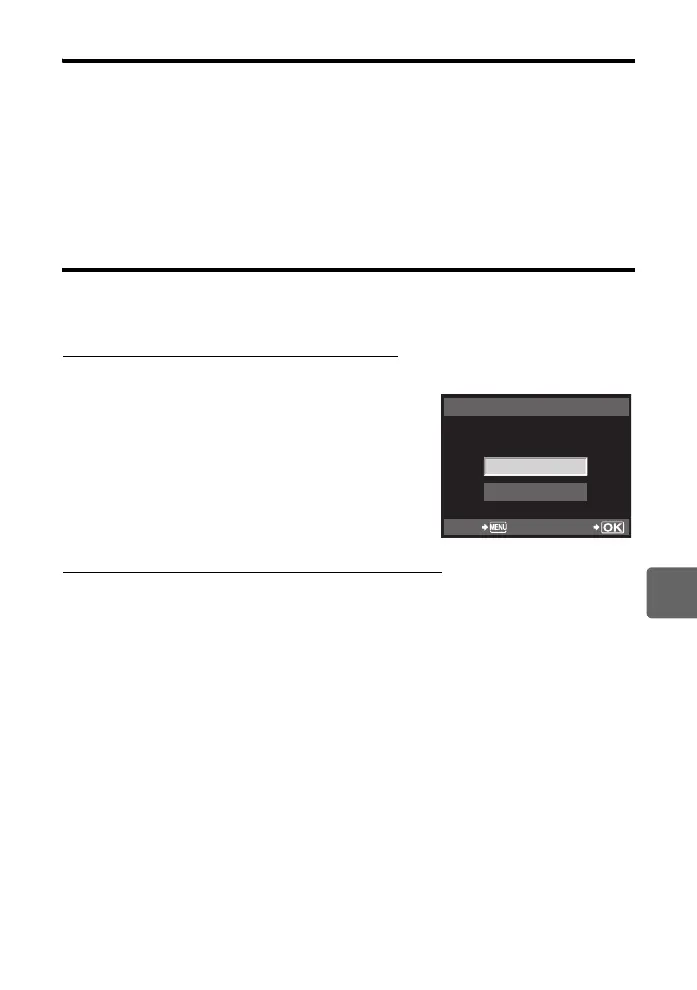
3 Select [RESET] and press the i button.
Resetting the print reservation data for a selected picture
2 Select [<] and press the i button.
3 Select [KEEP] and press the i button.
4 Use hi to select the frame with print reservation data you want to reset, then
press g to set the number of prints to 0.
5 Press the i button when you have finished.
6 Select the date and time format and press the i button.
• This setting is applied to all frames with print reservation data.
7 Select [SET] and press the i button.
RESET
KEEP
PRINT ORDERED
PRINT ORDER SETTING
BACK
SET
s0026_e_00_0_unified.book Page 111 Tuesday, September 29, 2009 10:30 AM


 To Next Page