132 Infotainment system
Interrupting and resuming playback
Touch = to interrupt playback. The
screen button changes to l.
Touch l to resume playback.
Playing the next or previous track
Touch v to play the next movie file.
Touch t within the first seconds of
the movie playing to return to the
previous movie file.
Returning to the beginning of the
current movie
Touch t after a few seconds of the
movie playing.
Fast forwarding and rewinding
Touch and hold t or v. Release to
return to normal playback mode.
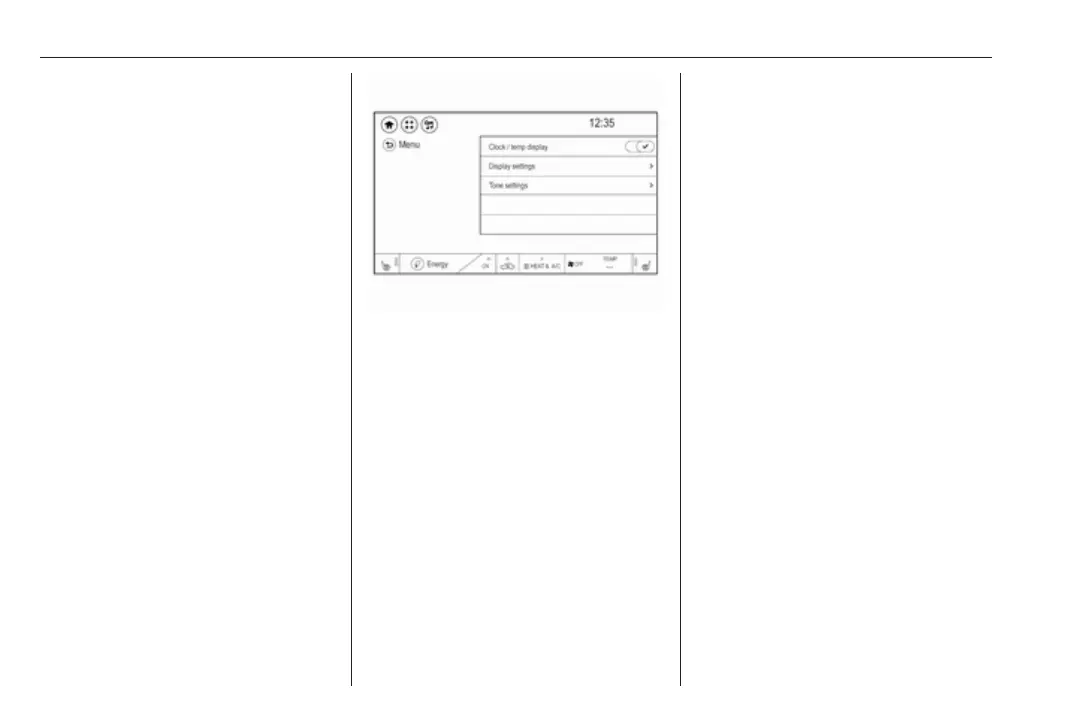
Movie menu
Select Menu to display the movie
menu.
Clock and temperature display
To display time and temperature in
full screen mode, activate Clock /
temp display.
Display settings
Select Display Settings to open a
submenu for adjustment of brightness
and contrast.
Touch + and - to adjust the settings.
Using smartphone
applications
The phone projection applications
Apple CarPlay™ and Android™ Auto
display selected apps from your
smartphone on the Infotainment
screen and allow their operation
directly via the Infotainment controls.
Check with the device's manufacturer
if this function is compatible with your
smartphone and if this application is
available in the country you are in.
Preparing the smartphone
Android phone: Download the
Android Auto app to your smartphone
from the Google Play™ Store.
iPhone: Make sure Siri
®
is activated
on your smartphone.
Activating phone projection in the
settings menu
Press p and then select 1 in the top
left corner of the screen to display the
application overview screen.
Select Settings.
Scroll through the list to
Apple CarPlay or Android Auto.
Make sure the respective application
is activated.



 To Next Page