Infotainment system 115
Note
Constant pressure must be applied
and the finger must be moved at
constant speed.
● Move the slider of the scroll bar
on the left side of the list up and
down with your finger.
Note
In subsequent chapters, the
operating steps for scrolling to a list
item via the touch screen will be
described as "...scroll to <item
name>".
Editing the Infotainment home
screen
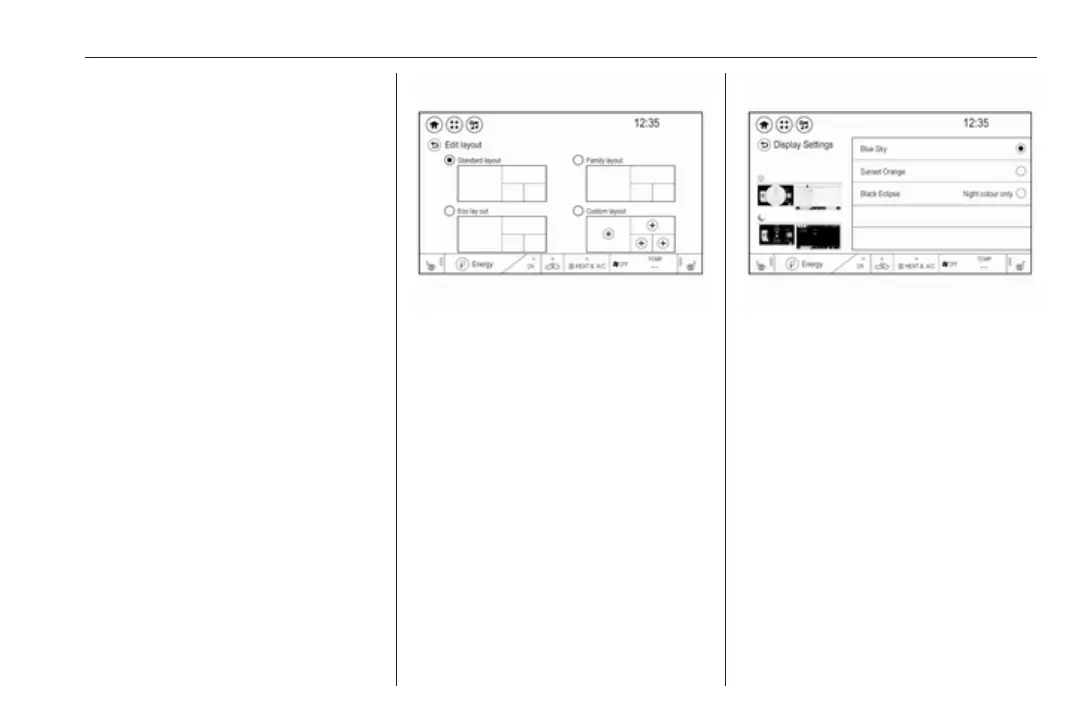
Press p to display the Infotainment
home screen and then select Edit. A
screen with different possible home
screen layouts is displayed.
Select the desired layout. The layout
is changed.
If you select Custom layout, a screen
for custom layout settings is
displayed.
Touch the different screen areas and
design the layout as desired.
Quick-jumping to the Audio or
Phone menu
Using the w symbol displayed in the
top line of some menus, you may
directly jump to the main menu of the
active audio source.
When a phone call is active and the
phone screen is not displayed, a
quick-jump phone icon is displayed to
directly jump to the phone main
menu.
Tone settings
In the tone settings menu, the tone
characteristics can be set. The menu
may be accessed from each audio
main menu.
To open the tone settings menu,
select Menu and then activate the
Audio settings tab. Select Tone
settings to display the respective
menu.



 To Next Page